
Workflows: workflow training builder
A Workflow captures the exact steps of a real business process and turns them into a practice exercise attached to a roleplay agent. Instead of manually building a form to approximate a task, you record yourself performing the ideal version of it, in Salesforce, Sprinklr, or any other browser-based system.
This article explains what a Workflow is, how learners practice one, and how to read the results. To record and set up a Workflow, see Create a Workflow Simulation.
Workflows live under Manage > Workflows.
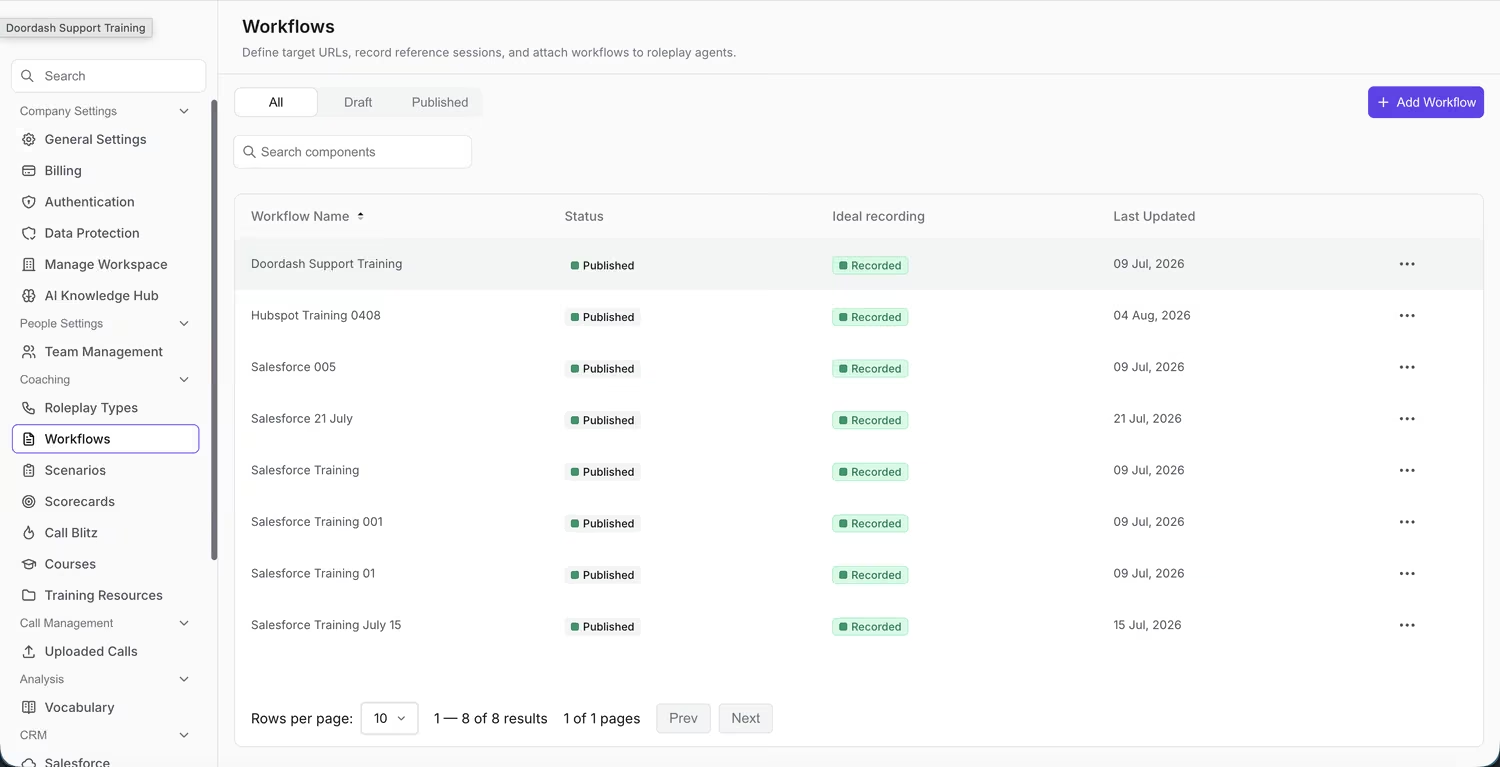
The Workflows list, where existing recordings live and new ones are created.
What a Workflow is
A Workflow is a recording of a real process, made with the Outdoo Workflow Chrome extension inside the actual system your team uses. Outdoo captures both a video of the recording and the underlying structured events: clicks, field entries, and the order you performed them in. That recording becomes the ideal run a learner's attempt is measured against.
This approach scales to processes of any complexity. Because you record the real interface directly, there is no separate form to design or keep in sync as the target system changes.
How a Workflow is built
An admin or manager records the ideal run once, using the Outdoo Workflow Chrome extension, and publishes it. The recording must pass a short checklist first: site access given, screen permission given, and a video longer than 30 seconds. For the full steps, see Create a Workflow Simulation.
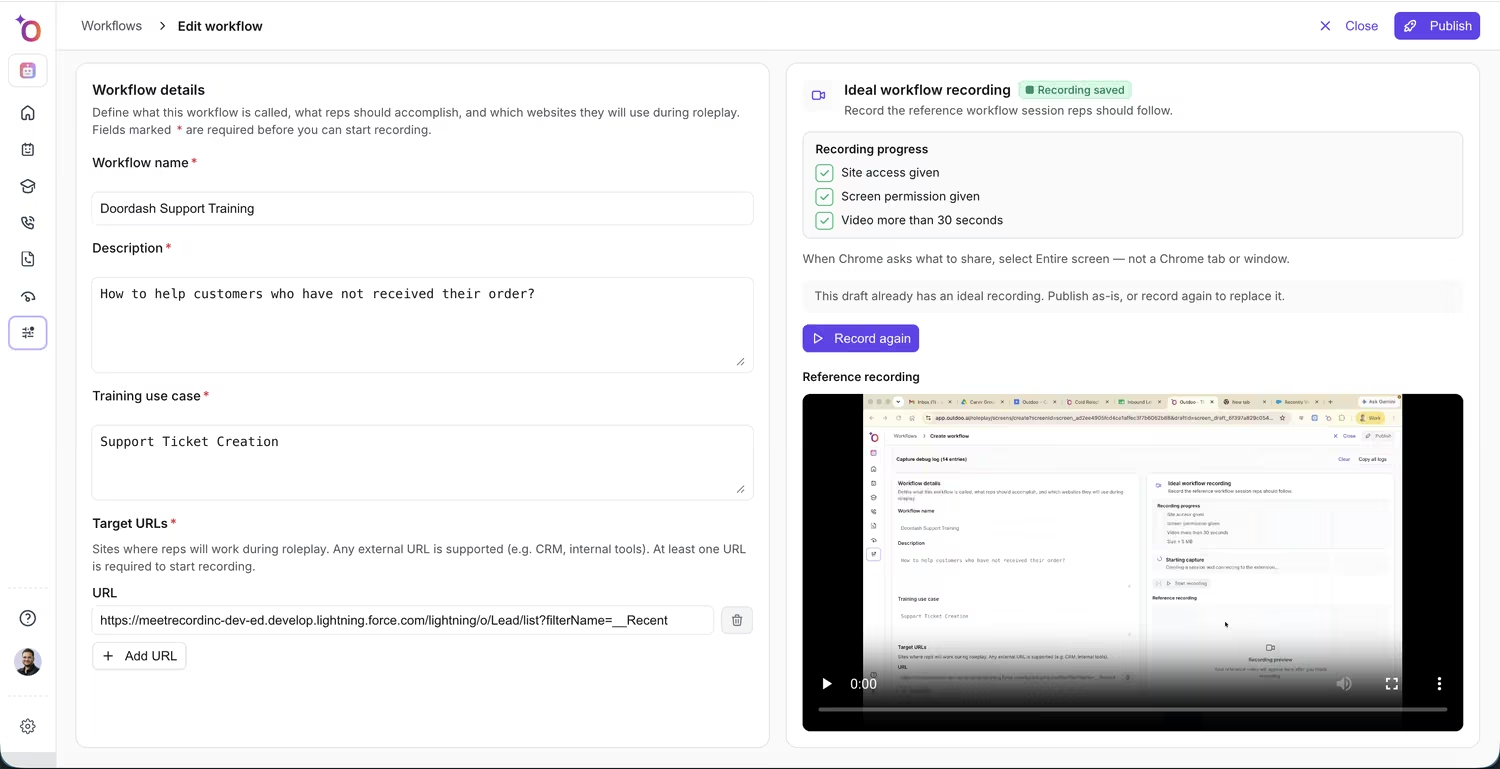
Workflow details on the left, the recording and its progress checklist on the right.
How learners practice a Workflow
A Workflow is practiced together with a roleplay call, not on its own. Once a Workflow is attached to a roleplay agent, learners see it as part of that agent's session. Depending on how the agent is set up, the learner completes the process during the conversation or after the session ends. The learner needs the Outdoo Workflow Chrome extension installed, and practice runs in Chrome.
Reviewing results
Outdoo compares the learner's recording and captured events with the ideal recording. Open a completed session from the roleplay history to see its Workflow Insights:
- Ideal Workflow and Your Attempt: the two recordings side by side.
- Performance Summary: Overall, Adherence, and Efficiency scores.
- Key Metrics: Handling Time (compared with the ideal recording), Workflow Adherence (pages visited out of the required pages, with any missed pages listed), Extra Time, Backtracking, and Time to Recovery.
- AI Analysis: strengths and areas for improvement.
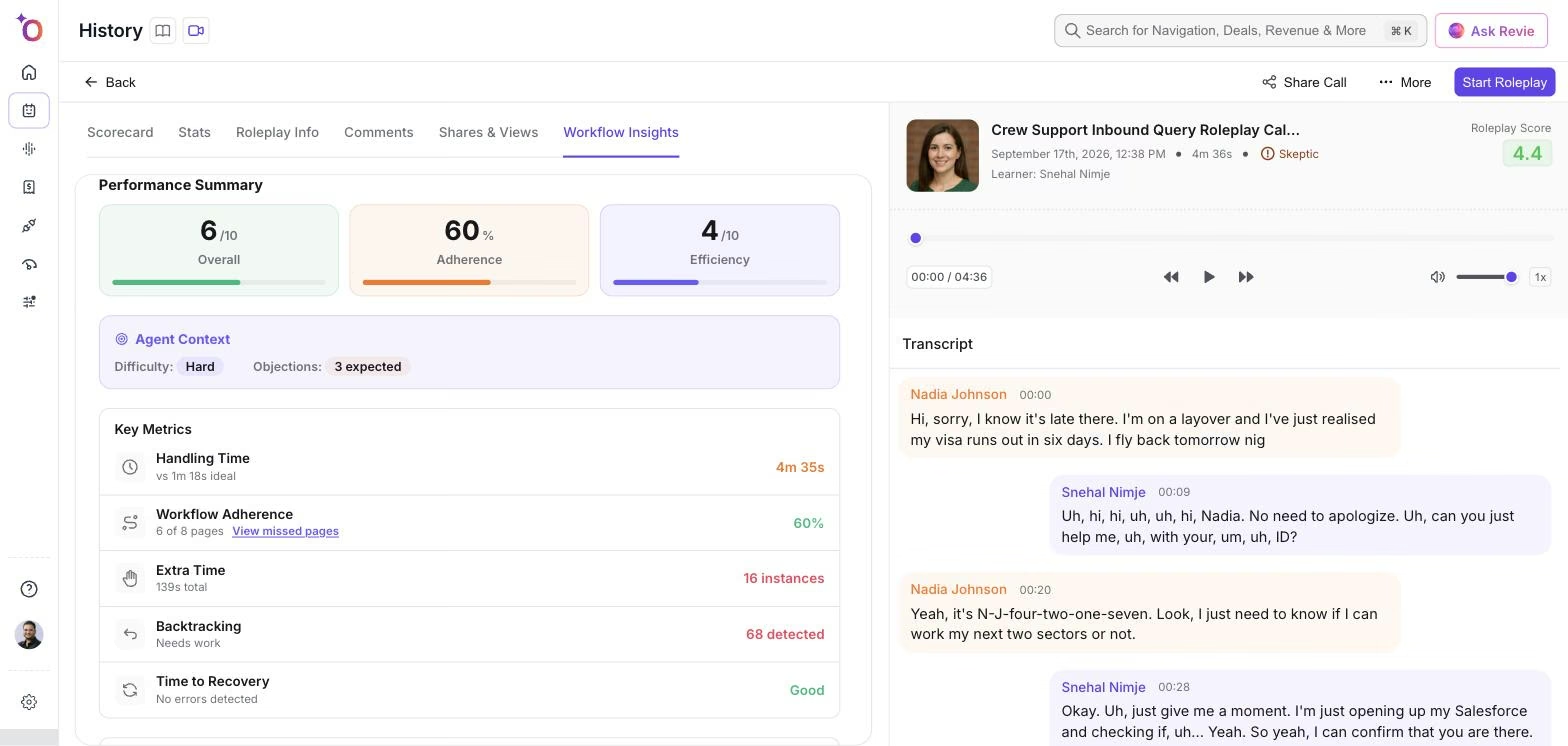
Workflow results for one learner's attempt.
To compare results across your team, go to Performance > Practice and open the Workflows tab.
Adding Workflows to courses
Once published, a Workflow-enabled roleplay agent can be added to a Course as an activity alongside other roleplay sessions. Learner results are tracked in course analytics alongside their overall performance data.
Things to know
- Only the Chrome browser and web-based workflows are supported.
- If your connected tool changes its interface, the Workflow needs to be re-recorded so it keeps matching the real system.
Hope this article was helpful. For any queries, please write to support@outdoo.ai
Related articles
- Create a Workflow Simulation: step-by-step guide to recording a Workflow and attaching it to a roleplay agent