
Manage Uploaded Calls
Learn how to view, filter, search, and manage all uploaded calls in your workspace from Company Settings, including how to organize calls by date, duration, and title.
You can view and manage all calls uploaded to your workspace from the Company Settings area. This is useful for tracking training roleplays, discovery calls, and practice sessions.
Accessing Uploaded Calls
Go to Company Settings > Manage Uploaded Calls.
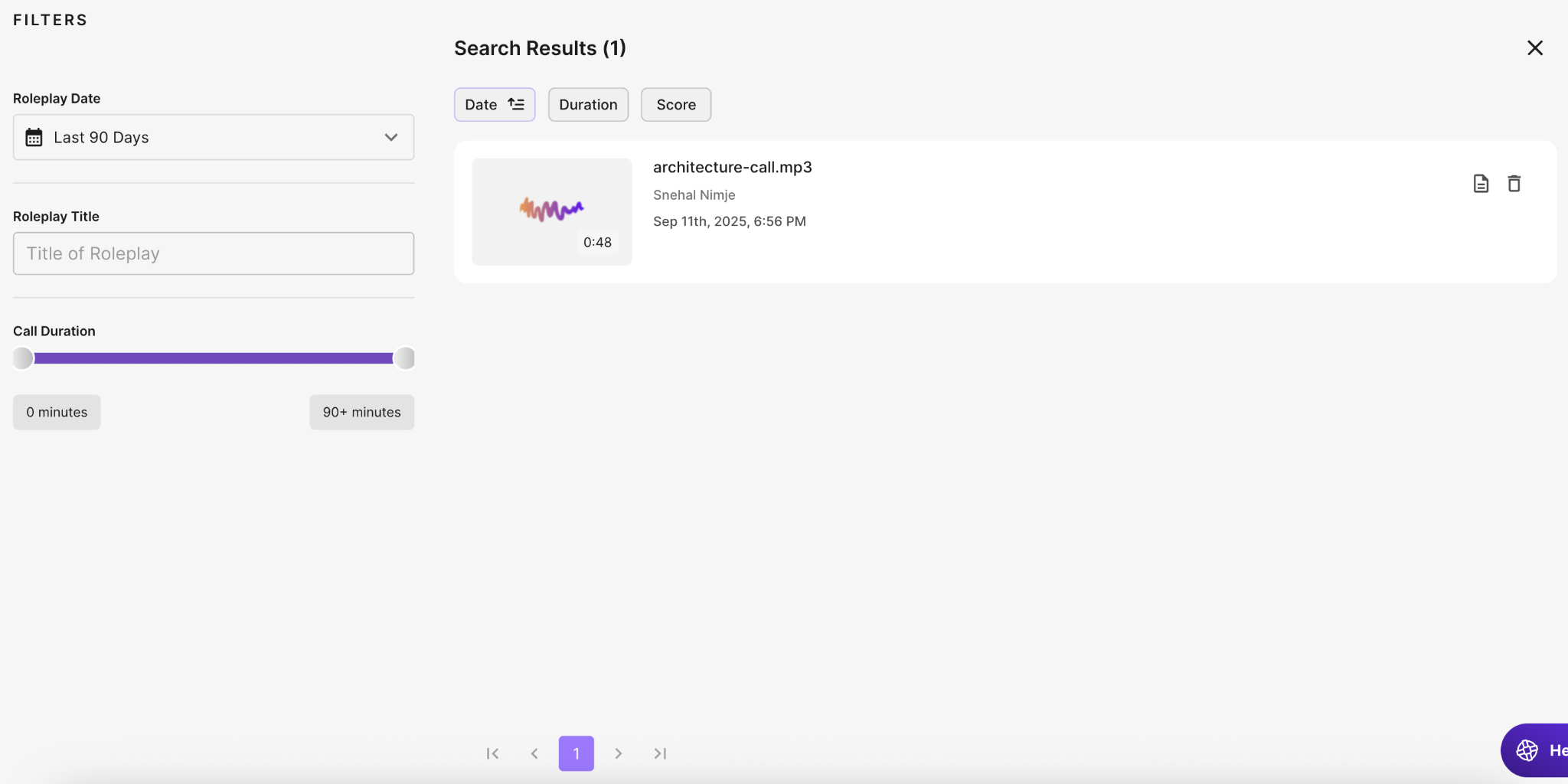
Filters
On the left-hand side, you will find filters to help you locate specific calls:
- Roleplay Date: Filter by date range (for example, last 30 days, last 90 days, or custom)
- Roleplay Title: Search by the title of a call or roleplay session
- Call Duration: Use the slider to filter by length of the call (from 0 minutes to 90+ minutes)
Search Results
Once filters are applied, results appear in the Search Results panel. For each uploaded call, you will see:
- File name (for example, cold-call-with-google.mp3)
- Owner (who uploaded the call)
- Date and time uploaded
- Duration of the call
- Action icons to view details or delete the call
You can also sort results by Date, Duration, or Score (if applicable).
Managing Calls
- View Details: Click the document icon to see more information about the call
- Delete: Click the trash icon to permanently remove a call from the system
Tips
- Use the date filter when searching across a large set of calls
- Deleting a call is permanent and cannot be undone. Confirm before proceeding