
Scorecards with attached resources
<iframe src="https://www.youtube.com/embed/wm_LNgpFRxg" frameborder="0" allowfullscreen></iframe>
Watch: Add Playbook Resources to AI Scorecards (Better Guided Coaching)
This article covers attaching a reference document to a scorecard so the AI uses it every time it scores a conversation with that scorecard. It applies to any scorecard, whether you built it manually or generated it with AI. To use a document to generate a new scorecard instead, see Create a scorecard using AI (with resources).
Why use it
- Rubric integrity: feedback tracks documented standards, not ad hoc interpretation.
- Traceability: stakeholders can see that scoring is grounded in a named reference.
- Consistent language: coaching feedback can reuse the terms from your methodology or product documents.
How it works
The Resources field sits in the scorecard's Scorecard Details section. Its tooltip reads "Add reference documents and files for the AI to use when scoring this scorecard." The attached document applies to the whole scorecard, and you can attach one resource per scorecard.
Use cases
- Rubric alignment: score discovery calls against the stages in your official sales methodology document.
- Product accuracy: attach a product or pricing guide so the AI can judge whether team members described the offer correctly.
- Compliance: attach a policy document for scorecards that check required disclosures.
How to attach a resource to a scorecard
- Upload the document to Resources if it is not there already.
- Go to Manage > Scorecards and open the scorecard you want to edit, or start a new one.
- In Scorecard Details, scroll to Resources and click Add Resources (or Click to add resources if none is attached yet).
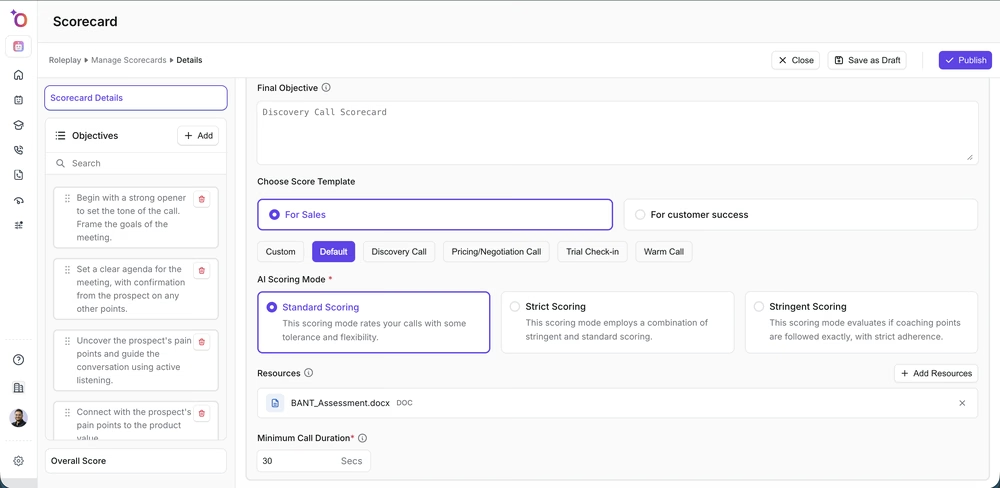
The Resources section on a scorecard, with a document already attached.
- Select the document from the Resources library and confirm.
- Click Publish to apply the change, or Save Draft to keep editing.
To swap the document, remove the attached resource and add a different one.
Quick reference
- What it controls: which document informs AI scoring for this scorecard.
- Level: the whole scorecard (one resource).
- Path: Manage > Scorecards > [scorecard] > Scorecard Details > Resources.
Hope this article was helpful. For any queries, please write to support@outdoo.ai
Related articles
- Creating a scorecard: build a scorecard manually
- Generating a scorecard with AI: let AI draft the scorecard from a prompt
- Create a scorecard using AI (with resources): use a document to generate a new scorecard
- Creating a scorecard for the roleplay agent: use a scorecard to grade roleplay sessions