
Create a Gatekeeper to a Roleplay
Learn how to add a gatekeeper to your roleplay agent, select gatekeeper personas, configure scorecards, and set background environments for realistic voice call training.
How to add a gatekeeper to a roleplay
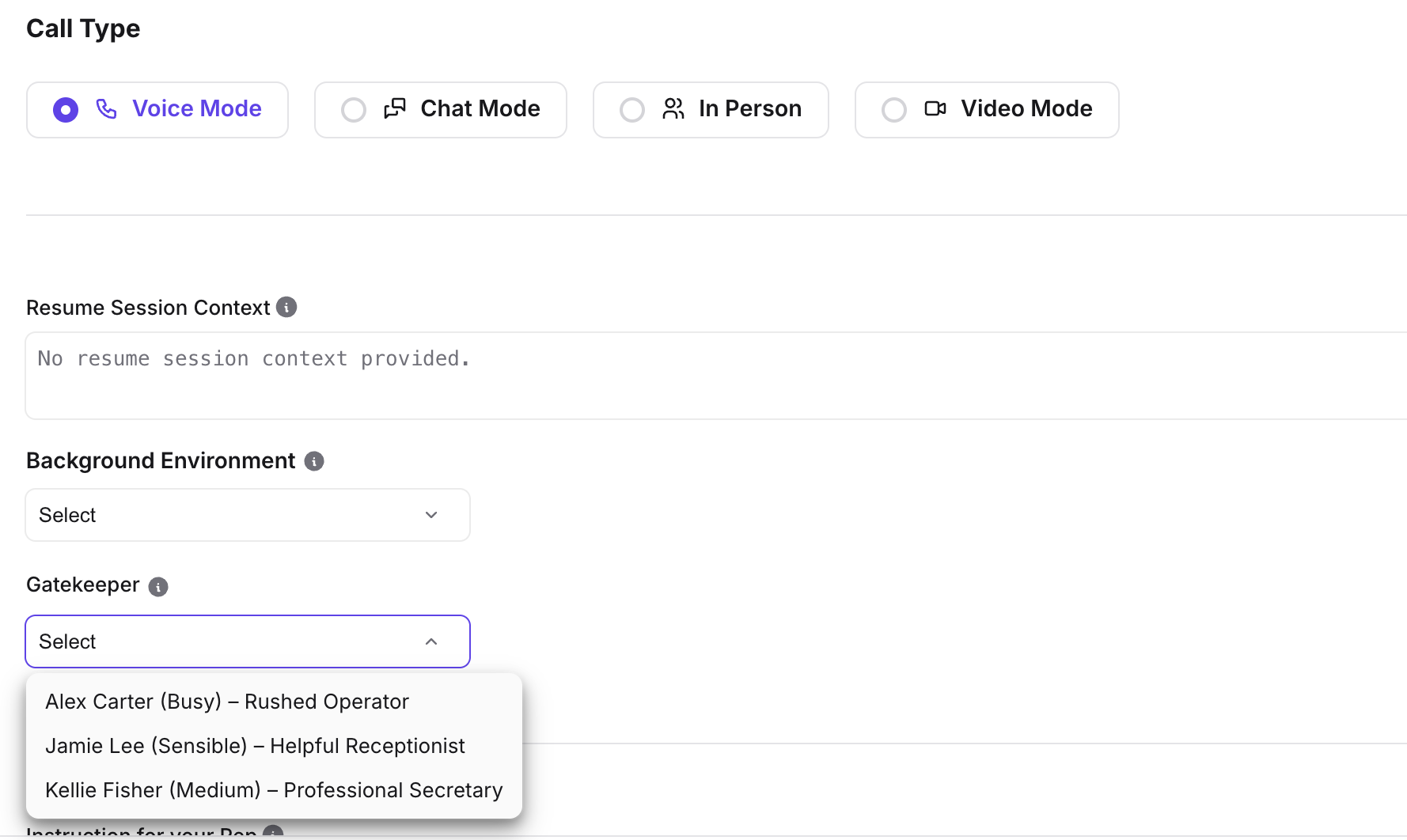
- Go to Roleplay and create or edit an agent.
- Set Call Type to Voice Mode. Gatekeeper is available only for voice calls.
- In the same section, find Gatekeeper.
- Choose a persona:
- Alex Carter (Busy): Rushed Operator
- Jamie Lee (Sensible): Helpful Receptionist
- Samantha Dawson (Medium) or Kellie Fisher (Medium): Professional Secretary
- (Optional) Select a Gatekeeper Scorecard for evaluating the gatekeeper phase. The gatekeeper scorecard must be different from the agent's main scorecard.
- (Optional) Set a Background Environment (background noise). When a gatekeeper is present, this applies to the gatekeeper part of the call.
- Save or publish the agent.
How to set background noise for gatekeeper calls
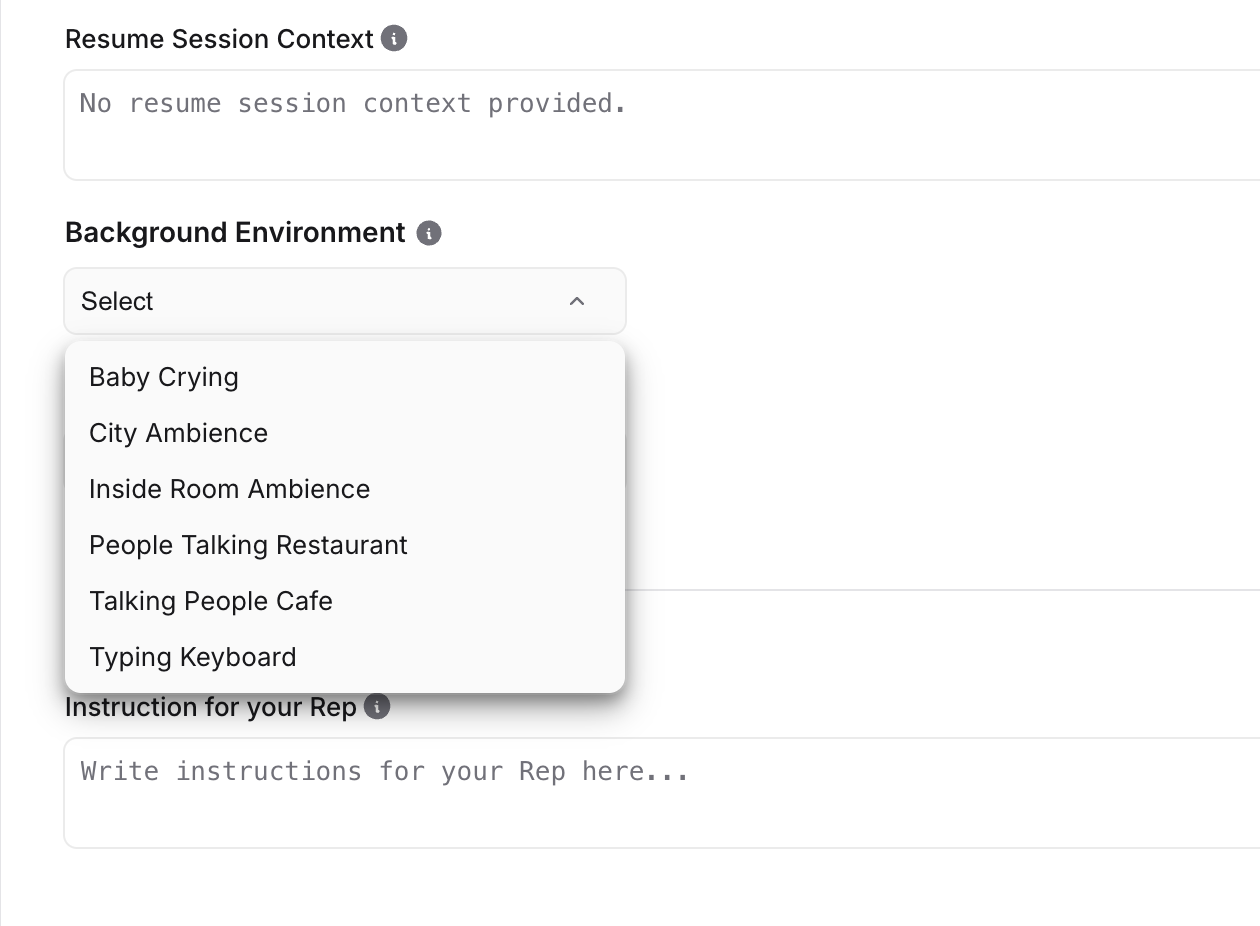
- In the agent's Roleplay Format settings, ensure Call Type is set to Call only (or In person where applicable).
- Find Background Environment (sometimes labeled "Background noise" in the UI).
- Pick an option such as Office, Cafe, or Typing keyboard.
- If the agent has a gatekeeper, this noise plays during the gatekeeper segment of the call.
- If the agent has no gatekeeper, it applies to the main agent call.
- You can preview the sound with the play button next to the dropdown.
- Save your changes.
How to use separate scorecards (gatekeeper vs. agent)
- When creating or editing the agent:
- Assign a Gatekeeper Scorecard in the Gatekeeper section. This scorecard is used to score the gatekeeper phase.
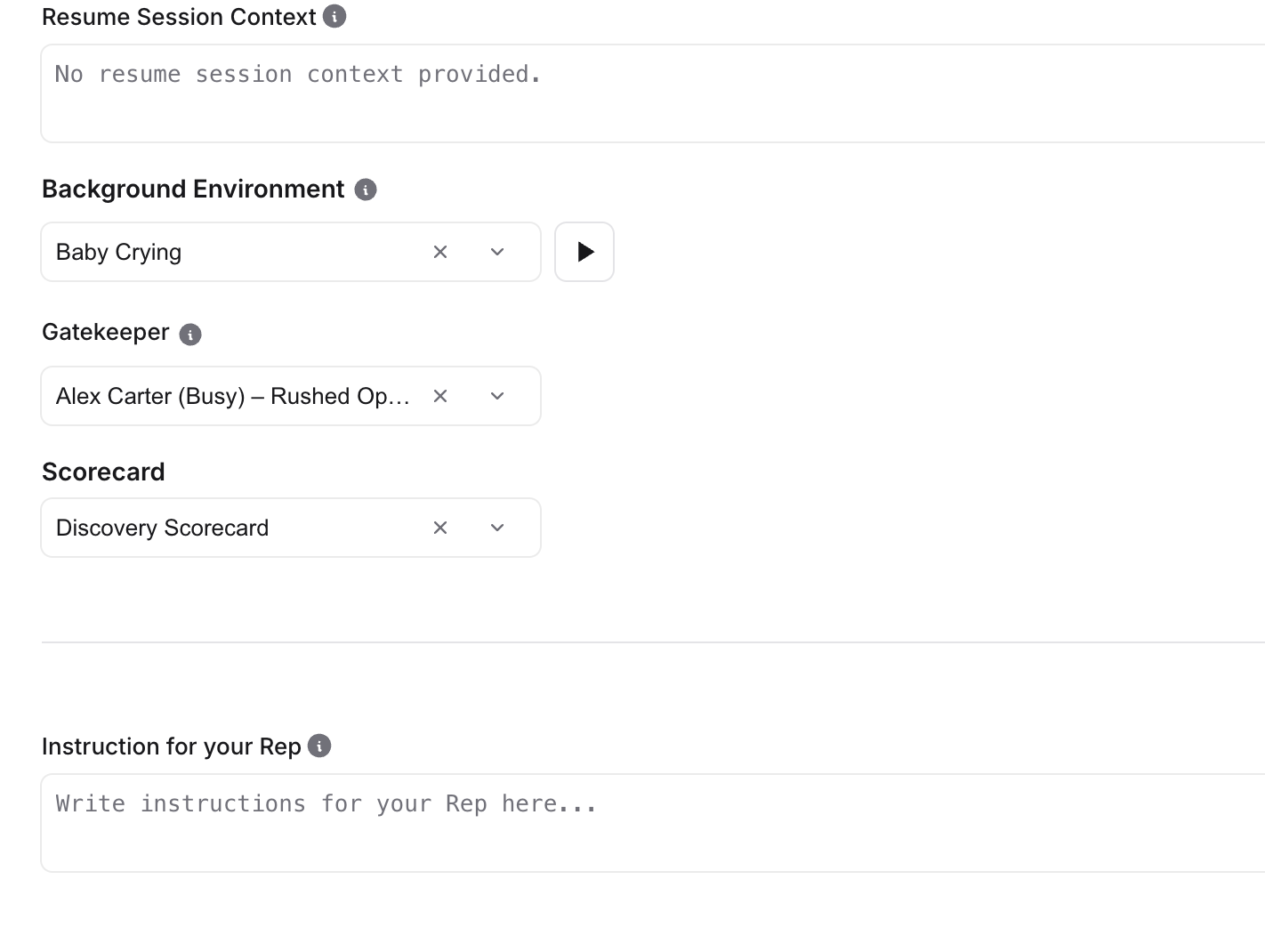
- Assign the main agent scorecard as you normally would. This scorecard is used to score the conversation with the buyer or decision-maker after transfer.
- The gatekeeper scorecard and the agent scorecard cannot be the same. If you try to use the same scorecard for both, the product will show an error message.
- In conversation history or details:
- You'll see options to view or run scorecards for Gatekeeper and Agent separately.
- Gatekeeper scoring is available for the gatekeeper portion. Agent scoring is available only after the rep has passed the gatekeeper and been transferred.
How to run or view gatekeeper vs. agent scorecards
- Open a completed roleplay conversation that used a gatekeeper.
- Go to the Scores or Scorecard section in the conversation details.
- Choose which scorecard to run or view:
- Gatekeeper: evaluates the gatekeeper phase.
- Agent: evaluates the main conversation, usually enabled only if the rep passed the gatekeeper.
- Run or view the AI scorecard for the selected type as needed.
How managers can track gatekeeper performance
- Use Manager Tools (for example, Performance or Scorecards) to track:
- Completion and success rate for gatekeeper roleplays
- Improvement over time
- Filter or segment by initiatives that use gatekeeper handling.
- Compare Gatekeeper Scorecard metrics such as clarity, persistence, and outcome with Agent Scorecard metrics to see where reps need more coaching: getting past the gate vs. closing with the buyer.