
Notetaker not joining meetings
If the Notetaker is not joining your meetings, several factors could be causing the problem. Work through the common causes below to get it joining again.
1. Calendar connection
The Notetaker relies on your calendar to know about scheduled meetings.
- Verify that your calendar is properly connected to Outdoo AI.
- Reauthorize your calendar if you have recently changed your account credentials or permissions.
- Confirm that the meeting appears on your calendar and includes a valid meeting link.
2. Meeting settings
Certain meeting configurations can block the Notetaker from joining.
- Check that the meeting is not marked as private or hidden from third-party apps.
- Ensure the meeting has a valid video conferencing link (Zoom, Microsoft Teams, etc.).
3. Skip terms configuration
The meeting subject may match skip terms that exclude it from Notetaker participation.
- Review your skip terms settings in Outdoo AI.
- Remove any terms that might unintentionally prevent the Notetaker from joining.
4. Billing quota
Your account may have reached its Notetaker usage limit.
- Check your Outdoo AI billing section to see if you have hit your quota.
- Upgrade your plan or purchase additional credits if needed.
5. Zoom registration
The Notetaker may be blocked by Zoom registration requirements.
- Confirm that your Zoom account is registered with Outdoo AI.
- If your meeting requires registration, ensure the Notetaker bot is pre-approved.
6. Microsoft Teams registration
The MS Teams integration may not be set up correctly.
- Ensure Microsoft Teams is connected and authorized through Outdoo AI.
- Verify that your organization's permissions allow external participants like the Notetaker bot.
7. Notetaker joined but was not allowed in
The Notetaker may have attempted to join but was denied access.
- Confirm that the meeting host admitted the Notetaker from the waiting room.
- Check whether the meeting settings restrict bots or external participants.
- Ensure no participants manually removed or blocked the Notetaker during the meeting.
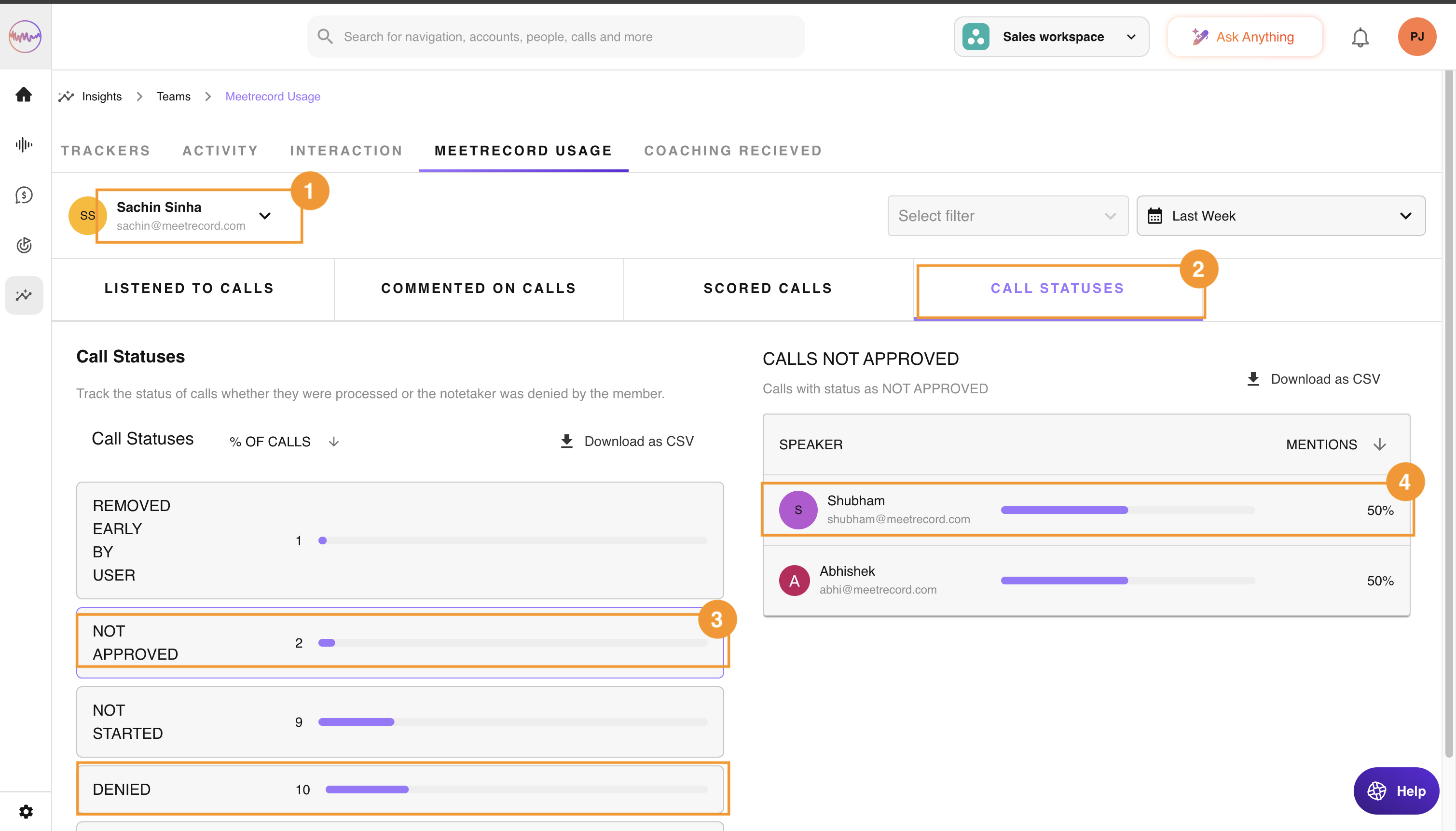
8. Check the status of meetings for your team members
- As an Outdoo AI Admin, visit Insights > Teams > Outdoo AI Usage.
- Select a user or a team.
- Go to the Call Statuses tab.
- Click on Call Statuses on the left side of the screen to see the spread on the right side.
- Click on a User to view the status of their latest meeting.
If you have tried all of the above and the Notetaker still is not joining, contact our support team with the meeting details and any error logs.
- Live Chat: Available on our website