
Live Captions During Roleplay Calls
Live Captions are available in both voice (call) and video roleplay sessions. You can turn them on or off at any time during the call.
Why use them?
- See exactly what was said, in case you miss a word, have accent or audio issues, or want to double-check a phrase.
- Glance at the captions to confirm a number, name, or objection without rewinding or asking the AI to repeat.
- Helpful for anyone who prefers or needs text support alongside audio.
- Use the live text to mentally track structure (for example, discovery questions, objections, next steps) while staying in the flow of the call.
How they work
- During the call, a Live Captions button in the call toolbar toggles the captions panel on or off. When on, a scrollable transcript area shows the last several turns (for example, the last 5 to 8 exchanges) with the speaker name, a small avatar, and the text of what was said.
- The panel scrolls to the latest line as new speech is added.
- After the call, the full conversation transcript is available in conversation history (roleplay details). There you can search, scroll, and click timestamps to jump to specific moments.
Where Live Captions appear
- Voice (Call) roleplay: Captions appear in a panel below the agent card when Live Captions is turned on.
- Video roleplay: When Live Captions is turned on, the transcript appears in a strip at the bottom of the video call view, below the video or screen share.
- Gatekeeper roleplays: If the agent uses a gatekeeper, captions show you, the gatekeeper, and the main agent (after transfer), with the correct name and avatar for each speaker.
Use cases
Following fast or dense conversations
When the AI speaks quickly or covers a lot of ground (for example, objections, pricing, next steps), use Live Captions to read along and avoid missing important details.
Checking exact wording
Confirm names, numbers, product terms, or objection phrasing in the moment so you can respond accurately, for example: "As you said, budget is the main concern..."
Noisy or low-quality audio
If your environment is noisy or your device audio is poor, captions give you a reliable text backup so you can stay engaged without asking the AI to repeat.
Accessibility and preference
Use captions if you prefer or need text alongside speech, for example for reading support, non-native language, or concentration.
Self-coaching during the call
Use the live transcript to notice patterns (for example, how often you interrupt, how you phrase discovery questions) and adjust in real time.
Quick review before ending the call
Scroll the captions before you end the call to see the last few exchanges and confirm you have covered key points such as next steps and follow-up.
How to guide
How to turn Live Captions on during a voice (call) roleplay
- Start a voice roleplay (Call mode) from Roleplay, Library, or a Course.
- Once the call is connected, look at the top bar of the call screen (same row as the timer and End Call).
- Click the Live Captions button (it may show a message/chat icon). When on, the button is highlighted. When off, it appears as a secondary/outline style.
- A captions panel appears below the agent card, showing the last several lines of the conversation with speaker name, avatar, and text.
- The panel auto-scrolls as new speech is added. You can scroll up to read earlier lines.
- Click Live Captions again to hide the panel.
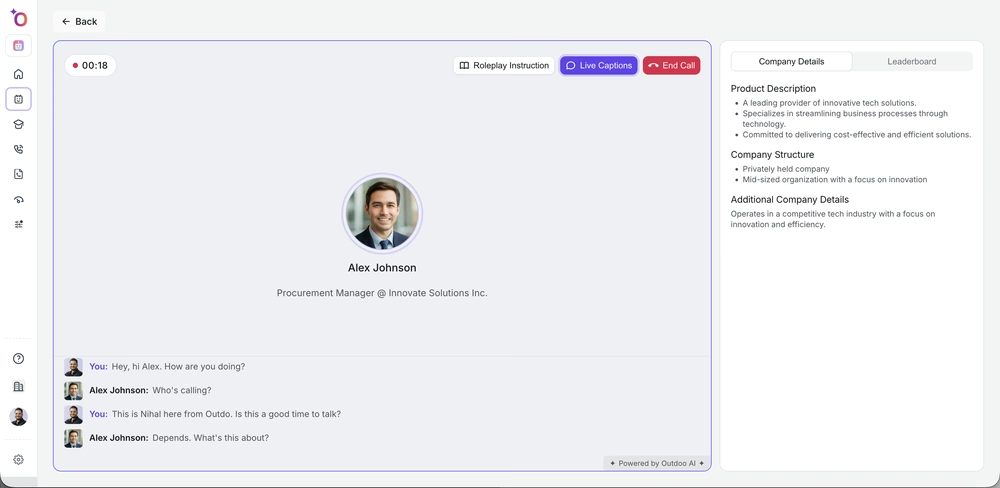 The Live Captions button sits in the top toolbar, next to Roleplay Instruction and End Call.
How to turn Live Captions on during a video roleplay
- Start a video roleplay (Video mode).
- After the call is connected, find the Live Captions button in the call controls (often near the Screen Share and End Call buttons).
- Click Live Captions to turn captions on. When on, a transcript strip appears at the bottom of the video view, below the video and/or screen share.
- New speech appears in real time with speaker name and text. The strip scrolls to the latest content.
- Click Live Captions again to turn captions off and hide the strip.
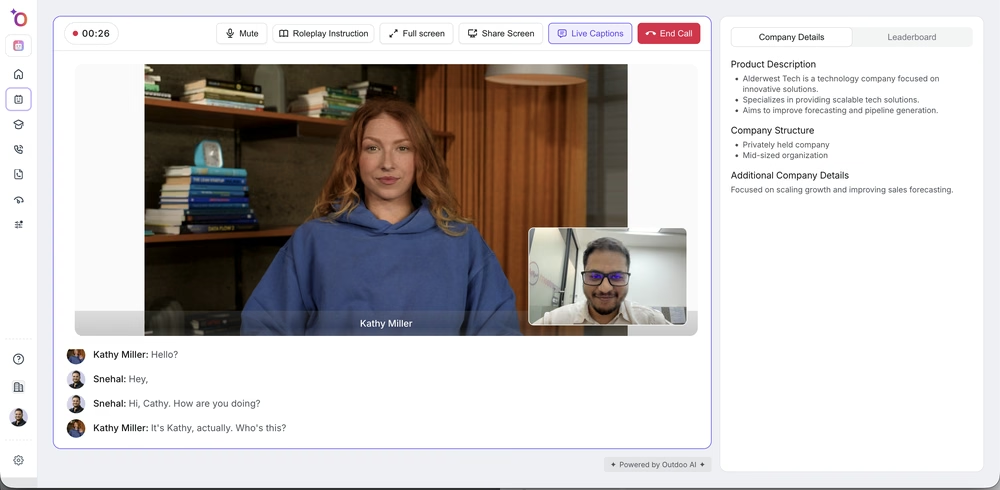 Live Captions turned on during a video roleplay, shown highlighted in the toolbar.
How to review key moments during the call
- While captions are on, scroll up in the captions panel (voice) or transcript strip (video) to re-read the last few exchanges. Use this to confirm what was said before you respond or before you end the call.
- After the call, go to Roleplay > History (or Conversations), open the conversation, and use the Transcript (or Details) section. The full transcript is synced to the recording. You can click timestamps to jump to specific moments and review the entire conversation.
What you see in the captions panel
- You: your name and avatar; your speech appears in one color or style.
- AI agent: the main agent's name and avatar; the agent's speech in another style.
- Gatekeeper (if applicable): when the roleplay uses a gatekeeper, the gatekeeper's name and lines are shown until the call is transferred. After transfer, the main agent's name and lines appear.
Each line typically shows: [Avatar] Speaker name: "Spoken text."
Limitations to be aware of
- The in-call captions show a rolling window (for example, the last 5 to 8 turns), not the full conversation. For the complete transcript, use conversation history after the call.
- Captions are generated by speech-to-text and may occasionally mishear words or names. Use them as a guide. If something is critical, confirm verbally.
- Live Captions are available for roleplay calls (voice and video) where the product supports them. Behavior may vary by workspace or plan.
Examples
Example 1: Following questions and answers in a discovery call
You're on a discovery roleplay. You turn Live Captions on. When the AI asks, "What's your current process for onboarding new customers?", you see it in text. When you answer, your reply appears under "You." You can scroll back to see the exact wording of earlier questions before you ask your next one.
Example 2: Checking an objection
The AI says, "I'm not sure we have budget this quarter." You enable Live Captions and see the line in text. You respond with a value-based reply and later scroll the captions to confirm you addressed "budget" and "this quarter" before moving to next steps.
Example 3: Knowing who is speaking in a gatekeeper call
You're in a gatekeeper roleplay. With Live Captions on, you see "Alex Carter: Hello, who is this?" then your line, then "Alex Carter: Okay, I'll connect you now." After transfer, the main agent's name appears on subsequent lines so you always know who is speaking.
Example 4: Following a video demo while sharing your screen
You're in a video roleplay and sharing your screen. You turn Live Captions on so the transcript appears at the bottom. As you narrate the demo and the AI asks questions, you can read the questions in the strip without looking away from your shared screen for too long.