
Create a Video Avatar (Video Mode) Roleplay Agent
Watch: How to Create a Video Mode Roleplay Agent (Step by Step)
How to create a Video Avatar roleplay agent
Go to Roleplay Agents → Create (or edit an existing agent), then in the agent's Roleplay Format section, find Call Type and select Video Mode (or "Video").
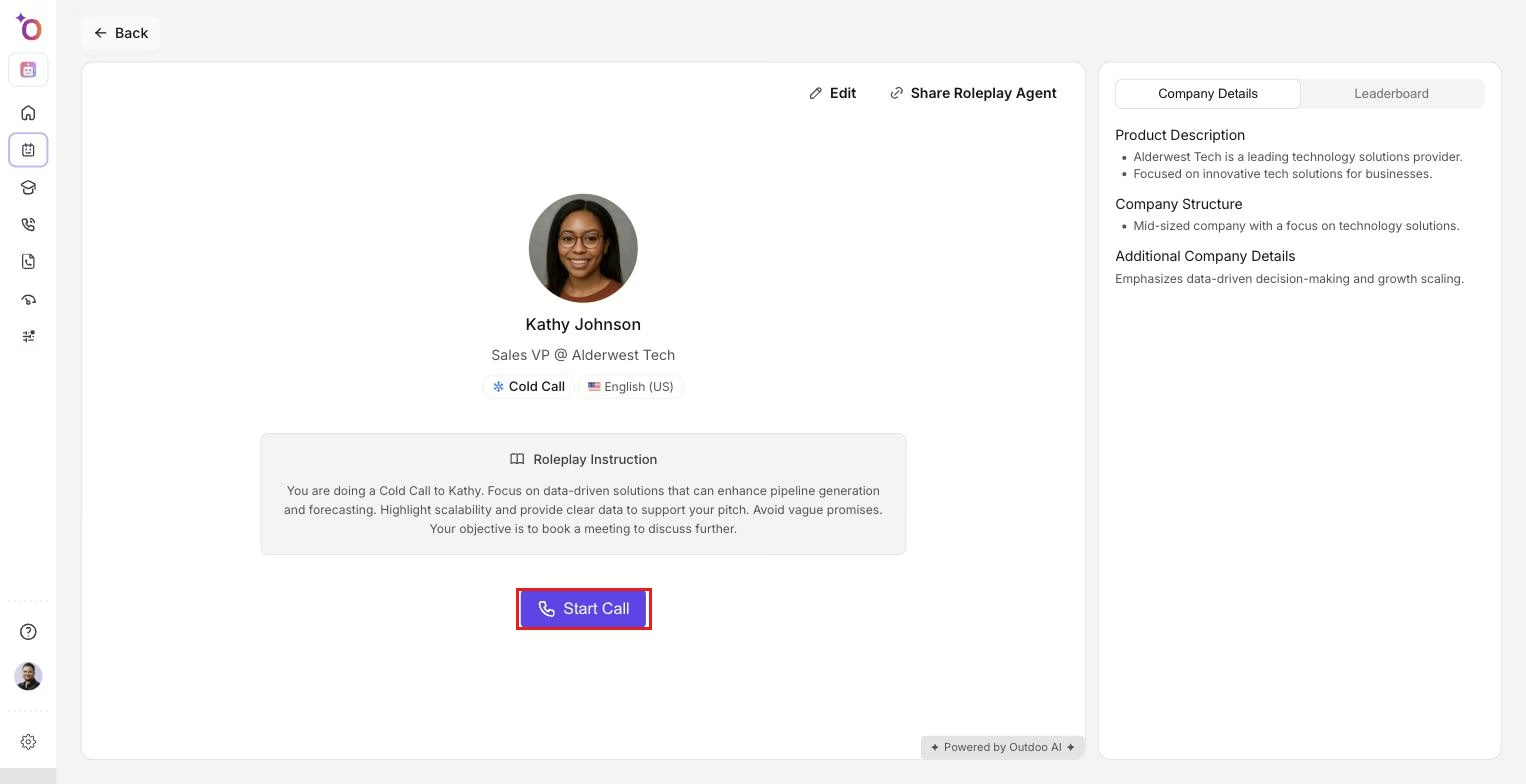 The agent detail page, where Call Type and the video avatar persona are configured before starting a session.
If you see "Video Mode (On Request)" and the option is disabled, the Video Roleplays feature is not enabled for your workspace. Contact your admin or support to enable it.
After selecting Video Mode, the Avatar field uses video avatars instead of static images. Open the Persona or Agent Persona section and choose a video avatar by name or gender. The list shows available AI video avatars such as Luna, Charlie, Olivia, Gloria, and Anna.
Configure the rest of the agent as usual:
- Roleplay type and scenario
- Scorecard: use a scorecard that includes criteria for gestures, demo capabilities, and what is spoken during the demo slide if you want that feedback
- Instructions to rep (optional): for example, "Share your screen and walk through the first three slides; explain pricing and next steps."
Save as a draft or Publish. The agent is available for Video sessions from the agent's Try it button or from Roleplay or Courses.
How to choose or change the video avatar
Open the agent (create or edit) and ensure Call Type is set to Video Mode. Go to Persona (or Agent Persona or Identity). In the Avatar area, you'll see video thumbnails or previews; select one by gender or by name.
Switching Call Type from Video Mode to Voice or Chat switches the avatar control back to static image avatars. Switching back to Video Mode shows video avatars again and may auto-pick one by gender, which you can change if needed. Save your changes.
How to run a Video Avatar roleplay
From Roleplay (or Library or Courses), select an agent that uses Video Mode. Start the session using Try it or Start roleplay. You may see a Video or Start Video Call option. Allow camera and microphone access when prompted. The AI appears as a video avatar (talking head).
During the call, speak and interact as in a normal roleplay; the avatar responds with voice and video. To practice a demo, use the Screen Share button to share your screen (for example, slides or product) and narrate what you're showing. Click Stop screen share when finished.
End the call when done. Your performance is scored according to the agent's scorecard, including gestures, demo capabilities, and what you said during the demo if those are configured.
How to use screen share during a video roleplay
After the video call has started, find the Screen Share control in the call toolbar or next to the mute button. Click Screen Share and choose the window or screen to share, such as a browser tab with slides or an application.
Present your demo or slides and speak to what's on screen, covering key points, benefits, and next steps. This is what can be evaluated as "what is spoken during the demo slide."
Click Stop screen share when you're done. You can continue the conversation without sharing, and end the call when the roleplay is complete. Feedback can include how well you executed the demo and narrated the content.
How to set up scoring for gestures, demo, and demo narration
When creating or editing the agent, attach a scorecard that includes the dimensions you care about: gestures (or "Presence" or "Body language") if your scoring system supports it, demo capabilities such as clarity of demo, flow, and relevance, and what is spoken during the demo slide, meaning quality of narration, key messages, and alignment with the slide content.
If your scorecard is managed elsewhere in Manage Scorecards, create or edit a scorecard with these criteria and then assign that scorecard to the Video Mode agent. Reps see feedback and scores based on these dimensions after the session in conversation history or performance views.
Limitations to be aware of
- Gatekeeper is not available for Video Mode or Chat Mode. It is only for Voice (Call) roleplays.
- Background noise or environment is not applied in the same way for Video Mode as for voice-only. Check the agent settings for your product version.
- Video Roleplays may require a feature flag or plan upgrade. If Video Mode is disabled, your workspace admin needs to enable it.
- Multi-persona agents may support Video Mode depending on configuration. Check the multi-persona flow for the Call type option.