
Prevent or Stop a Recording
Prevent a Call from Being Recorded
Outdoo AI automatically records calls that meet your company's recording criteria by joining as a participant. Unless native recording is enabled, the Outdoo AI recorder appears in the meeting attendee list.
To stop a scheduled recording, go to the Upcoming Calls section on the homepage or the Activity Calendar to view scheduled recordings, then toggle the Record button.
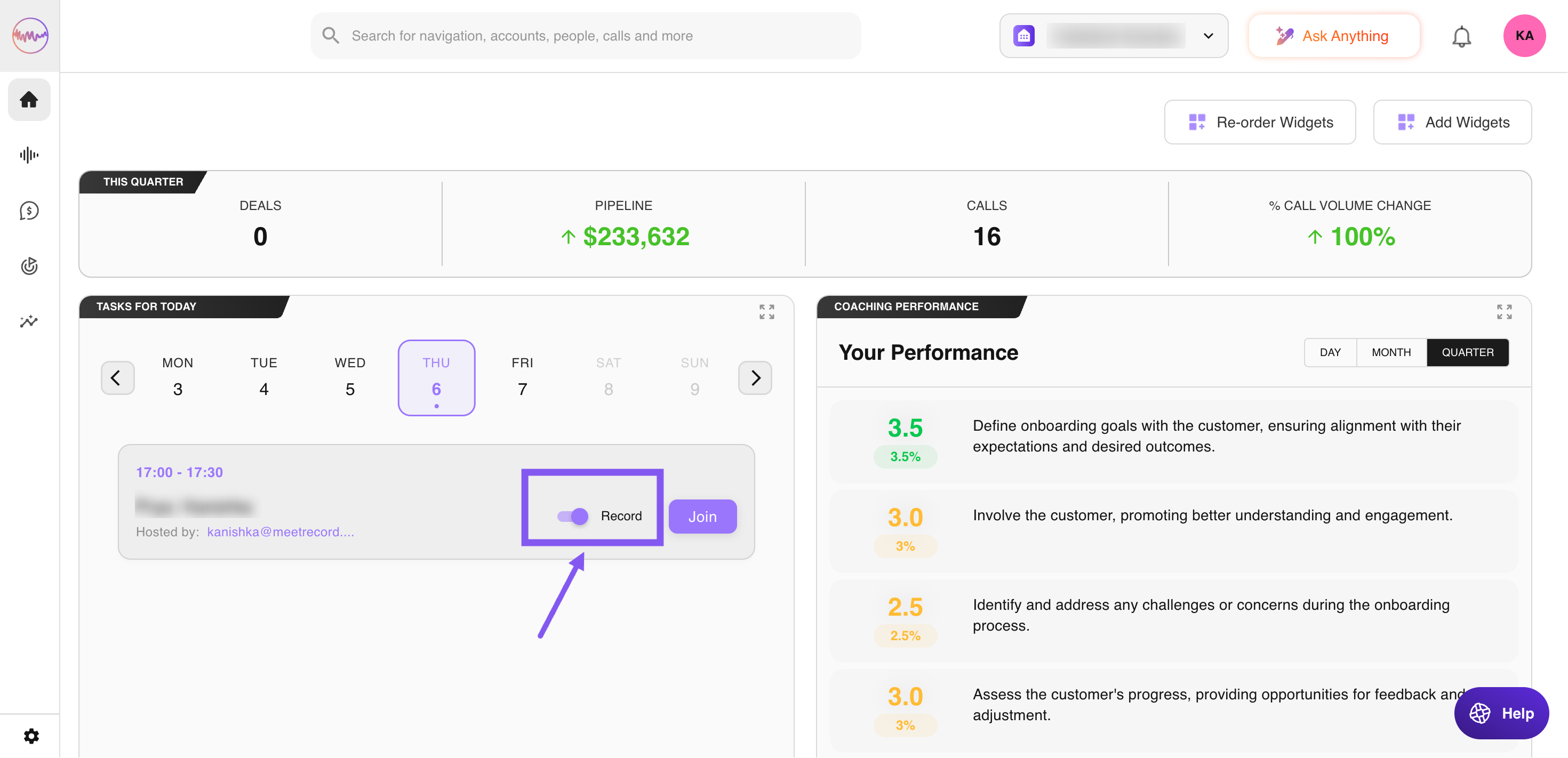
Options to Prevent Recording
When scheduling the call, check Mark my calls as private in your meeting settings. If changing a call to private after scheduling, do this at least 2 hours in advance. Calls in Outdoo AI default to public. To change the visibility of a recorded call, the call owner (with proper permissions) can do so.
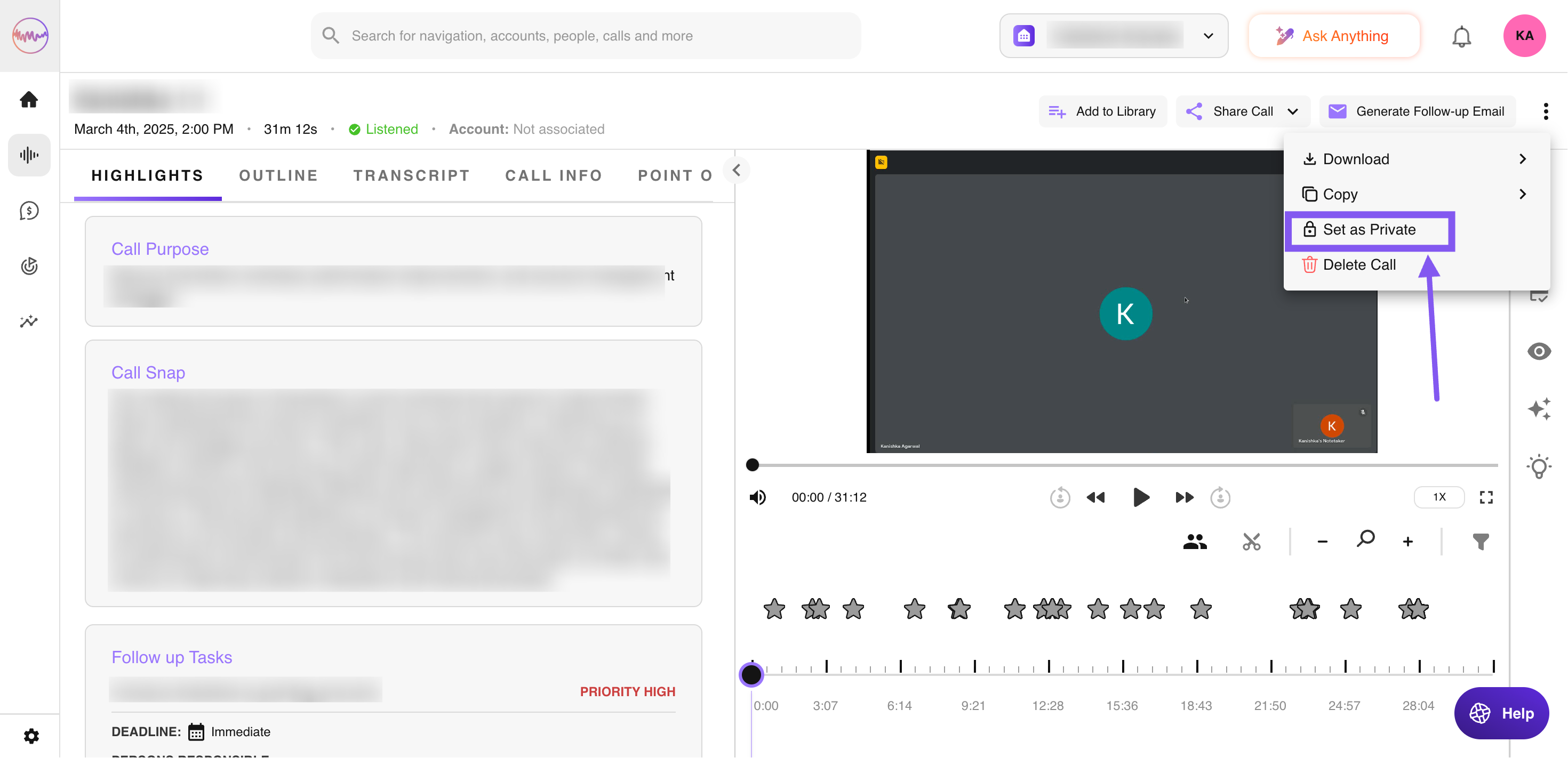
Deny Entry to Outdoo AI Notetaker
Use your web conferencing software's waiting room feature to deny access to the Outdoo AI Notetaker.
Prevent Telephony Recordings
If your company uses telephony system integration, Outdoo AI imports all recorded calls. To avoid recording a specific call, use a telephony system that is not integrated with Outdoo AI, or disable the integration temporarily for your company (less common).
Stop Recording During a Call
Any team member invited to a call, the host, or a tech admin can stop live recordings.
- From the homepage: select the On-Air call and click Stop Recording.
- From the meeting: open the On-Air call, click the More Menu Icon, and choose Stop Recording.
For calls recorded with native Zoom, the host can restart recording directly in Zoom using its native controls.
Remove the Bot
The host can remove the Outdoo AI bot from the meeting. Refer to your web conferencing provider's instructions.
Zoom:
- Switch to Gallery View in the meeting.
- Locate the Outdoo AI Recorder participant.
- Click the ellipsis (⋯), select Remove, clear the Report to Zoom checkbox, and confirm.
If using native Zoom recording, the meeting host can stop or pause the recording.
Delete a Recording After the Call Ends
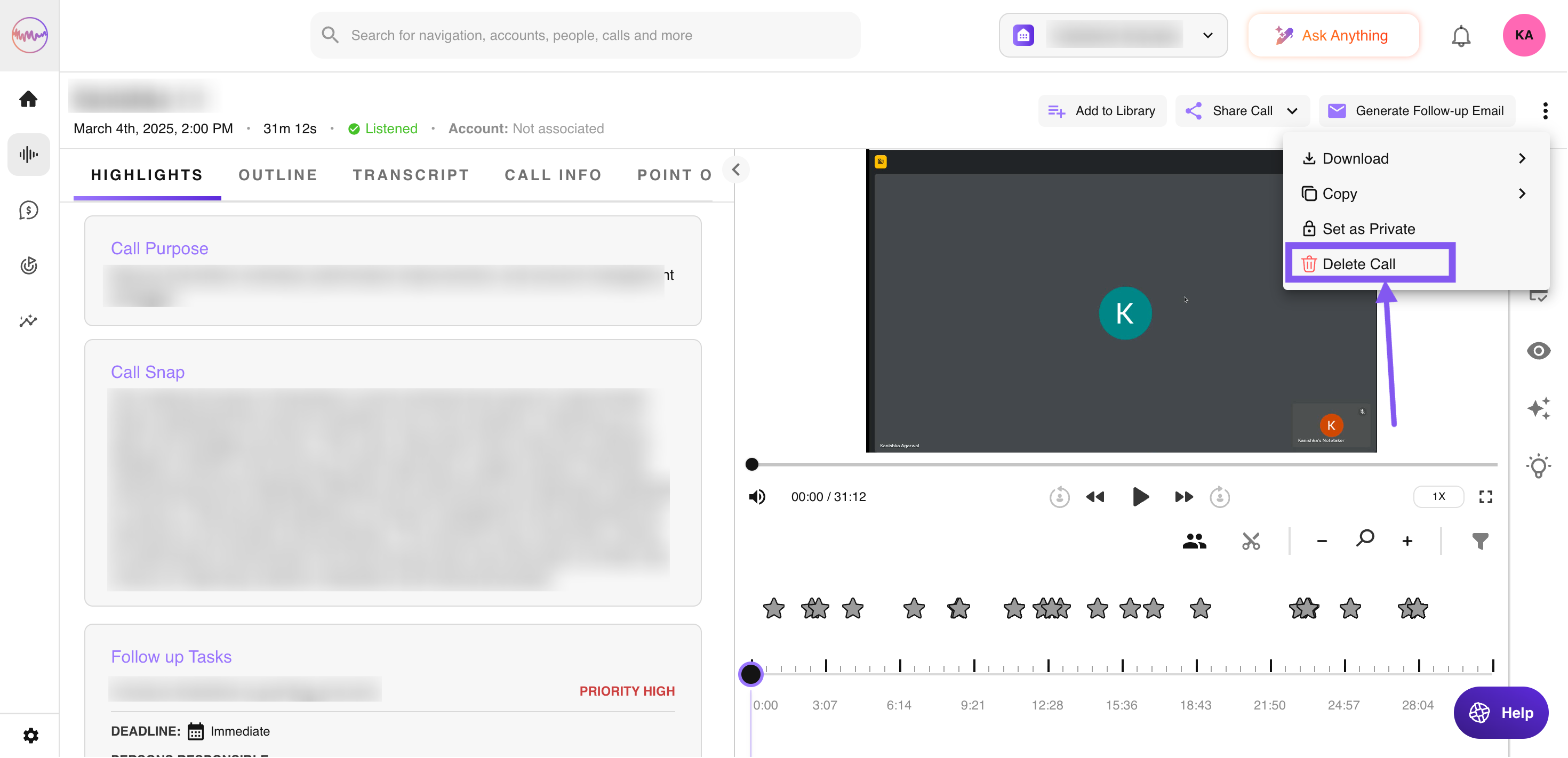
If a recording wasn't stopped during the call, you can still delete it from Outdoo AI later. This feature is available only to Admins. Alternatively, to retain the recording but restrict access, you can mark it as private.
If you need any help, please contact support at support@outdoo.ai.