
Create an AI Roleplay Agent from a Call Transcript
This guide explains how to create a roleplay agent from a call transcript. Roleplay agents built this way are useful for training, simulations, and practice scenarios such as discovery calls, sales conversations, or support interactions.
Steps to create an agent from a transcript
Step 1: Navigate to Roleplay Agents
Go to Roleplay Agents in the platform and click Create Roleplay Agent, then select Create Digital Twin. Depending on your account settings, you may see multiple roleplay options.
Step 2: Select roleplay type and scenario
Choose a scenario that matches your use case (for example, Discovery Call). This scenario helps the AI understand the type of conversation it should model.
Step 3: (Optional) Add context beyond the transcript
You can provide an optional prompt to give the AI more context about the conversation, for example:
- The conversation is between a sales representative and a potential customer
- The goal is to qualify the lead or understand their needs
- The roles or designations of each participant
Adding this context helps the AI generate a more accurate roleplay agent. If you prefer, you can skip this step and proceed using only the transcript.
Step 4: Paste the call transcript
Select Transcript as the source and paste your call transcript into the input field.
The transcript needs to include timestamps, include speaker names, and use a clear time-based format. For example:
00:01 - Agent: Hello, thanks for joining the call
00:05 - Customer: Thanks for having me
Proper formatting ensures the transcript is parsed correctly.
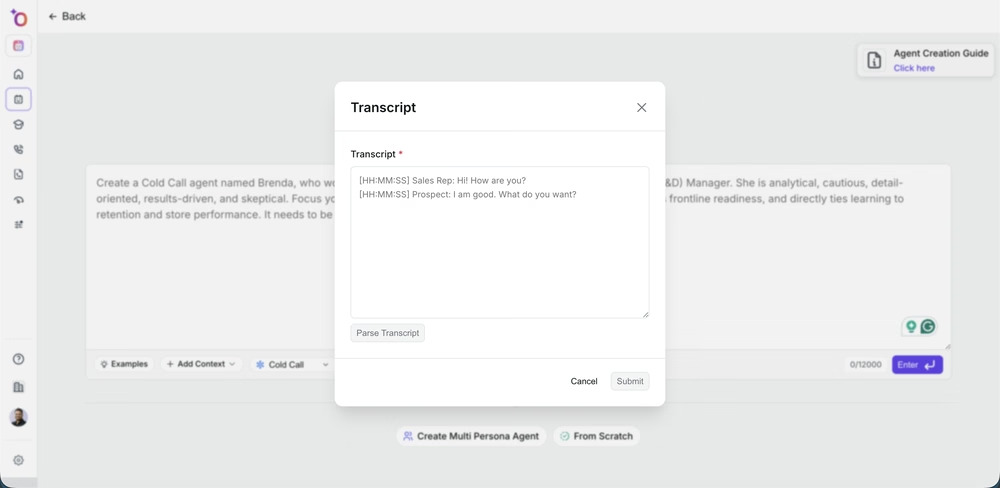 Paste the transcript into the Transcript field, then click Parse Transcript.
Step 5: Parse the transcript
Click Parse Transcript. The system detects all participants in the conversation.
Step 6: Choose the agent role
Once parsing is complete, select which participant you want to create the roleplay agent for, for example, the sales representative or support agent.
Step 7: Create the roleplay agent
Click Create Agent. The AI roleplay agent is generated automatically based on the transcript.
Step 8: Edit and customize the agent
After creation, open the agent and click Edit (optional). Modify prompts, behavior, tone, or other settings as needed, then click Publish. This step lets you fine-tune the agent for your specific training or simulation goals.
Related articles
- Intro to Roleplay Agents
- Create a Roleplay Agent from Existing Calls
- Creating roleplay agents: overview