
Create a scorecard using AI (with resources)
When you generate a scorecard with AI, you can attach a document from your Resources library so the AI builds the scorecard from your own material, not only from the prompt. This article covers that resource-grounded option. For AI generation in general (writing the prompt, scoring modes, reviewing the output), see Generating a scorecard with AI.
<iframe src="https://www.youtube.com/embed/YxQLUmRPxdY" frameborder="0" allowfullscreen></iframe>
Watch: Create AI Scorecards from Your Playbook
Why use it
- Grounded in your docs: criteria reflect your playbooks and policies, not generic templates.
- Faster setup: describe what you need, attach references, then refine.
- Consistent terminology: generated wording can mirror your official materials.
Before you start
Upload the document to Resources first. Only files already in the Resources library can be attached during generation. Use clear resource names (for example "MEDDIC Internal v3") so they are easy to find.
Use cases
- Bootstrap from a playbook: attach your coaching playbook and ask for a discovery scorecard that follows it.
- Customer-specific programs: attach a partner's evaluation guide for bespoke or white-label training.
- Less rework: starting from AI and docs reduces manual fixes compared to prompt-only generation.
- Shared vocabulary: generated rows reuse terms from methodology docs your team members already know.
How to create a scorecard with AI and a resource
- Go to Manage > Scorecards, click Add Scorecard, and choose Create using AI.
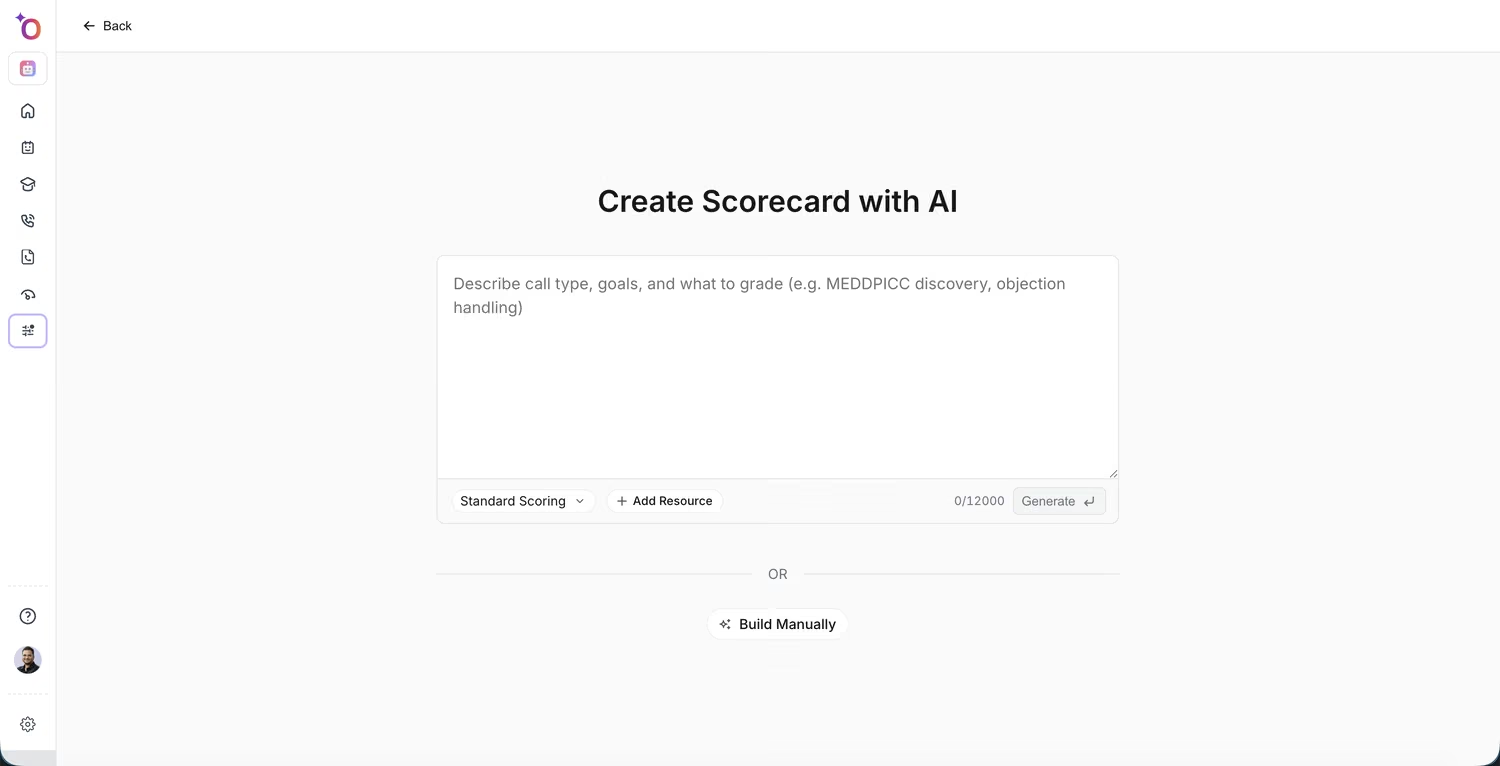
Describe the call type and what to grade, then attach a resource before generating.
- Enter your prompt and pick a scoring mode.
- Click Add Resource, select one document from the Resources library, and confirm. The attached file appears under the prompt. You can attach one resource per generation.
- In the prompt, tell the AI how to use the document, for example "Follow the discovery stages in the attached playbook" or "Use the qualification criteria from the attached guide."
- Click Enter to generate, then review and edit the result before you click Publish.
The resource shapes the generated objectives and wording. If you also want the AI to refer to the document every time it scores a conversation, check the Resources section under Scorecard Details before you publish, and add the document there if it is not listed. See Scorecards with attached resources.
Hope this article was helpful. For any queries, please write to support@outdoo.ai
Related articles
- Generating a scorecard with AI: prompt writing, scoring modes, and reviewing AI output
- Scorecards with attached resources: keep a reference document on a scorecard for scoring
- Creating a scorecard: build a scorecard manually
- Creating a scorecard for the roleplay agent: use a scorecard to grade roleplay sessions