
Deal Pulse
Deal Pulse is a score for each deal that shows how likely it is to close, based on signals from your CRM, calls, meetings and emails. This article explains how to read the Deal Pulse tab on a deal page, and how admins can set the rules behind it.
Open the Deal Pulse tab
- Go to Opportunities and open a deal.
- Select the Deal Pulse tab. The other tabs are Deal Info, Activity, Deal Summary and Playbooks.
If the deal has little data, you see "No Deal Pulse data yet". Deal Pulse needs more data to show insights. Once calls, meetings and emails are linked to the deal, the score and key signals appear.
Read the score
A chart shows the overall status in the center, with the score as a number. The status comes from the score:
Status | Score |
|---|---|
Very Likely | 80 to 100 |
On Track | 60 to 79 |
Neutral | 40 to 59 |
At Risk | 20 to 39 |
Low Chance | 0 to 19 |
Hover over the status to see its description, for example "High confidence this deal will close" for Very Likely.
The chart is split into four parts, each with its own legend entry and score:
- Deal Progress: how the deal is progressing, such as stage, amount and close date changes, contacts involved and recent activity.
- Vs Competitors: competitors mentioned and how your product compares.
- Interaction Index: signals from recorded calls and meetings, such as pain points and objections.
- Inbox Momentum: signals from email conversations, such as sentiment and objections.
Hover over a legend entry to read a short description. Each part shows High, Medium or Low, or N/A when there is no score.
See the details
Select a part of the chart, a legend entry, or View Details on one of the cards to open its detail view. Select the back arrow (Back to Deal Pulse) to return.
- Deal Progress shows Strengths, Concerns, Critical Next Steps to Close, Recent Developments and Deal Breakers. If none apply, you see messages like "No recent developments yet" or "No deal breakers identified".
- Vs Competitors shows Competitor Mentions and Product Comparison.
- Interaction Index shows insights from calls and meetings: Timeline, Positive Moments, Pain Points, Objection Handling and Action Items.
- Inbox Momentum shows Email Sentiment and Pain Points & Objections.
Detail sections have a Reasoning note and a View More or View Less toggle. Hover over a reason chip to see its reason and score.
Key Turning Points
The right side of the tab shows Key Turning Points, a timeline of the calls, meetings and emails that moved this deal. Hover over an entry's score to see "Deal Pulse score after this event". Use View Key Points or Hide Key Points on an entry, or Expand All and Collapse All at the top.
If you see "No timeline events yet", key calls, meetings and emails appear here once they are analyzed.
For admins: set the rules
Go to Company Settings > CRM > Deal Pulse. The page has two tabs: Rules and Deal Breakers.
Rules tab
The Rules tab lists scoring sections, with columns for Good Indicators, Neutral Indicators, Bad Indicators and Weights.
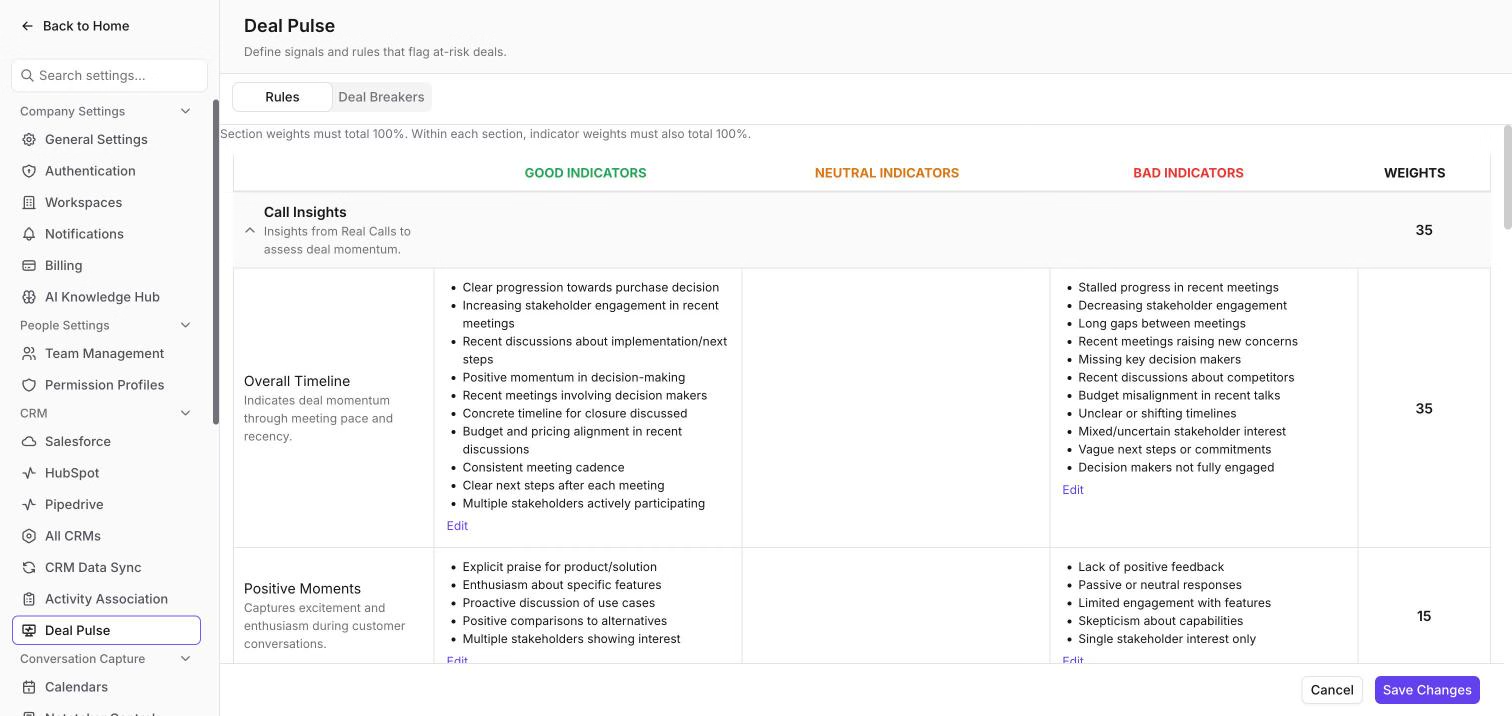
- Select Edit under an indicator column to open Edit Indicators.
- Select Create Indicator to add one, or edit or delete an existing one.
- Select Save Changes in the window.
- Change a weight by selecting it.
- Select Save Changes at the bottom of the page. Use Cancel to discard your changes.
Section weights must total 100%. Within each section, indicator weights must also total 100%. The page shows "Total: N%" and "Weights must total 100%." until they match, and Save Changes stays disabled.
Some signals use a number instead of a list, for example amount change or close date change. For these, choose Between, Greater than or Less than and enter the values.
If nothing has been set up, you see "No Deal Pulse rules have been set up for your workspace yet."
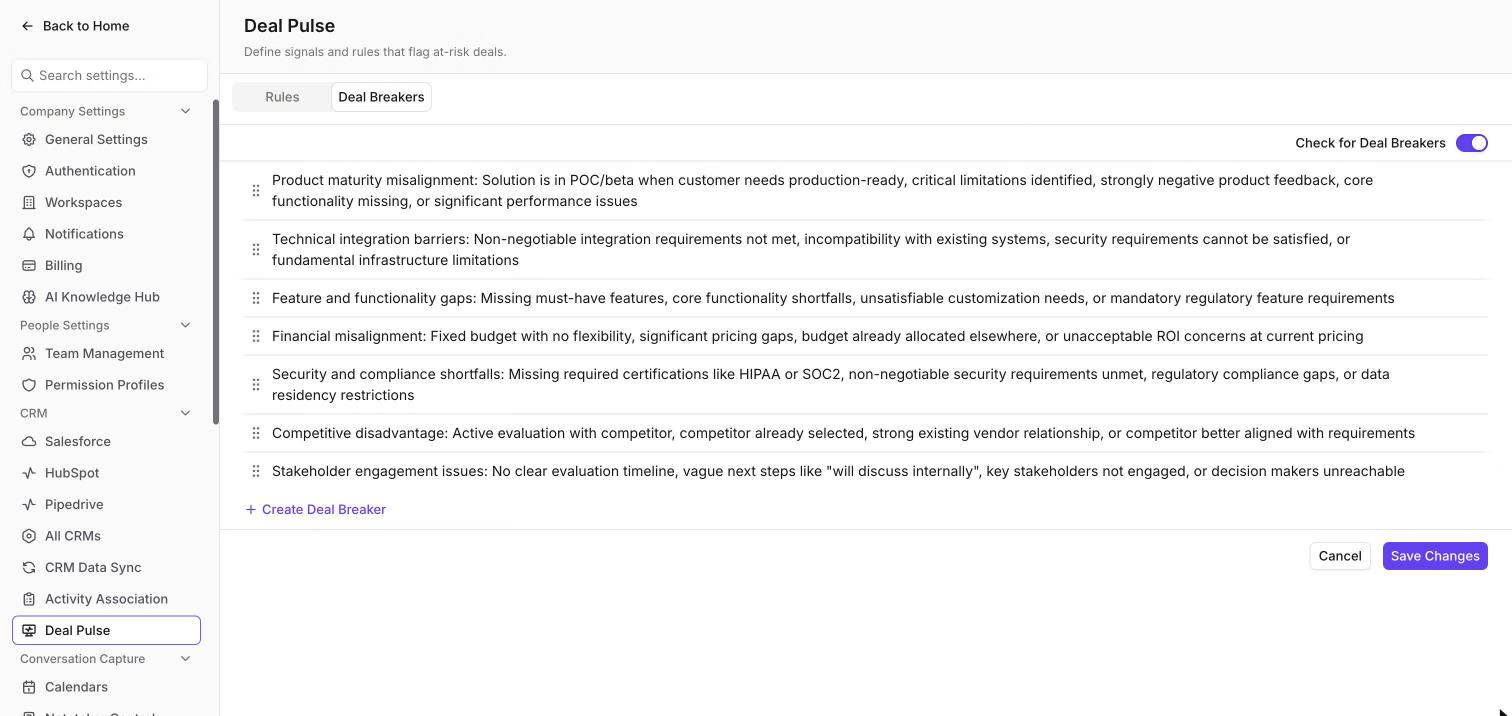
Deal Breakers tab
- Turn on Check for Deal Breakers.
- Select Create Deal Breaker and type the deal breaker.
- Edit, delete or drag items to reorder them.
- Select Save Changes. You see "Settings saved".
Use Cancel to discard your changes.
Hope this article was helpful. For any queries, please write to support@outdoo.ai