
Set up SAML SSO Authentication
SAML SSO Setup with Outdoo AI
Outdoo AI supports any SAML SSO provider for your team's login. This guide covers what you need to set up SAML SSO in Outdoo AI for non-specific providers, and includes details you may need to share with your provider. Contact your account manager for any further questions.
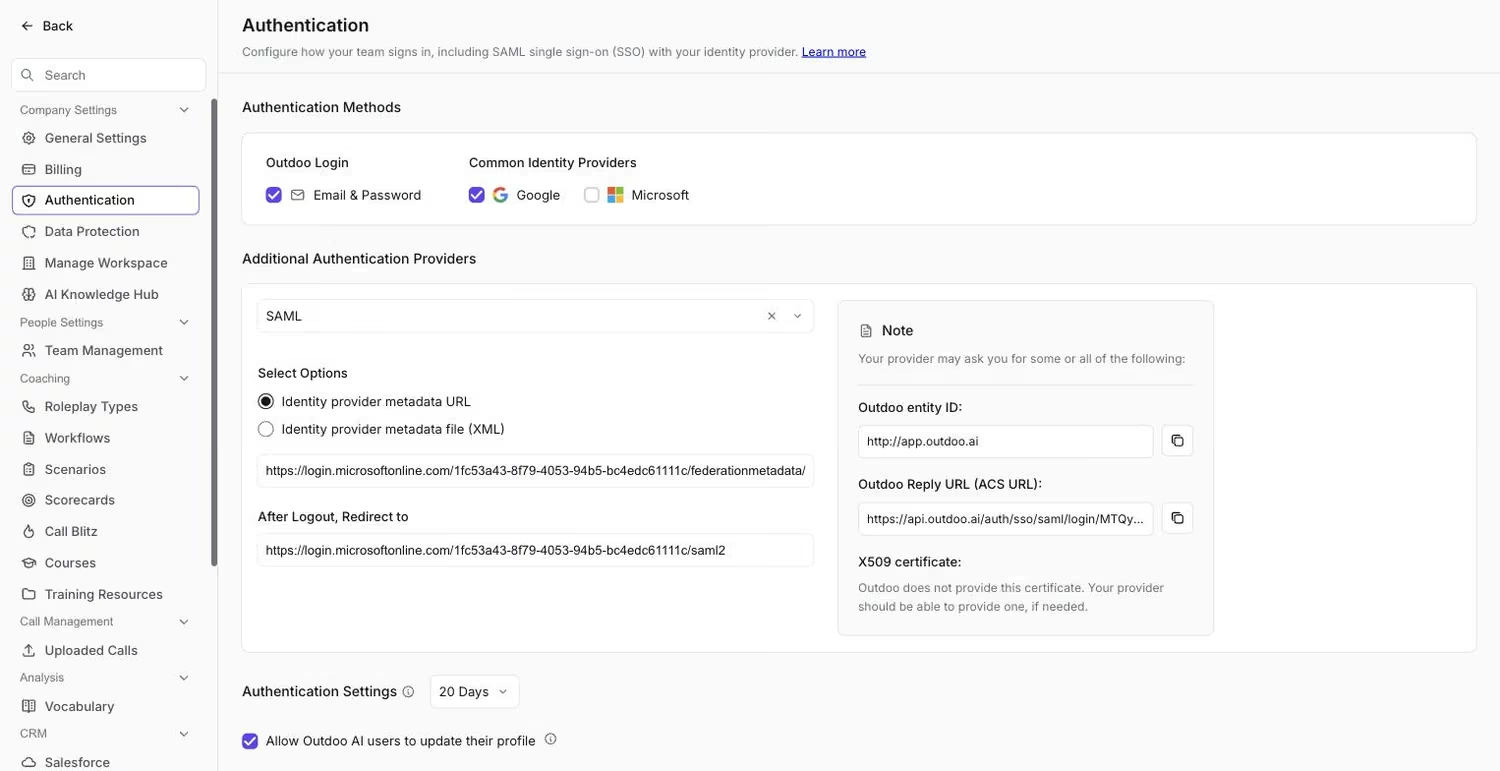 The Additional Authentication Providers section, where SAML metadata and entity details are entered.
Prerequisites
You will need to provide the following:
- Identity Provider Metadata URL or Identity Provider Metadata XML file
- The URL must be publicly accessible and generate a valid SAML Metadata response.
- The XML response or Metadata file must include two SSO bindings with valid URLs:
- HTTP-POST
- HTTP-REDIRECT
Logout Redirect URL
The URL where users are redirected after logging out of Outdoo AI.
SAML Name Identifier
In your provider, set the SAML name identifier property to emailAddress.
Signed Authentication Request
Make sure Signed Authentication Request is turned off in your provider.
Information Your Provider May Request
Your provider may ask for some of the following. You will find these on your Authentication Settings Page.
- **Outdoo AI Entity ID**\
https://app.outdoo.ai\ Use this exactly as written, not your custom domain. - **Outdoo AI ACS URL**\
https://api.outdoo.ai/auth/sso/saml/login/<base64_id_from_sso_page> - **X509 Certificate**\ Outdoo AI does not provide this certificate. Your provider should generate one if required.
Microsoft Entra ID SAML SSO Setup
- Log in to Microsoft Entra ID with admin credentials and select Enterprise applications.
- Click +New application > Create your own application.
- Name the application (for example, Outdoo AI SSO), keep the defaults, and click Create.
- Inside the app, select Set up single sign-on.
- Choose SAML as the method.
- In Basic SAML Configurations, enter:
- Identifier (Entity ID):
https://app.outdoo.ai - Reply URL (ACS):
https://api.outdoo.ai/auth/sso/saml/login/<base64_id_from_sso_page> - Click Save.
- In Attributes and Claims:
- Set Name identifier format to Email address.
- Source: Attribute
- Source attribute:
user.mail - Delete any additional claims.
- (Optional) If you plan to provision users via Microsoft Entra ID, make sure permissions are configured according to the Microsoft Entra ID provisioning setup.
- In Users and Groups, assign users or groups who should log in via SSO.
- In Single Sign-On, copy the App Federation Metadata URL.
Final Step in Outdoo AI
- In Outdoo AI, go to Company Settings > Authentication. Contact support to enable this.
- In the Identity provider metadata URL field, paste the App Federation Metadata URL from Microsoft Entra ID.
- Click Update.
- Log out and test login via Entra ID to confirm the SSO authentication works.