
Create a Workflow Simulation
Workflow simulations let you capture the exact steps of a business process and turn them into practice exercises for your team. This guide covers creating your first simulation, assigning it to reps, and reviewing results.
Before you start
You need Admin or Manager access to create simulations. If you do not see the simulation builder in your workspace, contact your workspace admin or reach out to support@outdoo.ai.
Before building, walk through the workflow yourself in the real system and note:
- Download and install Outdoo Workflow Chrome Extention in both learner's and creater's system - MUST
- Currently only Chrome browser and web based workflows are allowed
- You must know the exact fields, buttons, and steps involved
- Know the correct sequence of actions
Create a Workflow simulation
- You must have necessary role like Manager or Admin to create a Workflow Simulation
- Go to Manage > Workflow
- Click Add Workflow.
- Give the workflow a name that reflects the workflow (for example, "Post-call CRM update — HubSpot").
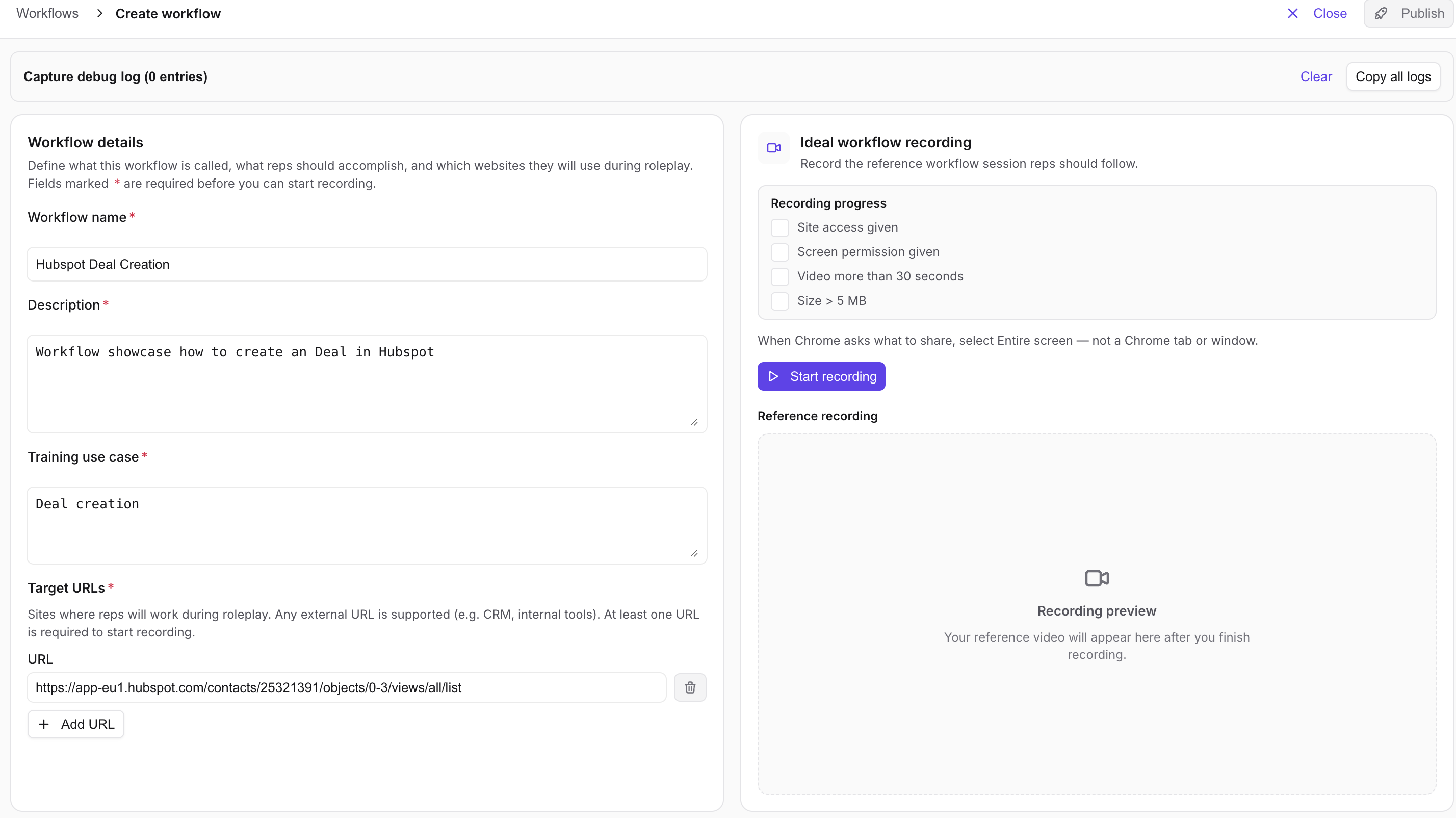
- Write the Descriotion and Training use cases
- Give the Target URL. You can give multiple target URLs if you expect learner to visit different pages.
- Start Recording
- With recording on, open the target url in a new tab and complete the workflow steps.
- When done, come back to the page and stop recording.
- Recording shoud qualify few checks like
- Site access given
- Screen permission given
- Video more than 30 seconds
- Size > 5 MB
- Click Publish to make it available for assignment.
Assign the simulation
Once published, you can assign a simulation directly to users or attach it to a course.
- To assign directly: open the roleplay agent, click Roleplay Format > Enable Workflow, and assign the roleplay to the relevant user or teams.
- To include in a course: open the course builder and add the relevant roleplay agents with simulation.
- Please note that the learner must also have the Outdoo Workflow Chrome Extention installed in the browser- MUST
Reps will see assigned simulations in their training queue.
Review results
After reps complete the simulation, results appear in the coaching dashboard. You can see:
- Completion rates by person and team
- Step-level accuracy showing which specific steps had the most errors
- Time taken per simulation attempt
- Repeat attempts and improvement trends over time
This data shows which parts of your workflow reps consistently get wrong, making it easier to decide where to run additional training or adjust the process itself.
Keep simulations up to date
When your actual tool updates its interface, the simulation needs updating too. A simulation that no longer matches the real system trains reps on the wrong thing. Review active simulations whenever your connected tools go through a UI update.
If you need help, contact us at support@outdoo.ai.