
Intro to the Call Page
The call page is where a recorded conversation becomes a coaching asset. From here you can watch or listen to the recording, read the transcript, review the AI scorecard, leave comments for the rep, and see how this call compares to what was practiced in roleplay.
To access the call page, click on any call from anywhere within Outdoo AI. If you've received an email notification about the call, you can access it by clicking "GO TO CALL" in the email.
Call Details
The call title is at the top left of the screen. If the call is linked to an account, the account name will appear below the title, along with the call's date and time. If you've already listened to the call, this will also be indicated here.
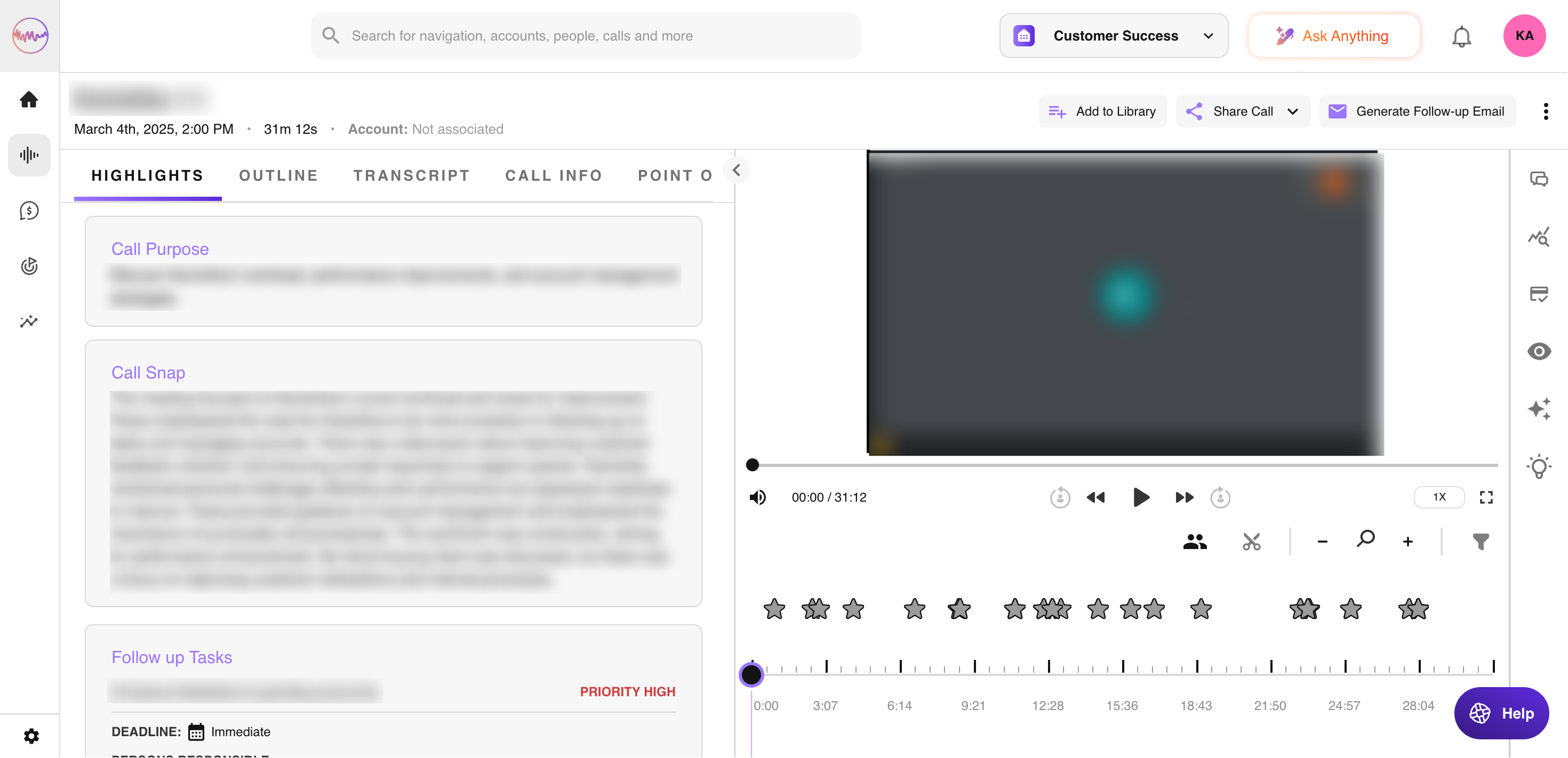
Call Management
In the top right corner, you have options to add the call to your library, listen to it later, or share it with team members or customers. You can also generate an email follow-up that includes a summary of the call's content and next steps.
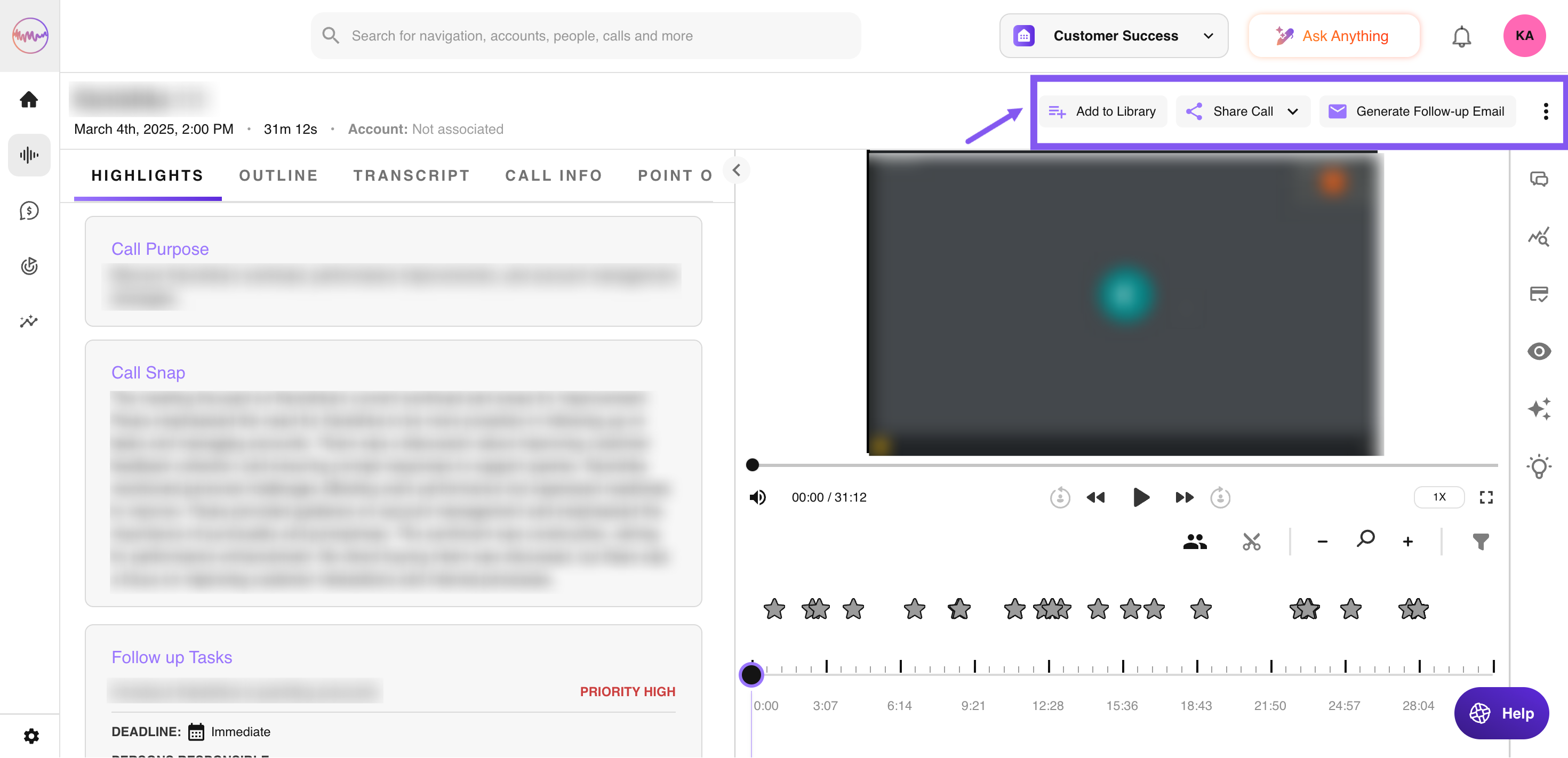
Watch the Recording
The call player is located on the right side of the screen. Here, you can play the call recording, see who spoke and for how long, and more. Click the arrow in the middle to expand the player to full screen.
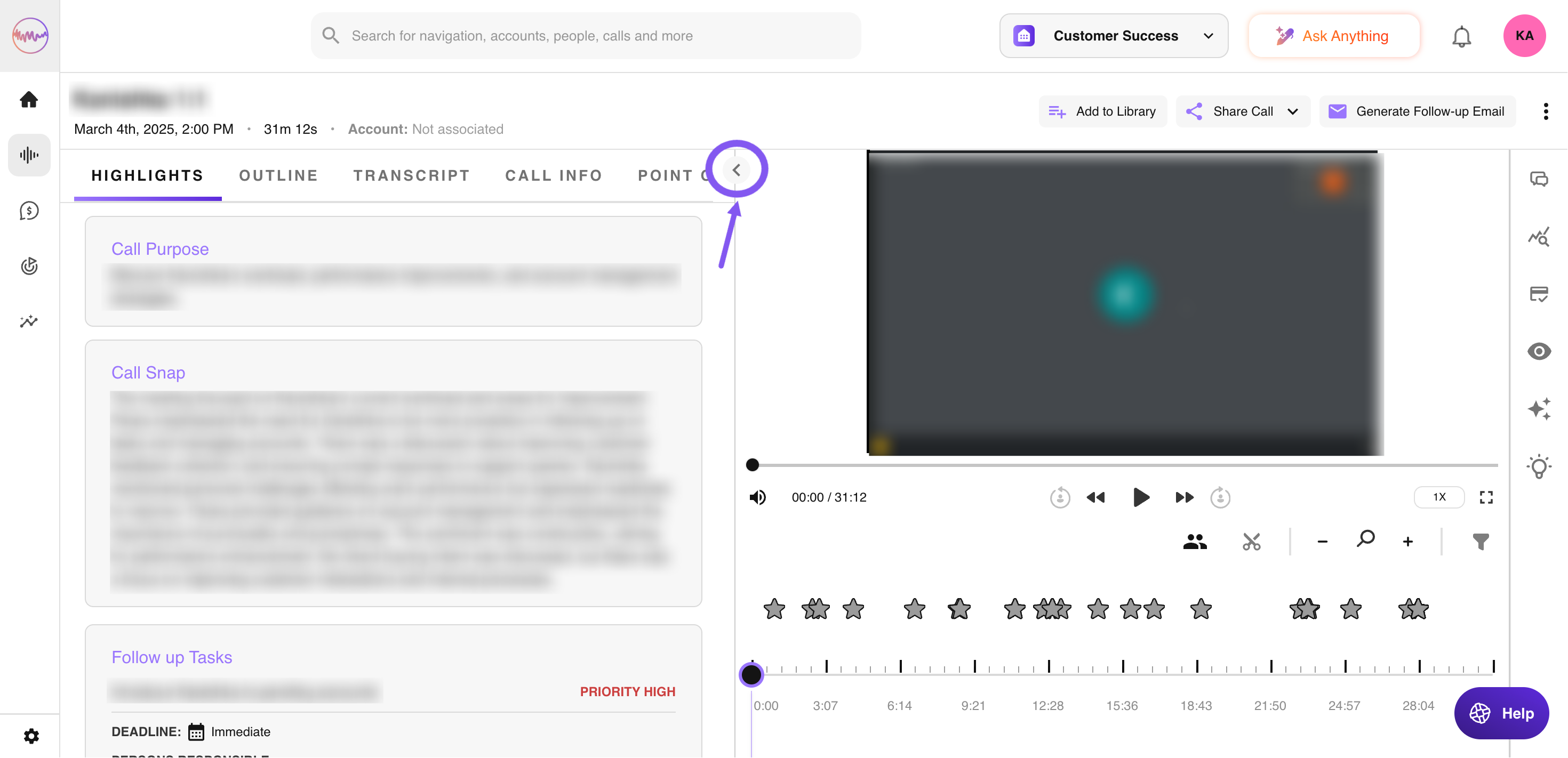
Call Screen
Before the video starts, you'll see basic information about the participants. During playback, you'll see the current speaker or shared content from the call.
Action Bar
Below the call screen, you'll find video controls to adjust playback speed, skip to different speakers, control volume, and more.
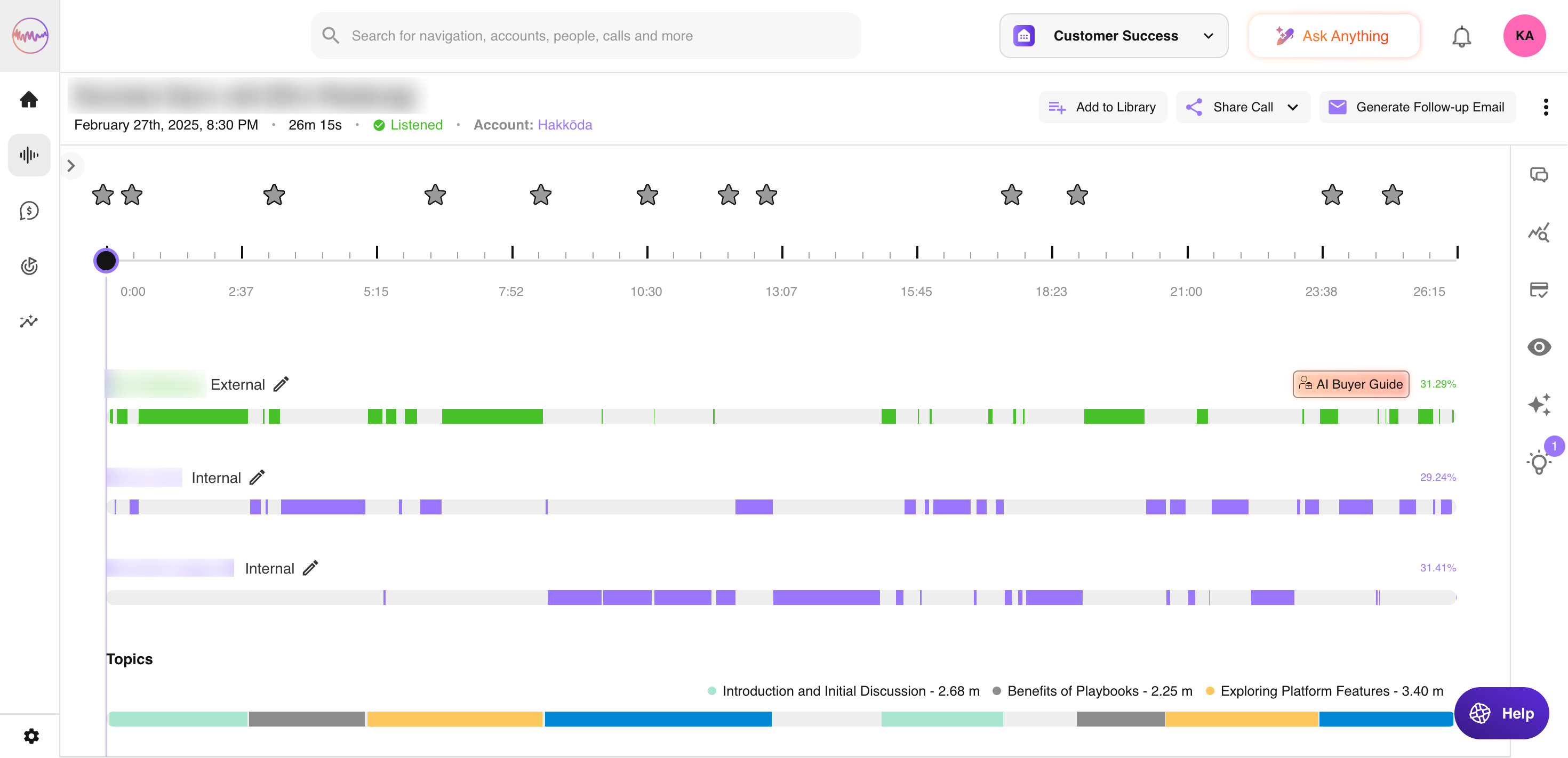
- Pointer: indicates your current position in the call and extends down to show who is speaking.
- Speaker Timeline: each line below the call screen represents a speaker. Speakers from your company are highlighted in purple. Hover over a speaker's name to toggle their audio on or off. At the right end of each line, you can see the percentage of the call they spoke for.
- Topics: at the bottom, you can see which topics were discussed and when.
Call Related Info and Insights
Explore the call's content using features on the left side of the screen:
- Highlights: quickly view the call's most important information, including next steps and AI-generated key points, without listening to the entire call.
- Outline: view the call's sections and jump to any part to go deeper into the discussion. The outline is also visible on the call timeline. Hover over any point to see what was discussed at that moment.
- Transcript: follow along with the call transcript, search for specific terms, or translate it into English (available for select languages).
- Call Info: access key call information, including the call's date, participants, associated deals and accounts, and more. View a full list of participants and invitees, and copy email addresses for easy follow-up.
- Points of Interest: identify whether questions were asked, action items were noted, trackers were mentioned, and more.
- Slides: if slides were presented during the call, you'll find them here and can jump to their location in the call.
Collaboration, Feedback, and More
On the right side of the screen, collaborate with team members, provide feedback, view statistics, and more:
- Comments: if there are comments on the call, a number will appear in the top corner of this icon. Click the icon to view or add comments.
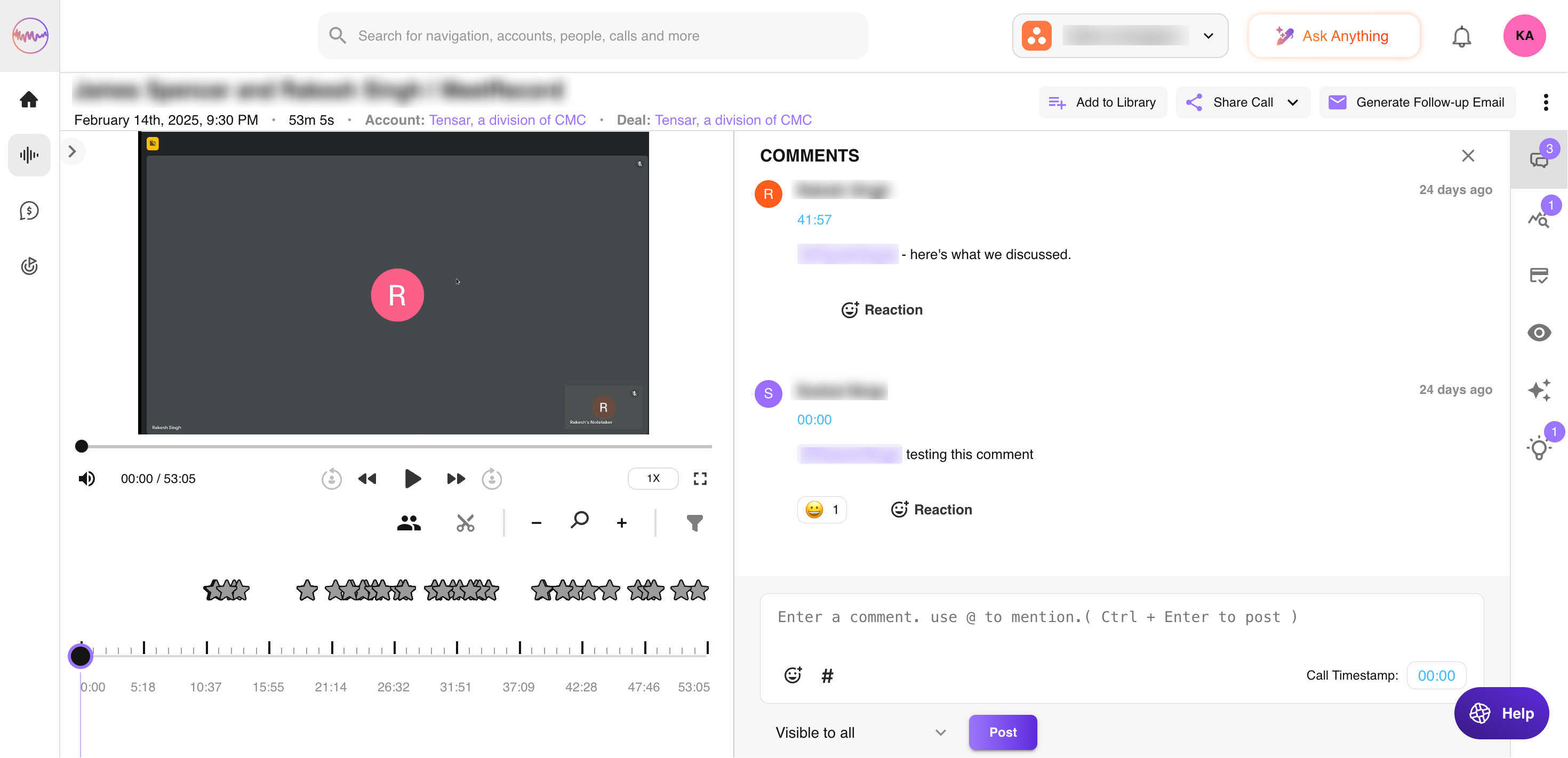
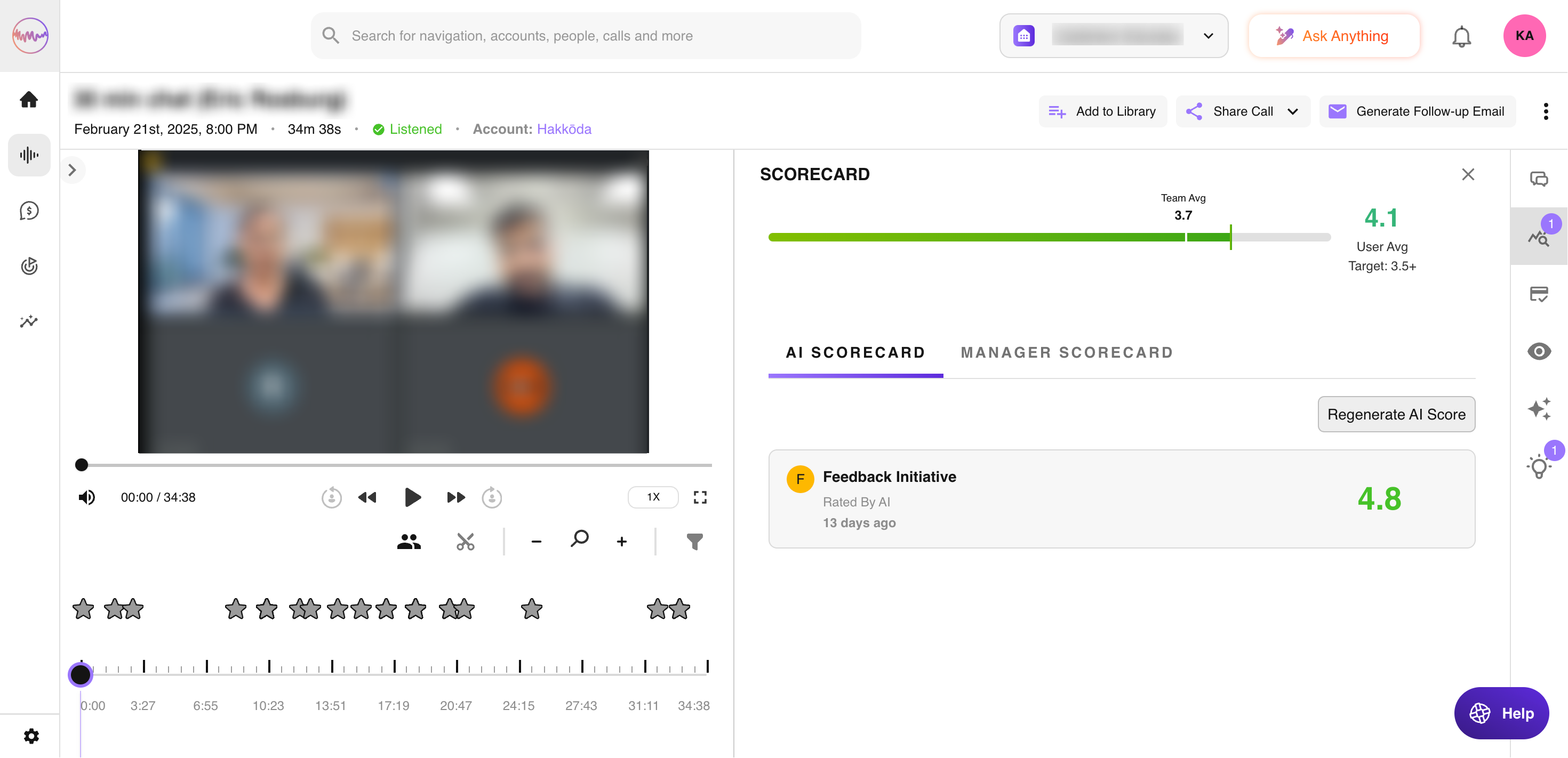
- AI Scorecard: provide structured feedback on calls using scorecards. Score your own calls or others'. The AI automatically scores the calls and provides pinpointed feedback.
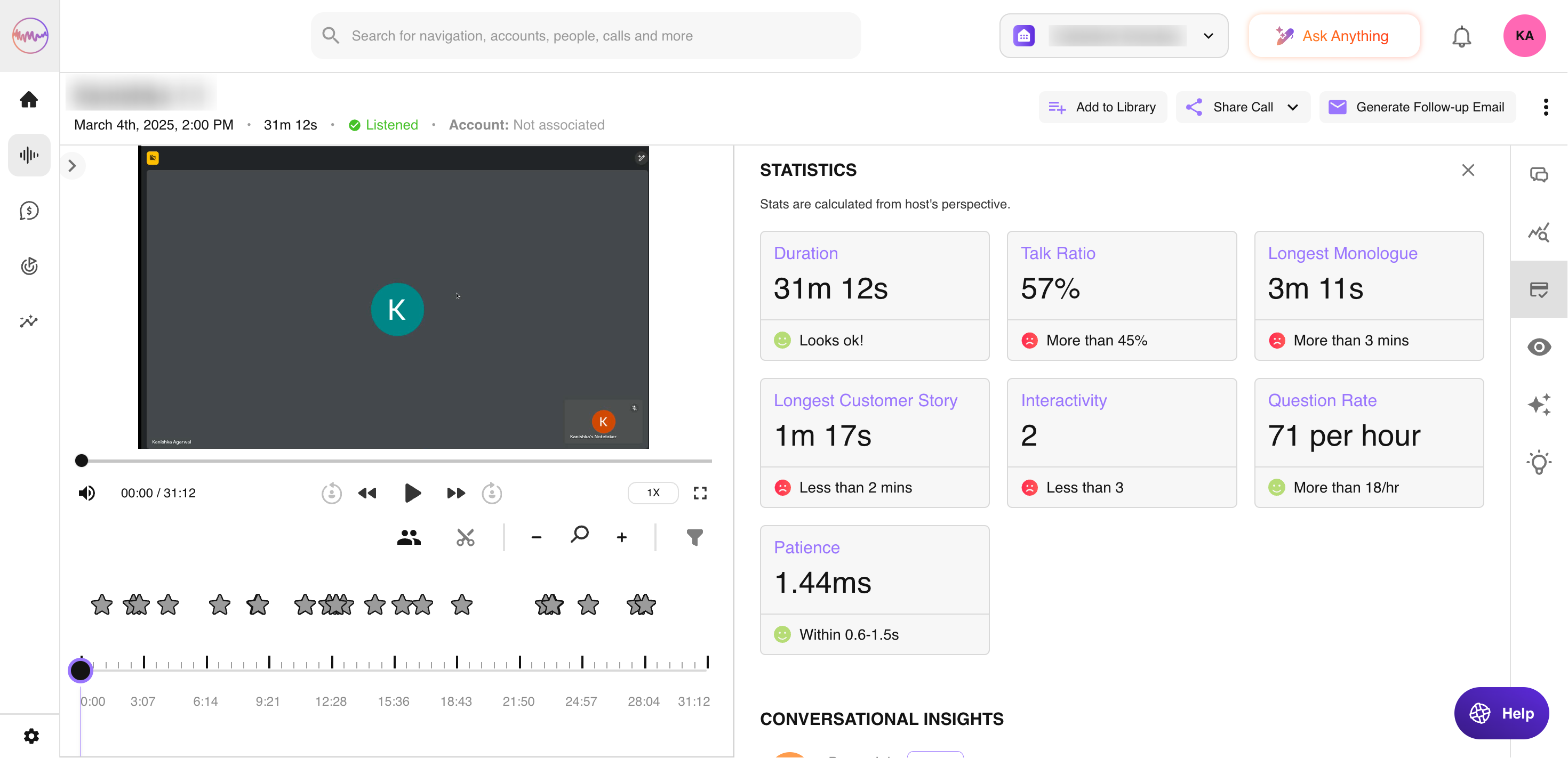
- Stats: view measurable data about the call host's performance, including talk ratio, patience, and more.
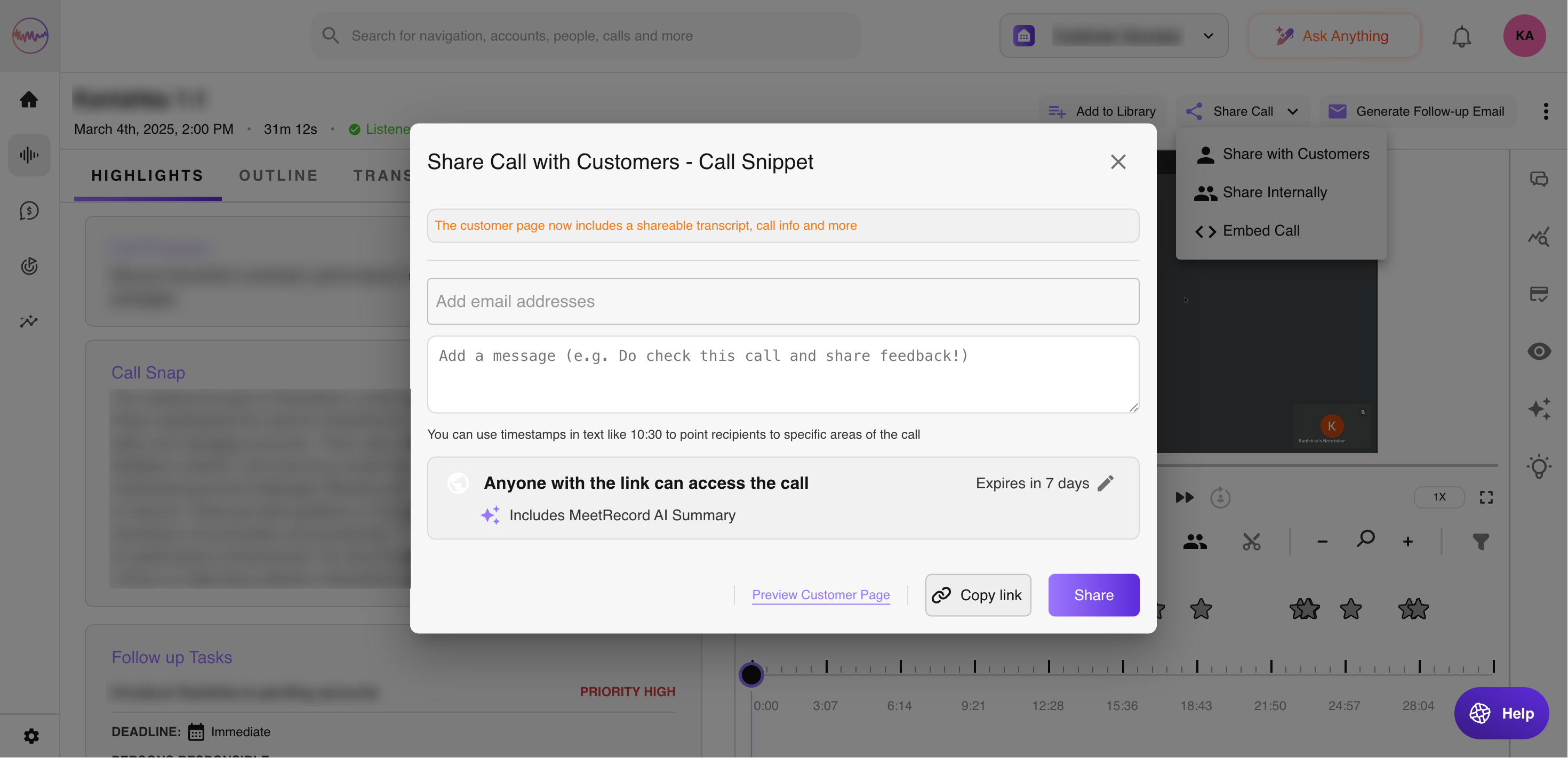
- Shares and Views: check if the call has been shared with or viewed by customers. See how many times it was shared and view details for each share. You can also edit share settings or revoke access to the call.
- Ask anything: got questions related to the call? You can ask Outdoo's AI for an answer in a few seconds.
If you need any further help, please contact support at support@outdoo.ai.