
Roleplay notification settings
Roleplay has its own notification settings, listed separately from the real-call notification settings on the same page. They control which roleplay notifications your workspace sends and over which channel — email, Slack, or both.
Go to Company Settings > Notifications and use the Roleplay sections. This page requires admin access.
What you can control
Notifications are grouped into four categories. Each one has a switch per available channel.
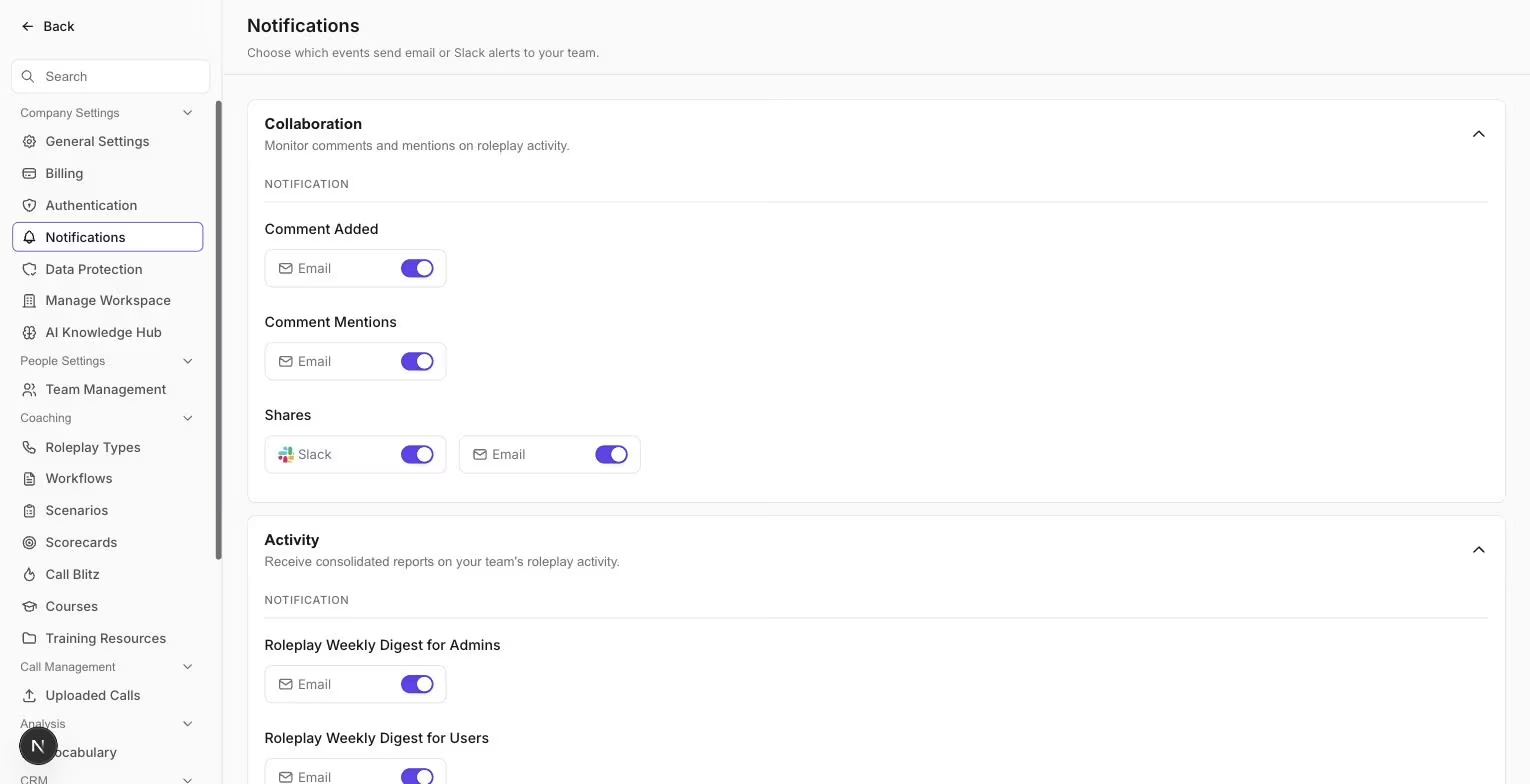
Collaboration and Activity notifications.
Collaboration
Comments, mentions, and sharing activity on roleplays.
- Comment Added (email)
- Comment Mentions (email)
- Shares (email + Slack)
Activity
Consolidated reports on your team's roleplay activity.
- Roleplay Weekly Digest for Admins (email)
- Roleplay Weekly Digest for Users (email)
Blitz
Call blitz enrolment, reminders, and completion.
- Blitz Enrollment (email)
- Blitz Starts Tomorrow (email)
- Blitz Reminder (email)
- Blitz Completed (email)
Course
Course enrolments, deadlines, and completions.
- Course Enrollment (email)
- Course Starts Tomorrow (email)
- Course Ending in 7 Days (email)
- Course Ending in 2 Days (email)
- Course Ending Tomorrow (email)
- Course Deadline Over (email)
- Course Completed - Passed (email)
- Course Completed - Failed (email)
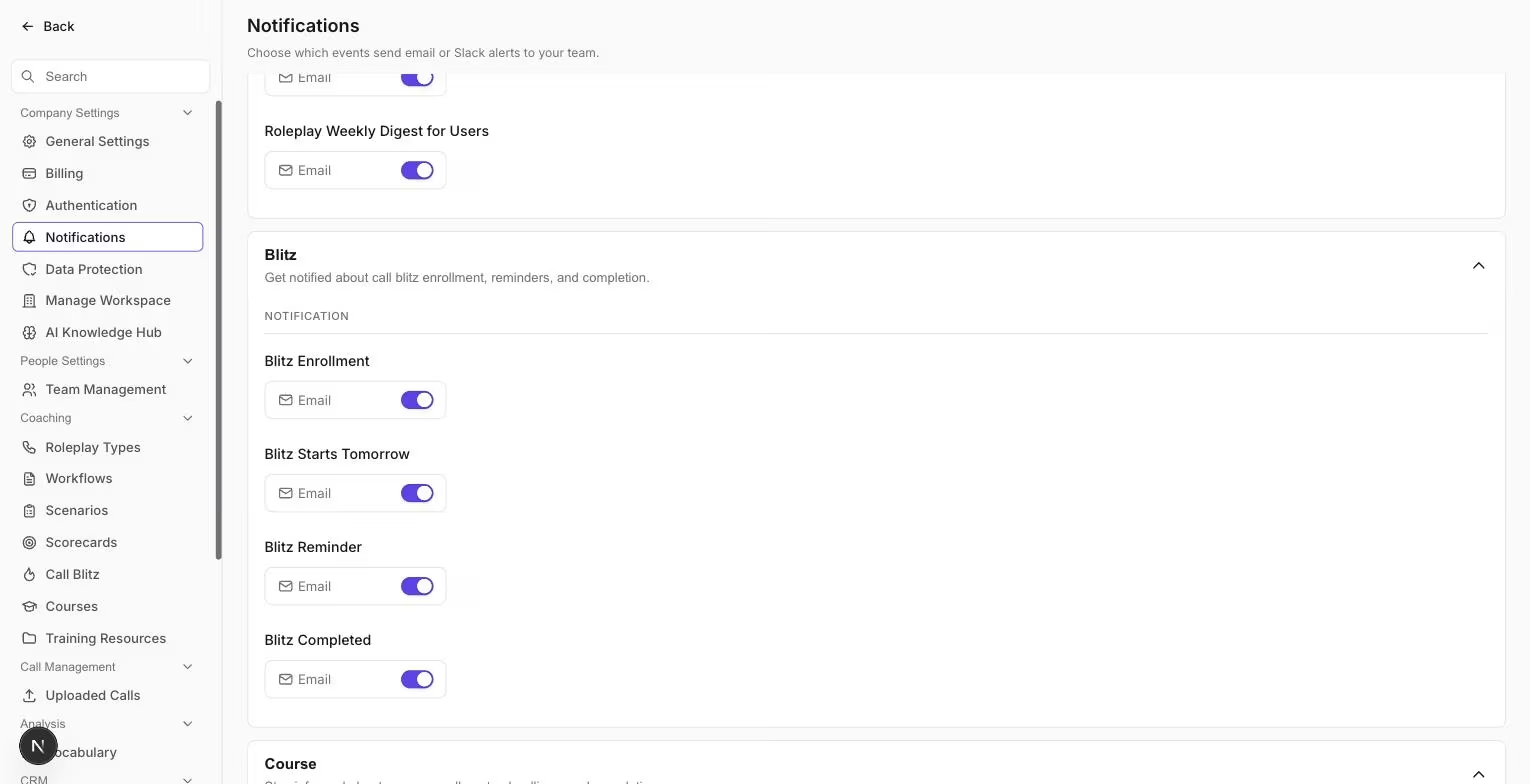
Blitz notifications, with Course below.
How the switches work
Every notification is on by default. Turning one off stops it for the whole workspace on that channel.
Changes save as soon as you flip a switch — there is no separate save step. Outdoo shows a brief "Updating your settings…" message while the change is applied, and the switches are locked until it finishes.
Overriding personal settings
Some notifications can also be set individually by each person. When you change one of those at the company level, Outdoo asks you to confirm first, because it will override what people have chosen for themselves.
The confirmation shows which notification and channel is about to change, along with a note that the action changes the default and overrides personal customisation for that setting only. Click Confirm to go ahead, or Cancel to leave it as it was — cancelling puts the switch back where it started.
Turning off Shares turns off sharing
The Collaboration > Shares setting does more than mute a notification. If you turn off the email channel, the option to share by email disappears from the share dialogs. The same applies to Slack. If both are off, people can still copy a share link, but the email and Slack options are replaced by a message telling them to ask an admin to enable one.
This applies to sharing across both Roleplay and Conversations. See Share a call for what your team sees.
Slack notifications need the Slack integration
Slack switches only do something once Slack is connected to your workspace. Connect it under Company Settings > Ecosystem > Slack Integration. See Slack Integration with Outdoo AI.
Hope this article was helpful. For any queries, please write to support@outdoo.ai