
Managing course batches
Batches let you run the same course for different groups of learners on separate timelines. Instead of creating a duplicate course each time you want to run it for a new cohort, you create a new batch under the same course: same content, new timeline, different participants.
Go to Manage > Courses, open a course, and navigate to the Batches tab.
When to use batches
- Running monthly or quarterly onboarding cohorts through the same course
- Staggering rollouts across regions or teams so everyone gets a focused window
- Re-running a course for a second group after it has already completed for the first
- Testing a course with a small group before releasing it to the full team
Creating a batch
To add a new cohort, open the course you want to reuse in Manage > Courses.
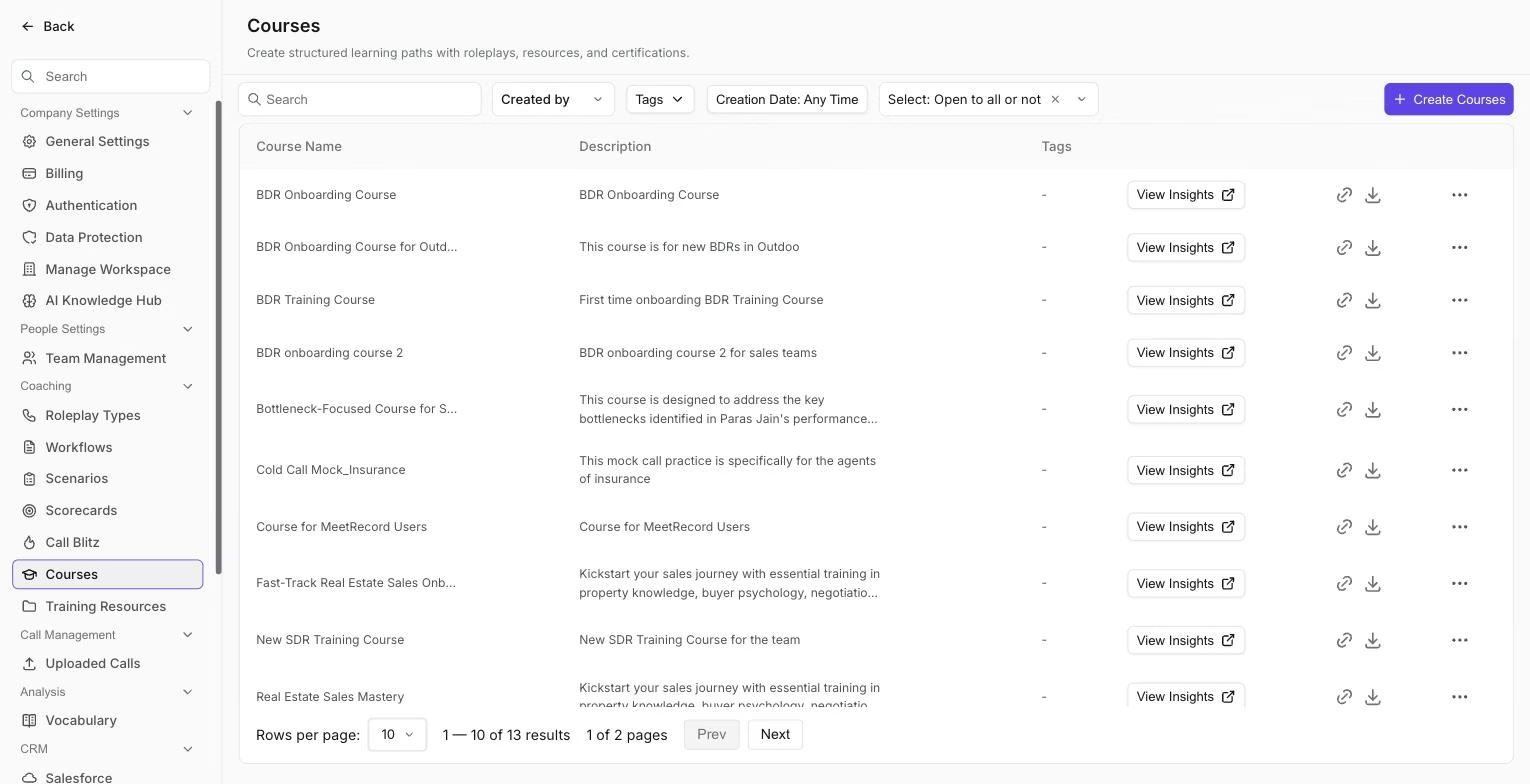
The Courses settings list, where you open the course you want to add a new batch to.
- Go to the Batches tab and click Add Batch.
- Give the batch a name (for example, "June Onboarding" or "Q3 APAC").
- Set the timeline: start date, end date, or a fixed duration from the day each learner begins.
- Assign participants: specific users, teams, or all reportees under a manager.
- Save the batch.
Learners assigned to the batch will see the course appear in their Courses section with the batch-specific deadline.
Tracking progress per batch
Each batch has its own progress view showing completion rates, pass rates, and individual learner status. You can filter the performance view by batch to see how a specific cohort is doing without mixing results from earlier runs of the same course.
Notes
- A learner can only be in one active batch of the same course at a time.
- Changing the course content (adding or removing lessons) affects all future batches but does not change batches that are already in progress.
- Completed batches remain visible in the Batches tab for historical reporting.
Hope this article was helpful. For any queries, please write to support@outdoo.ai