
Intro to Playbooks
Playbooks are configured templates that Outdoo uses to generate structured documents after each call. You define the sections and questions you want captured; Outdoo's AI fills them in using the call transcript. Playbook data can also sync to your CRM automatically, keeping deal records current without manual entry.
Creating a playbook
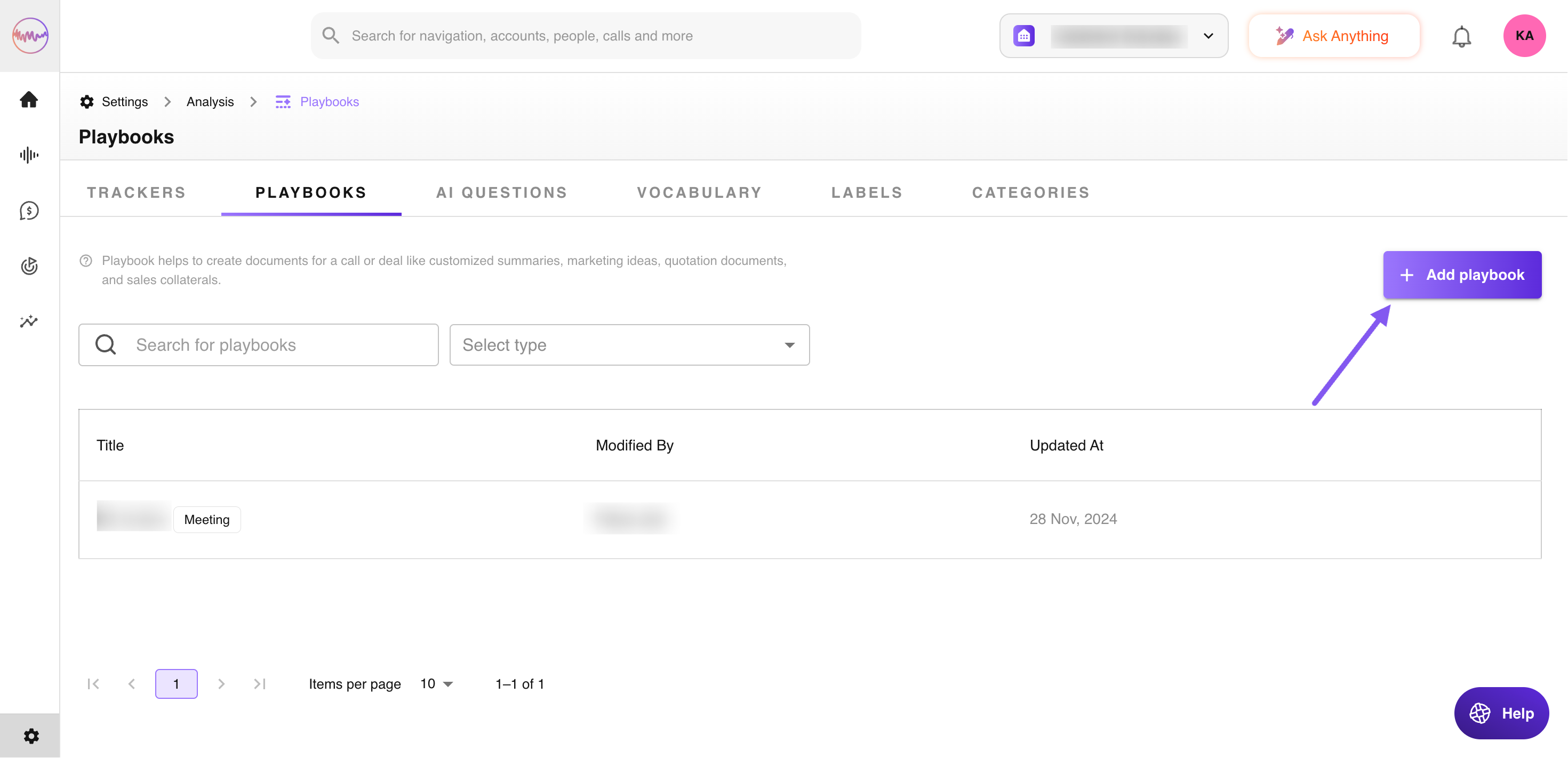
Navigate to Company Settings > Playbooks:
- Go to Company Settings from the bottom-left of your screen.
- Locate Analysis and click on Playbooks.
- Click Add Playbook.
How it works
When you create or edit a playbook, define the sections or questions you want included. Add context or a custom prompt if you want the output to follow a specific tone or structure. Outdoo AI then generates the document based on your structure after each call.
CRM sync
Playbook data can be pushed into your CRM fields automatically. The responses collected via the playbook are visible in Outdoo and also update your CRM without manual entry. To make this work, map the corresponding CRM fields while creating the playbook. You will see an option to choose which playbook section maps to which CRM field during setup.
This keeps CRM records current after every call and removes the gap between what was discussed on a call and what ends up in your deal record.
If you need help, contact us at support@outdoo.ai.