
Embed a Roleplay Agent Anywhere
You can drop a single roleplay agent into any page as a self-contained practice panel — a rep opens it and can start a call, chat, or video session with that agent without ever visiting Outdoo directly. It's a plain, sandboxed <iframe> against one agent, so it works anywhere you can paste custom HTML: your own website, a Sales Content Management (SCM) tool, an LMS or LXP course, or an internal docs/wiki page.
If you're embedding into Salesforce Lightning specifically, use Embed a Roleplay Agent in Salesforce instead — it has the exact Trusted URL and Session Settings steps. This article covers everything else.
Before you start
- You need the Admin or Manager role in Outdoo to generate an embed code.
- The agent must be published and Active — drafts and agents still being created can't be embedded.
- The agent must be a single-persona agent. Multi-persona agents aren't supported in the embed yet.
- The agent can't have a workflow/screen-capture step attached — that needs the Outdoo browser extension, which can't run inside an iframe.
- Your workspace needs the Roleplay app enabled.
If an agent doesn't meet the first four conditions, the Embed agent option won't appear in its menu.
Get the embed code
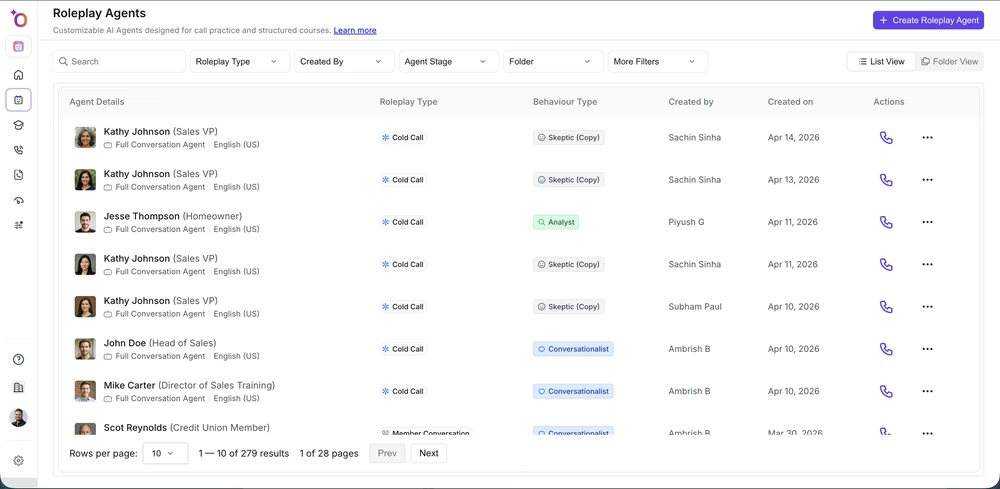
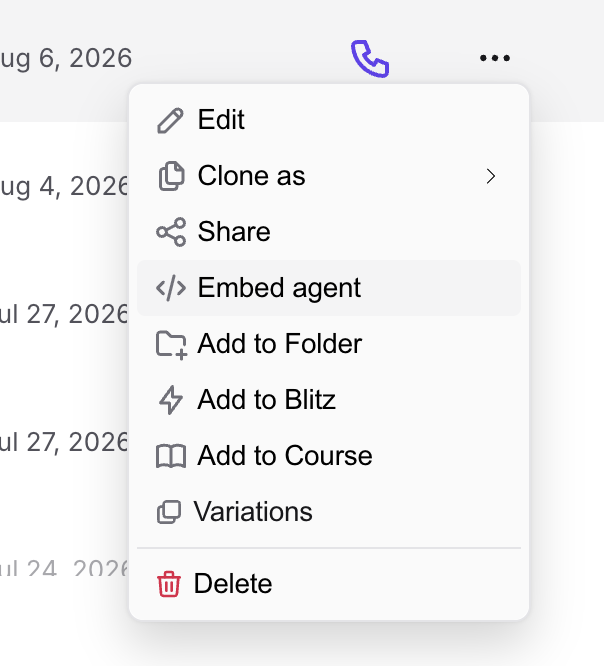
Open an agent's ••• menu in the Actions column to find Embed agent.
- Go to Roleplay → Agents.
- Find the agent, open its ••• menu, and select Embed agent.
- Optionally set a Width and Height (defaults to 100% / 100%).
- Click Copy iframe HTML.
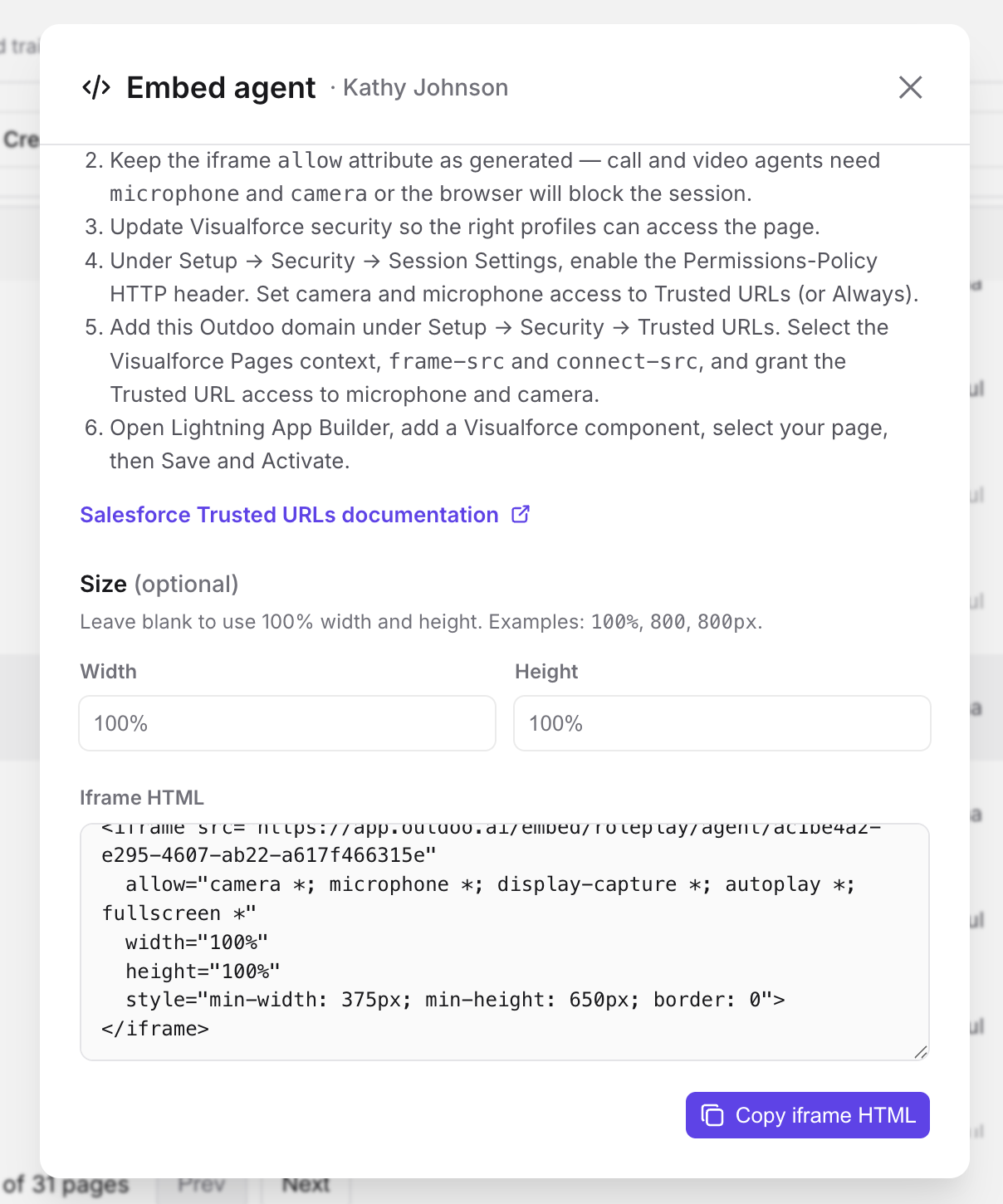
The copied snippet looks like this:
<iframe src="https://app.outdoo.ai/embed/roleplay/agent/<botId>"
  allow="camera *; microphone *; display-capture *; autoplay *; fullscreen *"
  width="100%"
  height="100%"
  style="min-width: 375px; min-height: 650px; border: 0">
</iframe>
Keep the allow attribute exactly as generated — call and video agents need camera and microphone access, and the browser blocks the session without it. Chat-only agents don't need it.
What the host platform needs to support
Whatever you're pasting this into, check for three things:
- A custom HTML or iframe block. Most Web, SCM, LMS, and LXP platforms have one — it may be called "custom HTML," "web content," "embed," or "iframe widget" depending on the tool.
- Frame/CSP allowlisting. If the platform restricts what it will load in a frame (a
frame-srcorframe-ancestorspolicy — Salesforce calls this "Trusted URLs"), add your Outdoo domain to it.
- Camera/microphone permission delegation, for call and video agents. The iframe already requests
allow="camera *; microphone *; ...", but some platforms strip or override permissions on embedded HTML. If a call or video agent won't request camera/mic access once embedded, this is the first thing to check with the platform.
The first time a rep opens the embedded panel, they'll see a sign-in screen. Sign in with Outdoo keeps them in the panel; if the host page blocks login screens from loading inside a frame, they can open sign-in in a new tab instead and return to the embedded tab afterward.
Where to embed it
Web
Add the iframe to your own site or portal — a product tour page, a self-serve trial flow, or an in-app help widget. This is the simplest case: paste the snippet into any page that accepts raw HTML.
Sales Content Management (SCM)
Platforms like Highspot, Seismic, Showpad, Bigtincan, and Mediafly let you add a custom HTML spot or tile alongside your playbooks and battlecards. Embedding an agent here puts practice next to the content reps are already reading, rather than in a separate tool.
LMS / LXP
Platforms like Docebo, Cornerstone, 360Learning, Adobe Learning, and Absorb typically support a "web content" or custom HTML block inside a course or learning path. Embedding an agent turns a course step into hands-on practice instead of a passive video or reading assignment.
Interactive docs and wikis
Tools like Notion, Confluence, GitBook, and Guru support embed blocks that take a URL or raw HTML. This works well for pairing a "try it" practice panel directly next to a playbook, SOP, or onboarding doc.
Exact steps vary by platform — check that tool's documentation for how it names its custom HTML/embed block and its frame/CSP allowlist, then apply the same iframe snippet from Get the embed code above.
Troubleshooting
Camera/microphone access is blocked once embedded. The host platform is stripping or restricting iframe permissions. Look for a setting that controls frame permissions or a CSP/allow-list for the embedded domain — this is the same idea as Salesforce's Trusted URLs, under whatever name the platform uses.
Sign-in screen loops or goes blank. The host page is refusing to load a login screen inside a frame. Have the rep open sign-in in a new tab instead.
"Agent cannot be embedded" in Outdoo. The agent is a multi-persona agent, or it has a workflow/screen-capture step attached — neither is supported in the embed yet.
"Access denied" inside the panel. The signed-in rep hasn't been shared on this agent, or isn't a member of the workspace it belongs to.