
How to Make Your Meetings Private
Learn how to make your meetings private in Outdoo AI by configuring admin settings or marking individual calls as private to restrict access to authorized users only.
To keep your meetings private and prevent other members from accessing them, you have two options.
1. Change Admin Meeting Settings
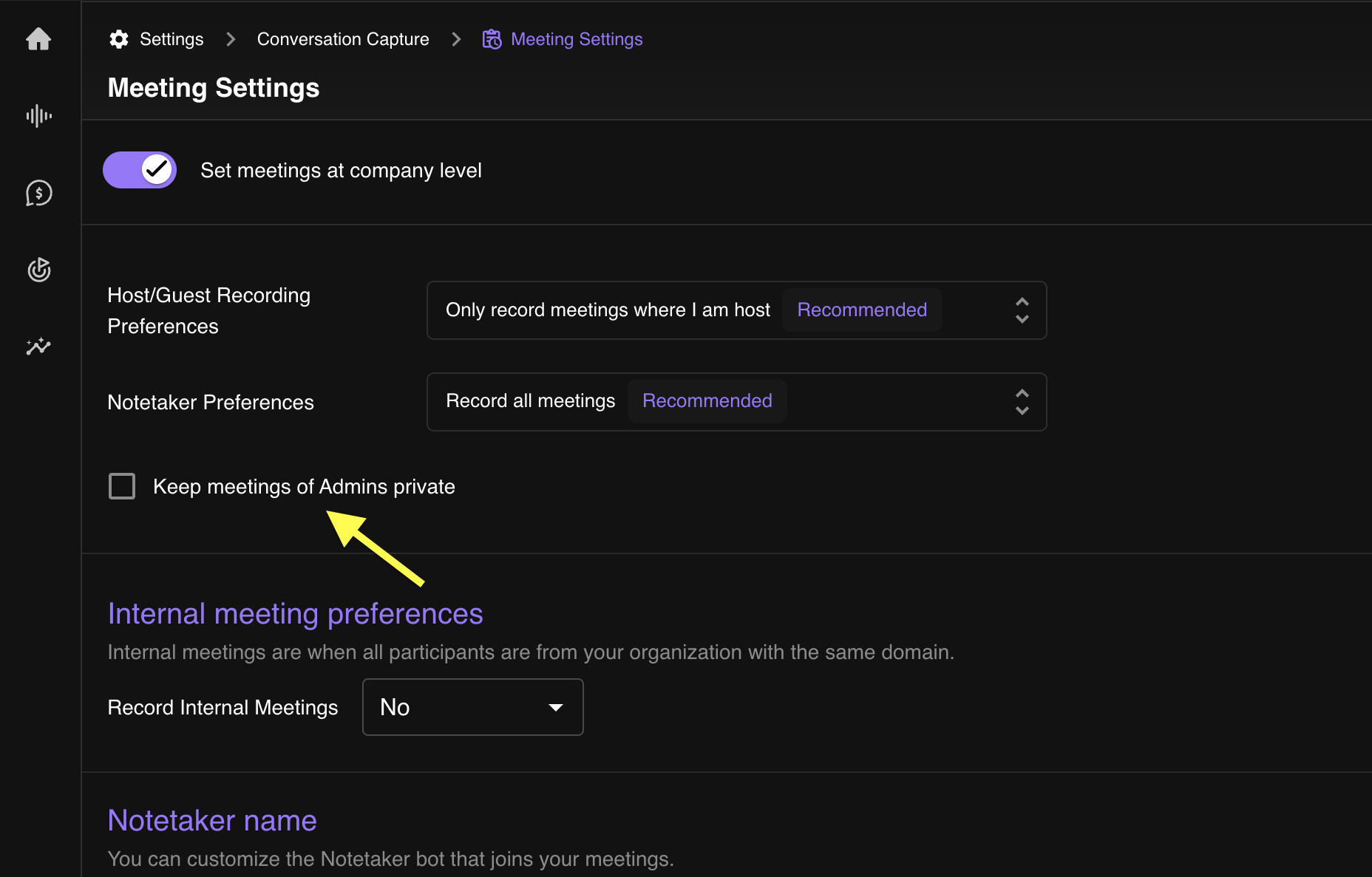
If you are an admin and want to keep all your meetings private:
- Go to Company Settings
- Under Meeting Settings
- Look for the option Set meetings at company level
- Select the checkbox for Keep meetings of Admins private
- Save your changes
This will ensure that admin meetings are not accessible to other team members.
2. Change an Individual Meeting to Private
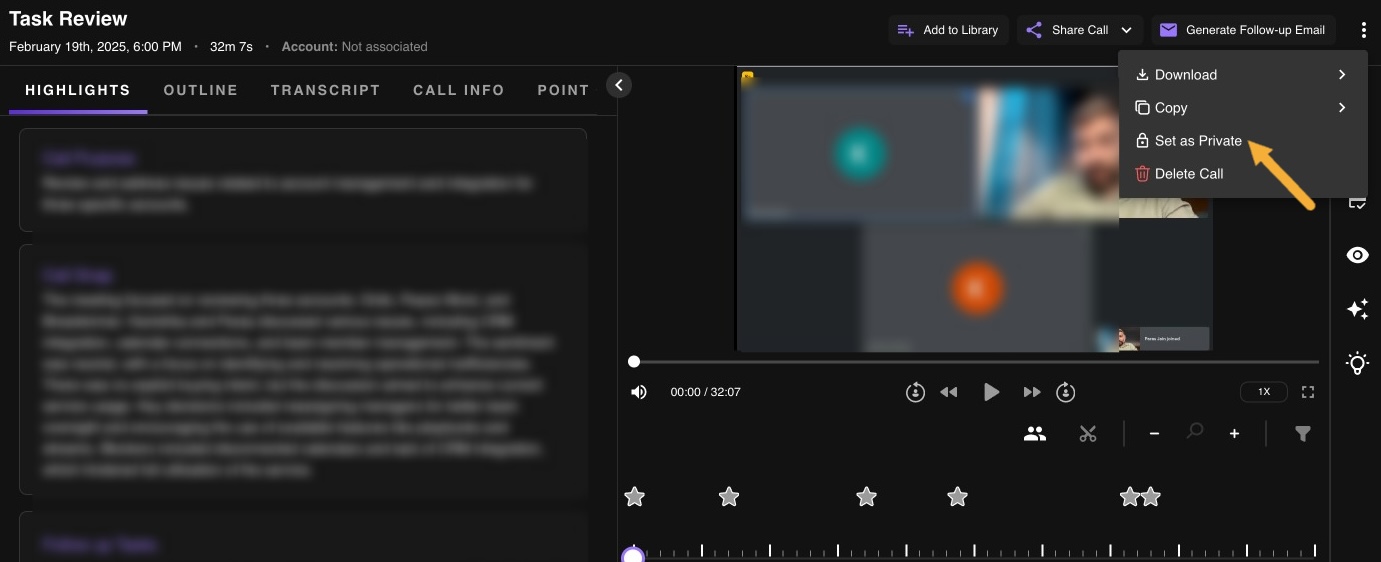
If you want to make a specific meeting private so that no one else can access the call:
- You must be an Admin
- Go to Conversation > Calls
- Open the call you want to make private
- Click on the three dots in the top right corner of the page
- Select Set as private
Once you set the meeting as private, only you (Admin) will be able to access it.
Who Can Make a Call Private?
Only admins of any workspace have the ability to mark a call as private.
Who Can View Private Calls?
Admins of any workspace can view private calls. Regular users and non-admin members cannot access private calls.
Can a Call Be Made Private Before It Starts?
Yes. Only admins have permission to make their call private before the call starts.