
Mastery Cheat Sheet for Admins
First week priorities
Set up your workspace and invite your team
Go to Settings > Team Management. Add users, assign roles (Admin, Manager, Rep), and set up team hierarchy. Recording and roleplay access are both controlled here. Get this right before your team starts using the platform — changing roles retroactively creates gaps in historical data.
Connect your calendar and CRM
Go to Settings > Integrations. Connect Google Workspace or Microsoft 365 for calendar-based call recording, and connect your CRM (Salesforce, HubSpot, Pipedrive, etc.) so deal and contact data flows into Outdoo automatically. Most teams connect both in under 30 minutes.
Configure consent profiles before recording starts
Go to Settings > Consent Profiles. Set up your recording consent rules before any calls are recorded. This controls whether the Outdoo notetaker announces itself, how long recordings are retained, and whether pre-call consent emails go out. Different markets have different requirements — if you work across regions, set up a profile per region.
Configuring training
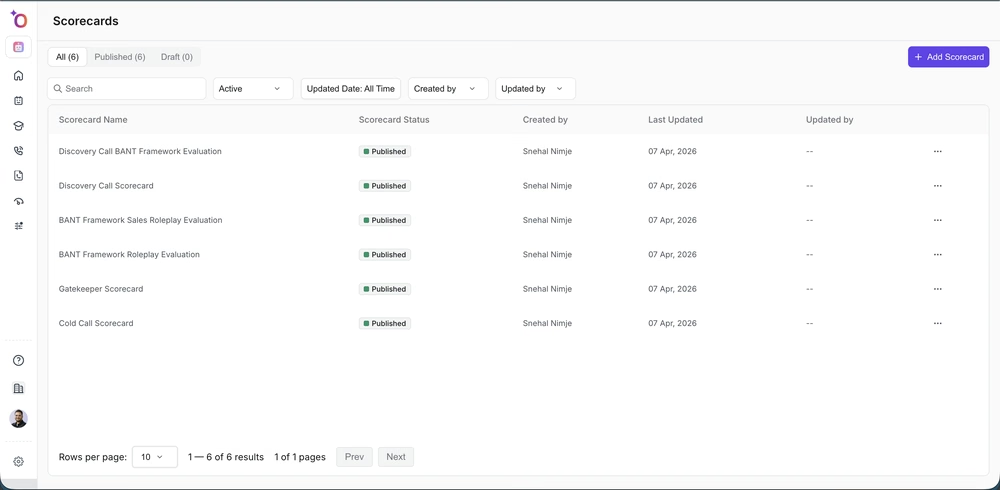
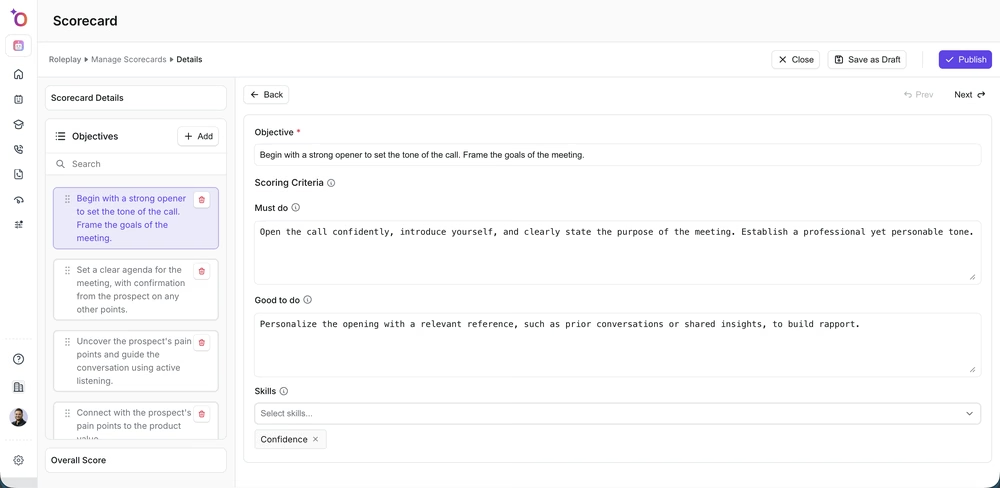
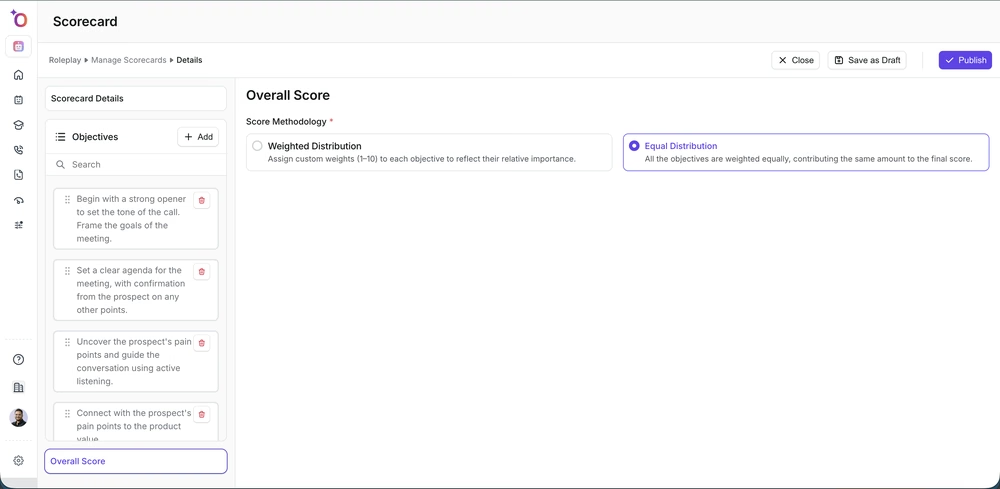
Build your first scorecard
Go to Settings > Scorecards. Create at least one scorecard before your team starts recording calls. The scorecard defines what good looks like — discovery quality, objection handling, talk track adherence. The same scorecard runs across roleplay and live calls, so the feedback is consistent.
Set up keyword trackers
Go to Settings > Trackers. Add trackers for the topics that matter to your team: competitor names, pricing discussions, objection phrases, next-steps language. Trackers run automatically on every call and feed your Insights dashboard. Start with 5–10 and expand once you see which ones are actually useful.
Create roleplay agents for your key scenarios
Go to Roleplay > Create agent. Build at least one agent per major call type — cold call, discovery, demo, renewal. Pull from your best existing calls or use a template. Once built, these agents can be used by your whole team and assigned in courses.

See the roleplay creation overview for all the ways to build them.
Build workflow simulations for your post-call processes
Go to Settings > Simulations. Build a simulation for each critical post-call workflow — CRM update, disposition, account setup. Reps should complete the simulation before they run the real workflow for the first time. See Create a workflow simulation for the step-by-step.
Ongoing admin tasks
Keep team membership current
When someone joins, add them in Settings > Team Management and assign the right manager. When someone leaves, deactivate their account — do not delete it. Historical calls and scorecard data stay associated with deactivated accounts, which matters for reporting.
Review integration health periodically
Check Settings > Integrations once a month. CRM tokens expire, calendar permissions change, and dialer connections occasionally drop. If reps report missing calls or CRM data not syncing, this is usually the first place to check.
Update simulations when your tools change
When your CRM, dialer, or any connected tool updates its interface, review active simulations and update the screenshots and steps. A simulation that does not match the real tool teaches the wrong thing.
Audit custom vocabulary quarterly
Go to Settings > Custom Vocabulary. Your product names, prospect company names, and internal terminology need to be in here for accurate transcription. Add new terms when they appear and remove old ones when they are no longer relevant.
Security and compliance
Outdoo is SOC 2, GDPR, HIPAA, and CCPA compliant. Key settings to review:
- Settings > Security: configure SSO, role-based access controls, and external sharing permissions
- Settings > Consent Profiles: control recording announcements and data retention per region
- Settings > PII Scrubbing: enable automatic removal of sensitive data from transcripts where required
For compliance reports and audit logs, see Compliance reports.
If you need help, contact us at support@outdoo.ai.