
Listen to a Call
With Outdoo AI recording your calls, you can focus on the conversation instead of taking notes. Once the call is over, go back to the recording to review, learn, coach, prepare for your next call, and more.
Open a recorded call
Go to Real Calls > History and click a call to open its details.
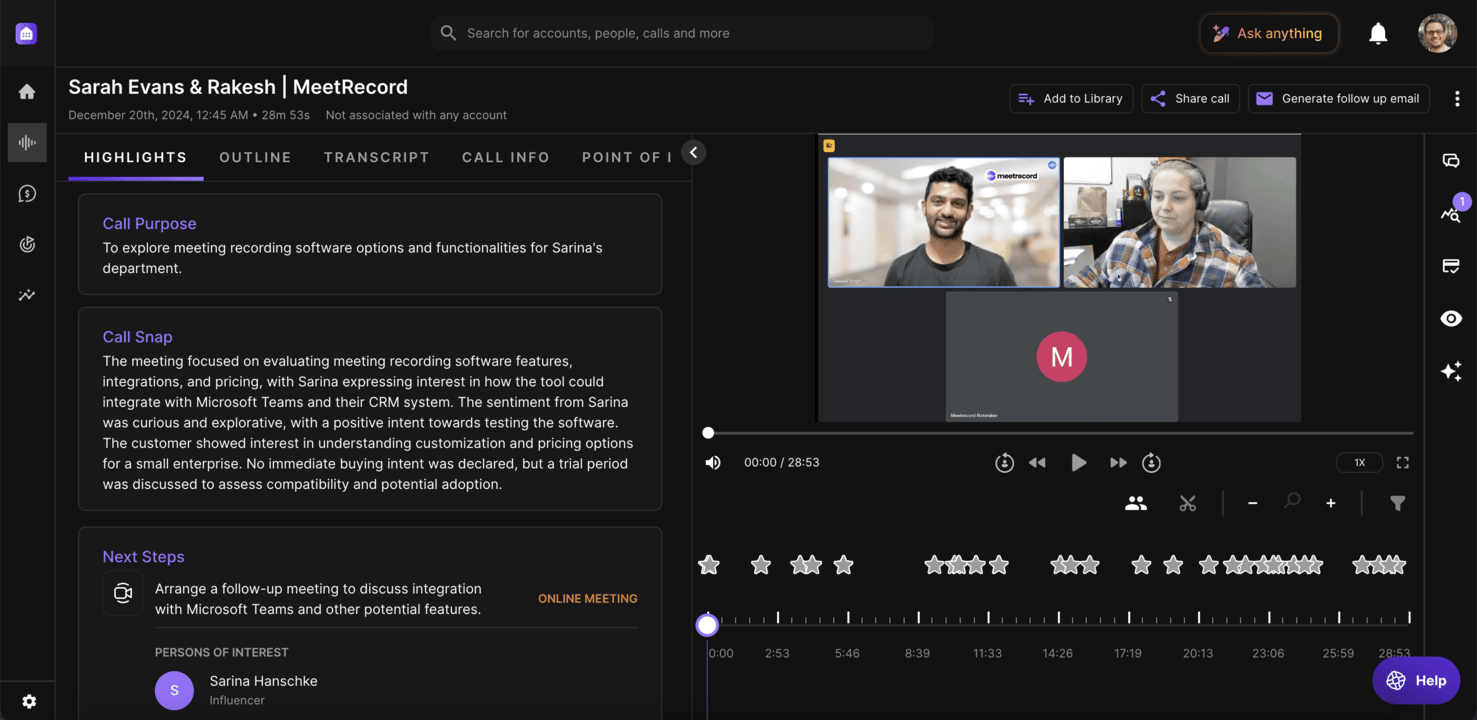
Actions at the top of the page (which ones you see depends on your permission profile):
- Ask Revie about this conversation: ask questions about the call.
- Add to Library: save the call to a library folder.
- Share Call: share the call with customers or colleagues, or embed it elsewhere.
- Generate Follow-Up Email: draft a follow-up email from the call, using the default template or one of your own. Copy it or open it in your email provider.
- More actions (⋯): download or copy the video, audio, or transcript, set the call as private or public, regenerate insights, request feedback, or delete the call.
Call details above the player:
- The call title, date, and duration.
- Account and Deal: click the account name to open its activity panel, with recent meetings, emails, and CRM changes. Click the deal name to open the deal.
- Listened: appears once you've listened to more than a minute of the call. Hover over it to see how long you listened.
Player controls (below the video):
- Play or pause.
- Rewind or forward 10 seconds, or skip back or forward 5 seconds.
- Change the playback speed.
- Mute or unmute.
- Enter or exit full-screen mode.
Call timeline:
- Click or drag on the timeline to move through the recording. Markers show tracker mentions and questions; use the filter to choose which ones appear.
- Each speaker has a track, so you can see who spoke when. Click the Manage speakers (people) icon to show or hide speaker tracks.
- Click the Create clip (scissors) icon to select part of the call to share or save as a snippet.
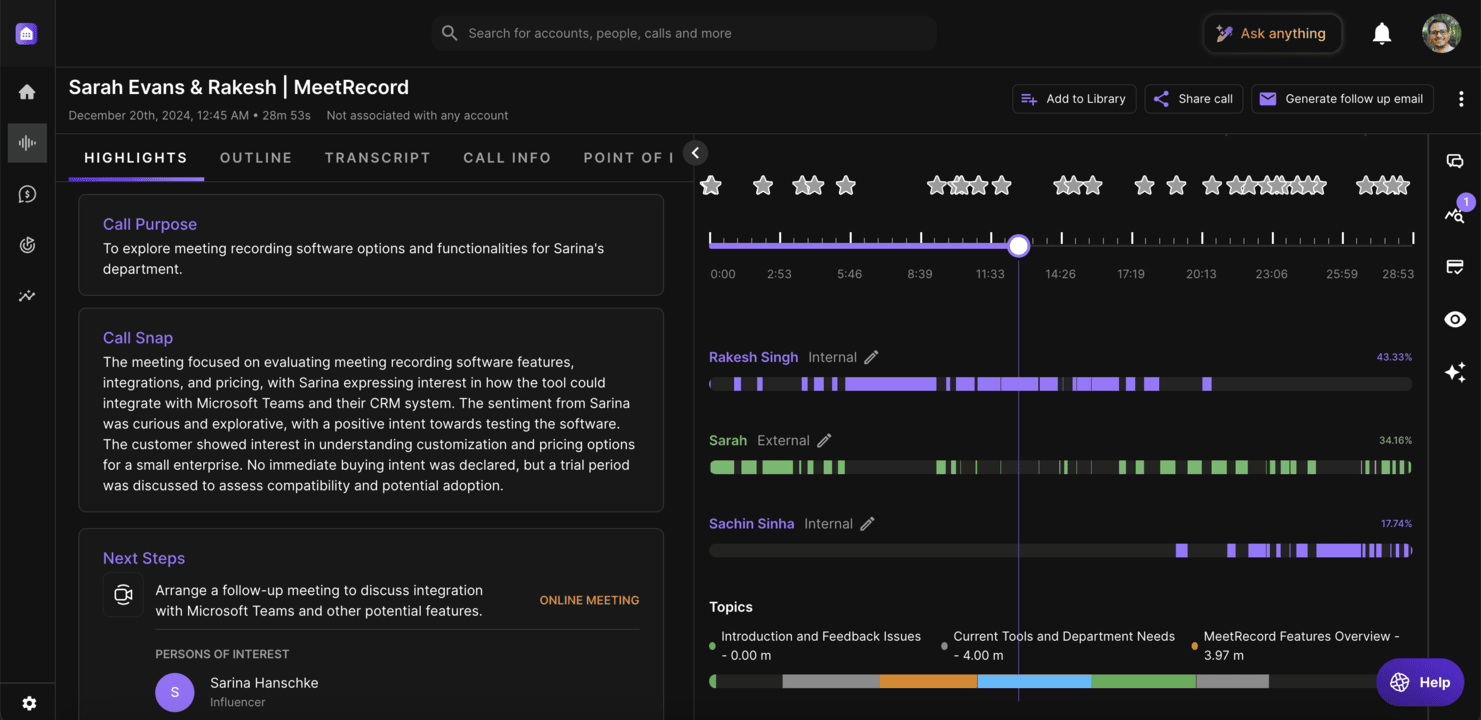
Tabs next to the player:
- Highlights, Outline, Transcript, Call Info, and Point of Interest.
- Side panels for Comments, Scorecard, Stats, Shares & Views, Playbooks, Interests & Pain-points, and Screen Share, depending on your permission profile and what the call has.
Fix speaker names
If Outdoo AI misidentifies a speaker:
- Click Manage Speakers on the timeline toolbar.
- Use Search or Select Speaker to pick the correct person for each track.
- Click Save & Generate Insights.
If the person isn't listed, make sure they are added to your CRM, then try again.
Download a call
To listen offline, click More actions (⋯) at the top of the call page, then Download, and choose Download Video or Download Audio. Downloading needs a permission profile that allows it.
Troubleshoot playback issues
If you have trouble playing a call:
Check your certificate provider:
- Make sure your browser trusts the Amazon certificate used for playback. Invalid certificates can disrupt playback.
Try the following:
- Use an incognito or private browser window.
- Clear your browsing history.
- Connect to a different network or turn off your VPN.
- Play the call in a duplicate tab or through an external share link.
- Check any web security applications and make sure
*.outdoo.aiis excluded.
Check whether it's organization-wide:
- Find out whether others in your organization have the same problem.
Contact Outdoo AI support:
- If the problem continues, contact support with the details.
Hope this article was helpful. For any queries, please write to support@outdoo.ai