
Record a Scheduled Call
Before You Start
Follow these tips to ensure a smooth recording process:
Check your setup for meeting recording and calendar import:
- Ensure a green checkmark appears in the Calendars section next to the connected calendar.
- (Optional) Navigate to My Settings and confirm a green checkmark in the Meeting tool section in case of Google Meet or Zoom.
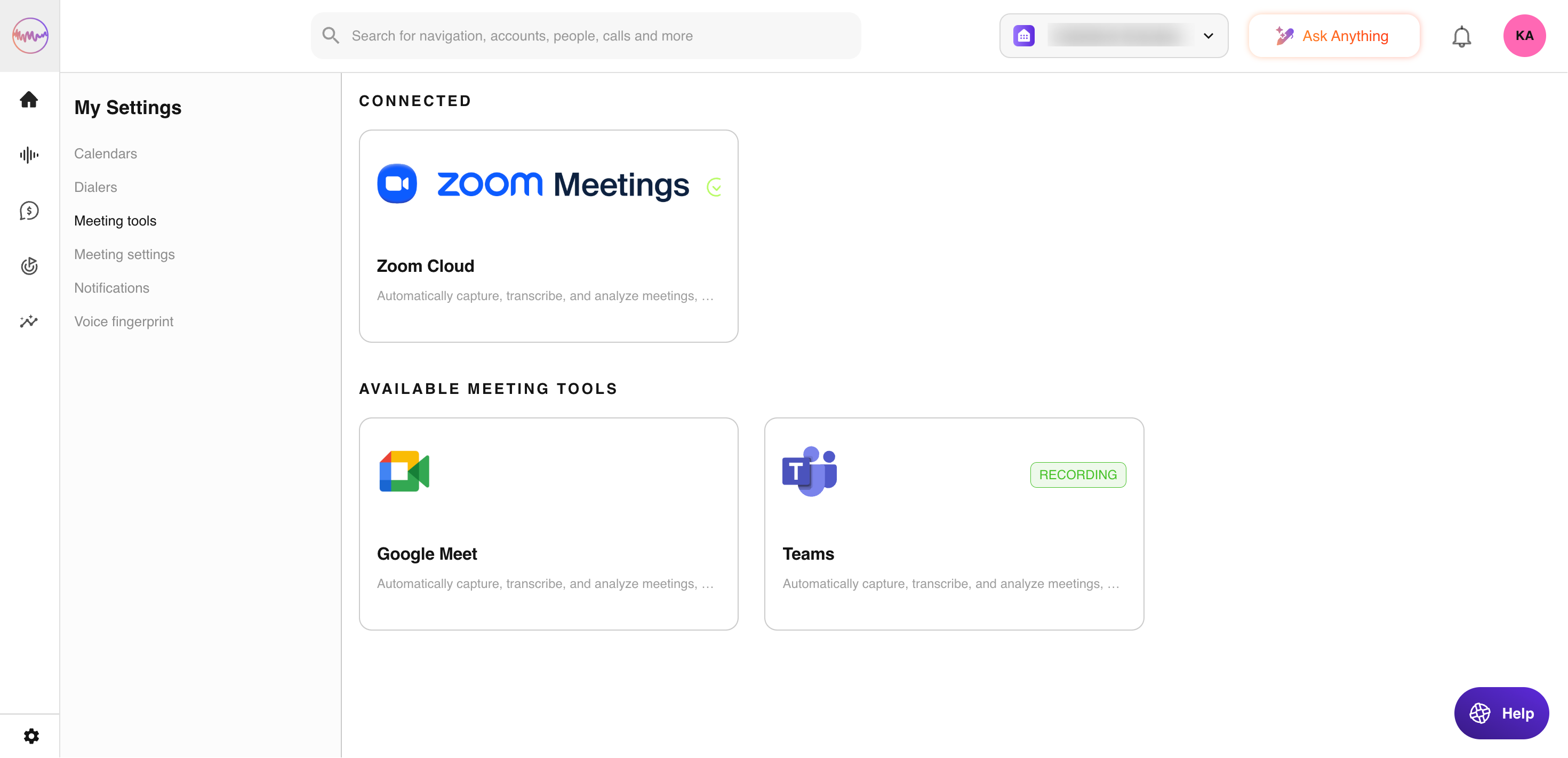
If either setting is not configured correctly, consult your tech admin.
How to Record a Scheduled Call
Here's a typical workflow for setting up recordings. Your process may differ depending on your meeting and calendar providers.
Set up the meeting in your calendar:
- Add participants.
- Select the date and time.
- Include meeting details as usual, unless your admin advises otherwise.
- Save the meeting to your calendar.
What Happens Next:
- Outdoo AI detects the meeting, verifies it complies with your organization's recording policies, and prepares to record when the session begins.
- Admin-defined settings determine which meetings can be recorded (for example, calls with external invitees).
When the Meeting Starts
Begin the meeting as usual. An Outdoo AI Notetaker will join as a participant.
- If Outdoo AI doesn't join or if the meeting is arranged at the last minute, refer to Record a Call under Shortcuts for assistance.
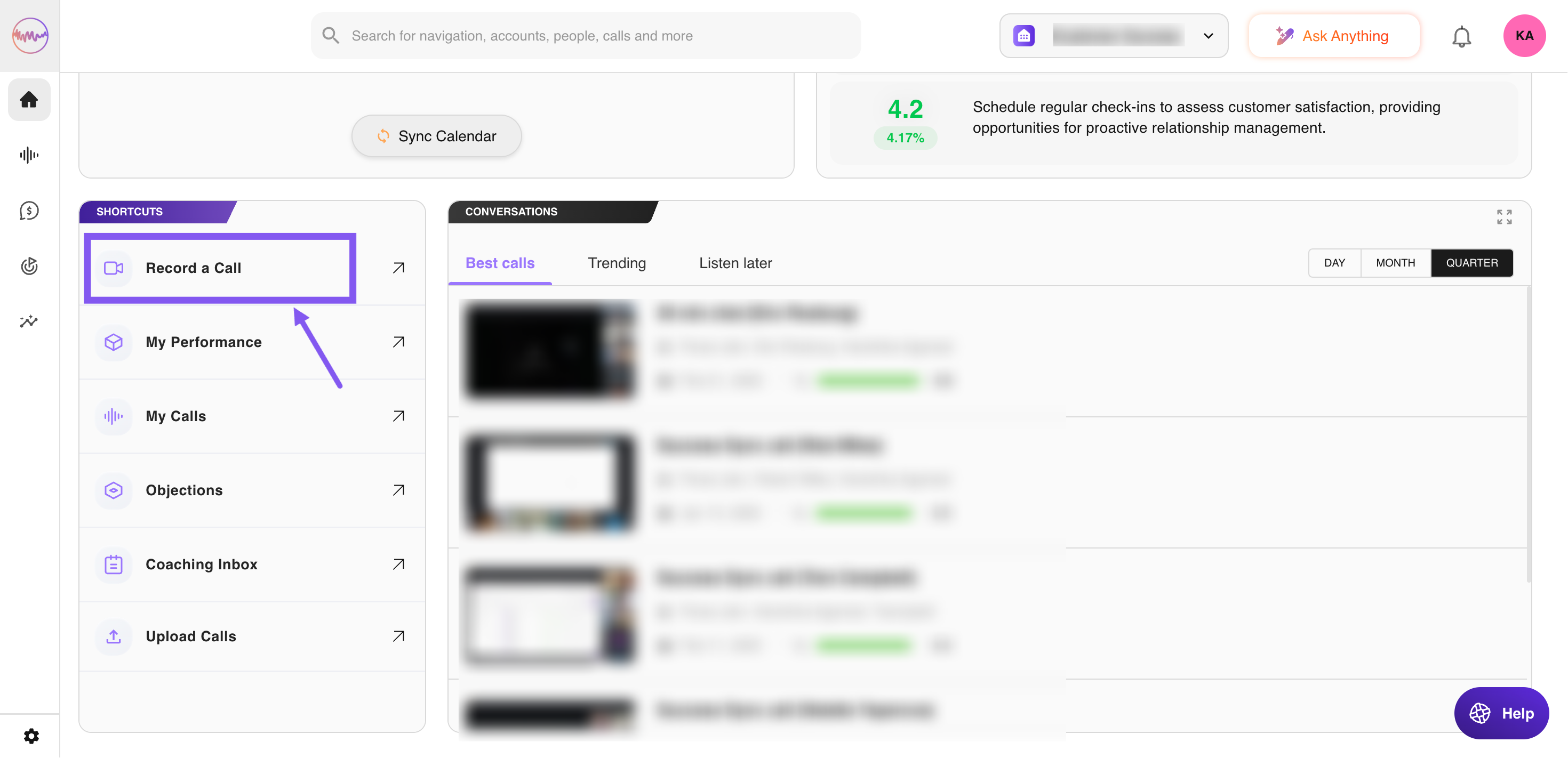
- To stop recording mid-meeting, see Stop Recording During a Call.
Recording Recurring Meetings
If your calendar syncs with Outdoo AI, recurring meetings will be recorded automatically. Otherwise, ensure the Outdoo AI assistant is added to each meeting invite.
Key Points:
- Any updates to the series (for example, changes or cancellations) will automatically be applied.
- Outdoo AI will notify you via email about how changes are managed.
Note: Customers using forwarding rules or a custom calendar add-in are also supported for recurring meeting recordings.
Scheduling a New Recording in Outdoo AI
You can manually schedule a meeting recording from Outdoo AI's homepage:
- Copy the meeting URL from your meeting tool.
- On Outdoo AI's home page, go to the Shortcuts section and click on Record a Call.
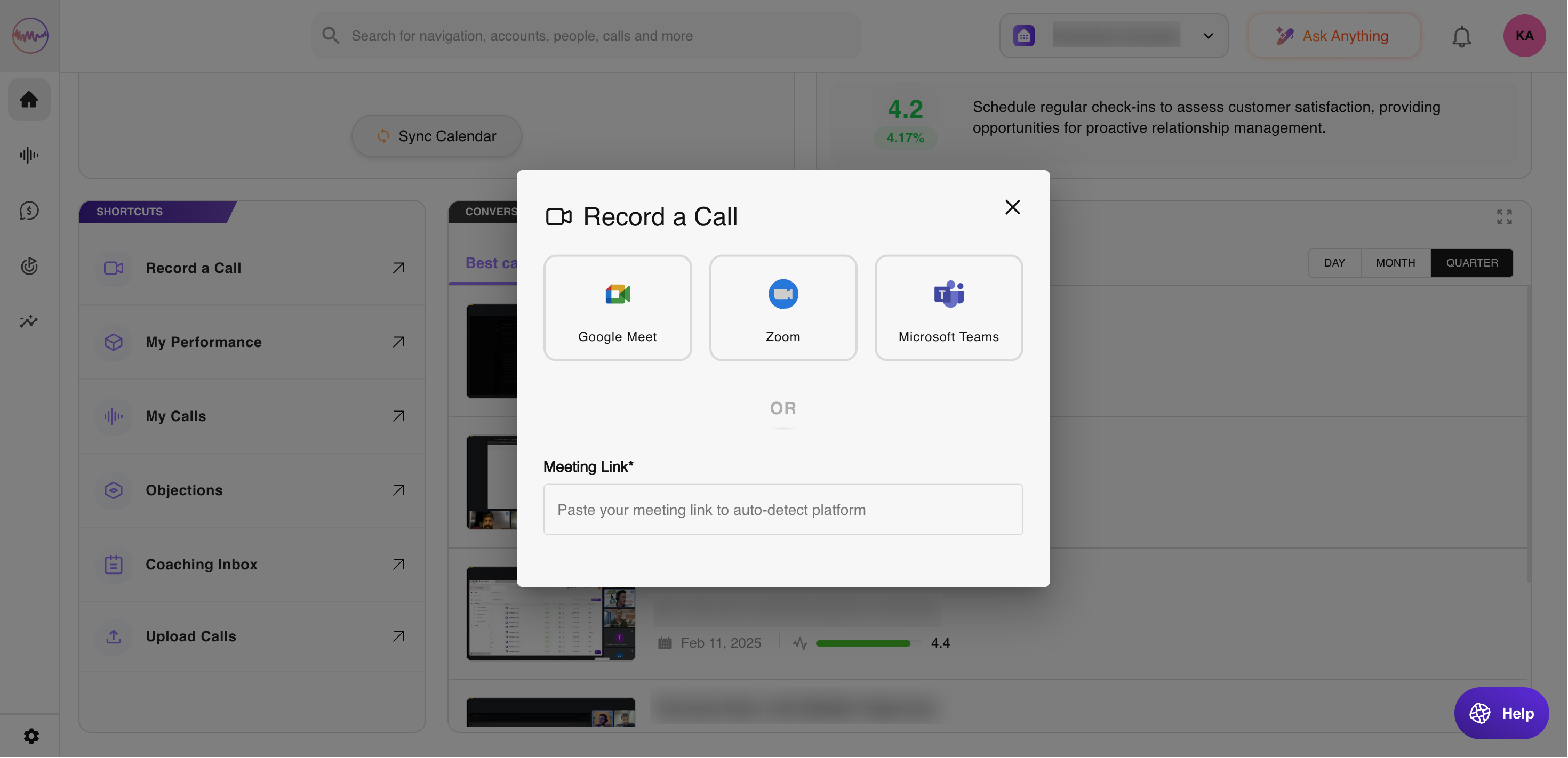
Enter the recording details:
- Paste the meeting URL. (Note: If scheduled for "Now," the bot may take up to 5 minutes to join.)
- The meeting platform will be automatically selected.
Click Ask notetaker to Join. Outdoo AI will join when the call begins.
If you need any further help, please contact support at support@outdoo.ai.