
Authentication Setup Guide
Follow these steps to configure how your team members log in to Outdoo.
Before You Begin
Decide which login methods you want to allow:
- Email and Password
- Google / Microsoft
- SAML (with your Identity Provider)
If using SAML:
- Confirm you have admin access to your IdP (for example, Azure AD or Okta).
- Collect the necessary metadata (URL or XML file).
- Prepare your Outdoo-provided values (Entity ID and Reply URL).
Step 1: Enable Login Methods
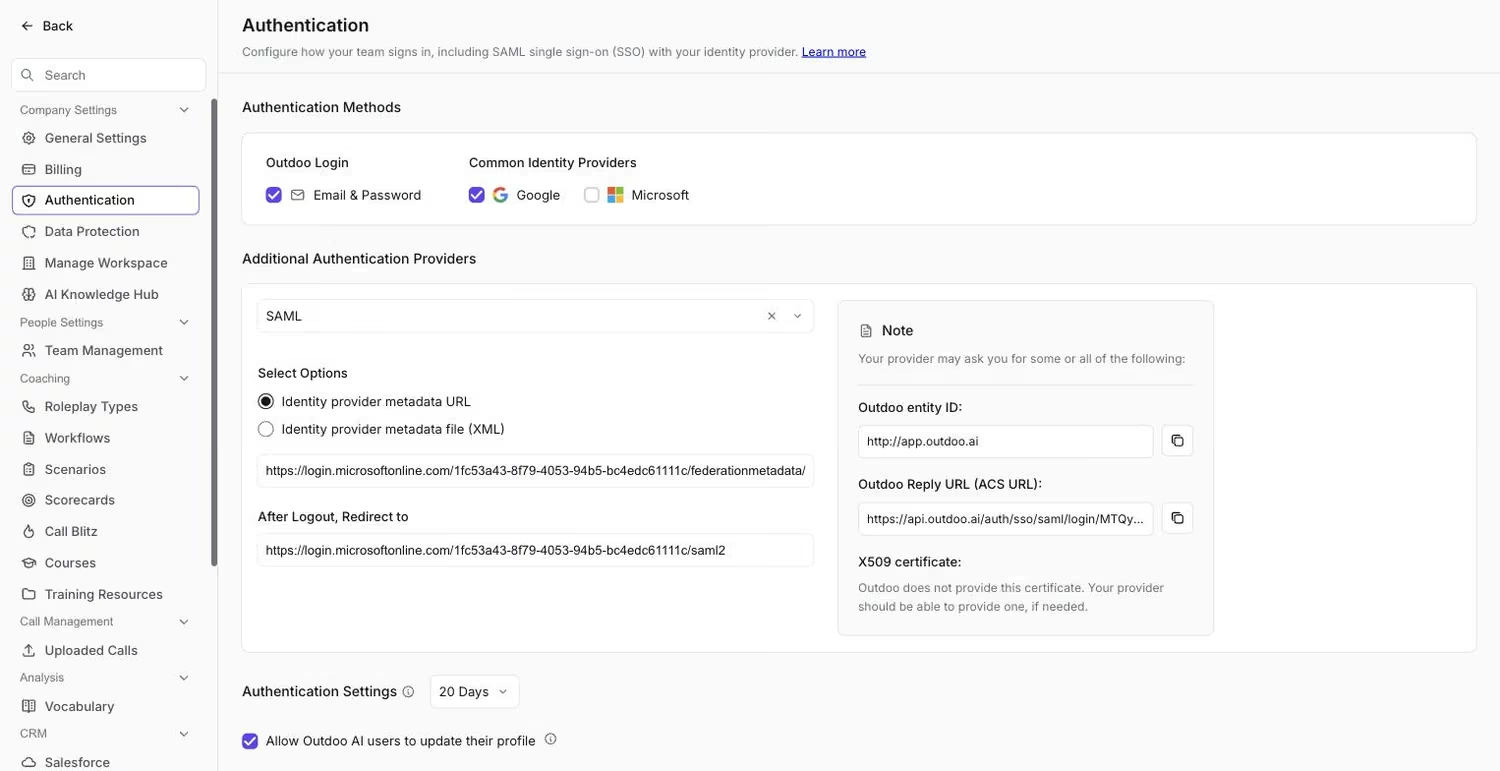 The Authentication page, where login methods and SAML are configured.
Go to Company Settings > Authentication.
Choose allowed methods:
- Email and Password
- Microsoft
- SAML (requires setup below)
Step 2: Configure SAML (if applicable)
- In your Identity Provider (IdP) admin console, create a new SAML application.
- Enter the following Outdoo details when prompted:
- Entity ID
- Reply URL (ACS URL)
- Make sure you assign the users, teams, and groups correctly in your IdP SAML application.
- Provide Outdoo with your IdP Metadata URL or upload the Metadata XML file.
- Configure the logout redirect URL in your IdP.
Step 3: Adjust Authentication Policies
Set the re-authentication interval (for example, every 2 months).
Decide whether team members can update their own profile details.
Note: This does not affect call recording preferences. Users can always adjust their own recording settings if allowed at the user level.
Step 4: Test Login
Log out of Outdoo.
Try logging in with each enabled method.
Confirm that SAML redirects correctly to your IdP and back to Outdoo.
Step 5: Roll Out to Your Team
Share login instructions with your team.
Encourage them to test and confirm access.
Monitor the first login attempts to make sure everything works.
Pro Tip: If you are switching from Email and Password to SAML-only login, make sure at least one admin account is already SAML-enabled before disabling password login. This prevents lockout.