
Connect Outdoo to Claude Desktop
Add Outdoo as a connector in Claude so you can ask Claude about your calls, deals and accounts in plain language.
You'll need:
- Access to Settings > API & MCP in Outdoo
- Owner or admin access to your Claude organization (Team or Enterprise plan). If you aren't an admin, share this article with the person who is.
Step 1: Create an API key in Outdoo
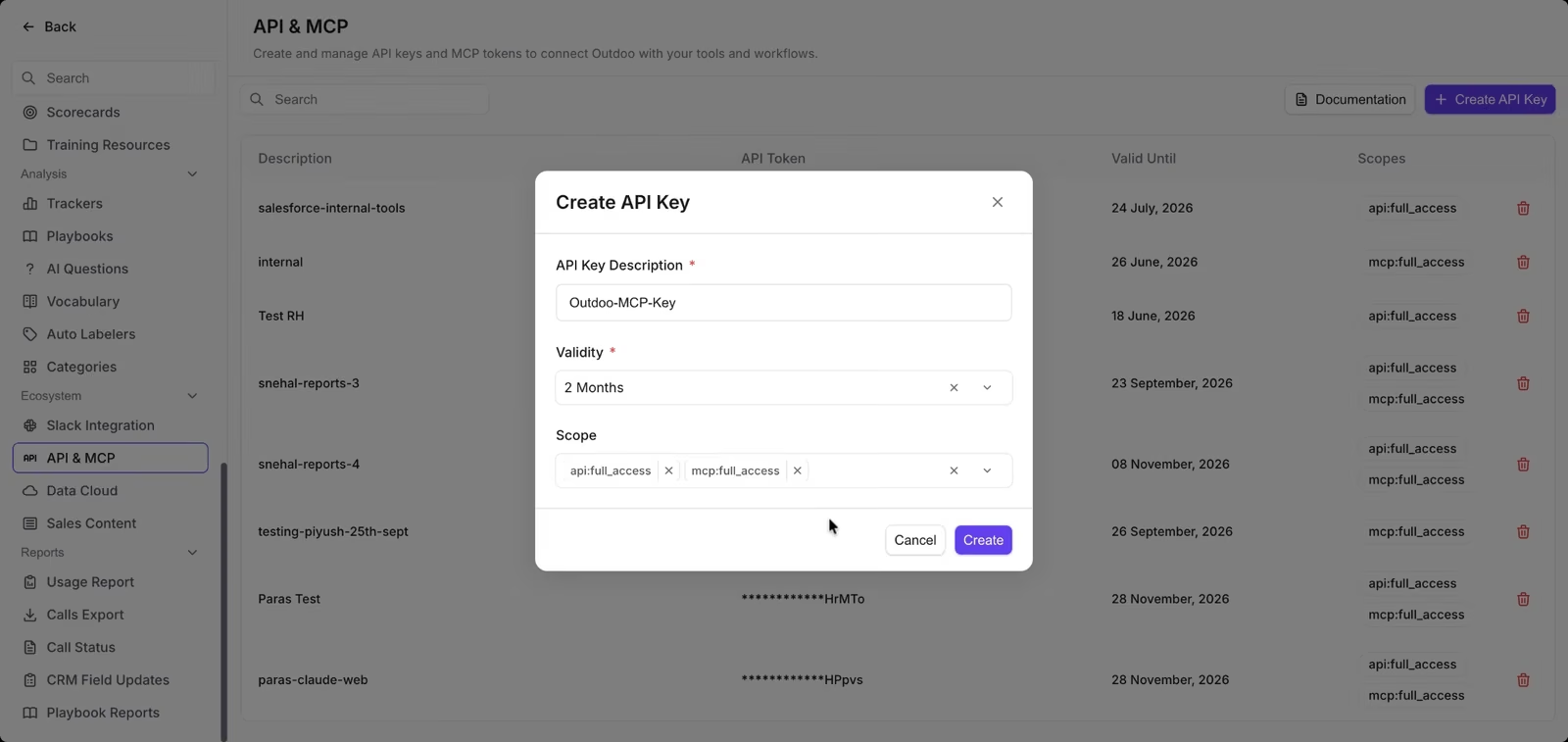
- In Outdoo, go to Settings > API & MCP and click Create API Key.
- Give the key a name, choose how long it stays valid, and select both api:full_access and mcp:full_access under Scope.
- Click Create.
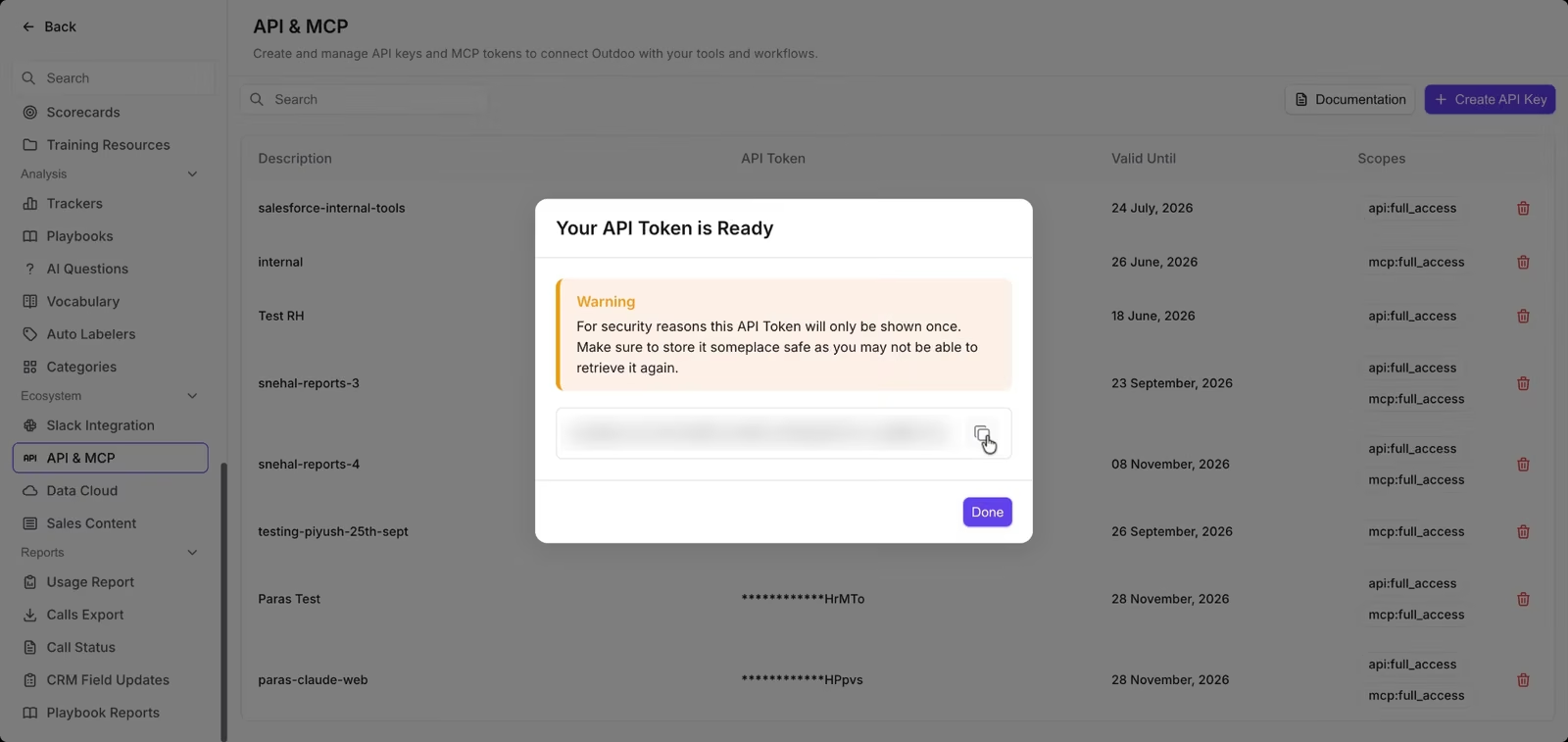
- Click the copy icon to copy your API token, then click Done. The token is shown only once, so paste it somewhere safe.
You'll also need your workspace ID. It's the number after workspaceId= in your Outdoo address bar. If you can't find it, ask your Outdoo admin.
Step 2: Add Outdoo as a connector in Claude
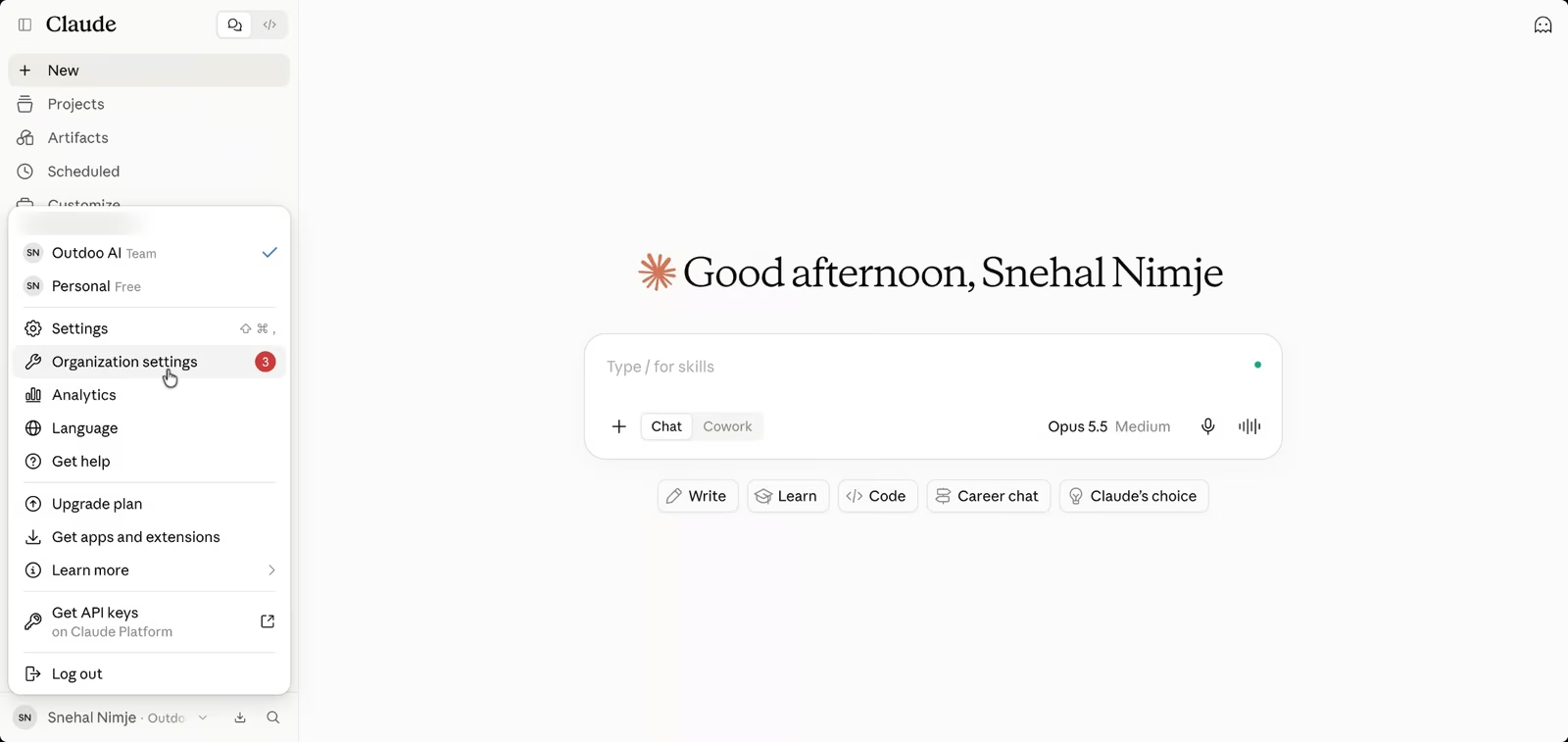
- In Claude, click your name in the bottom-left corner and choose Organization settings.
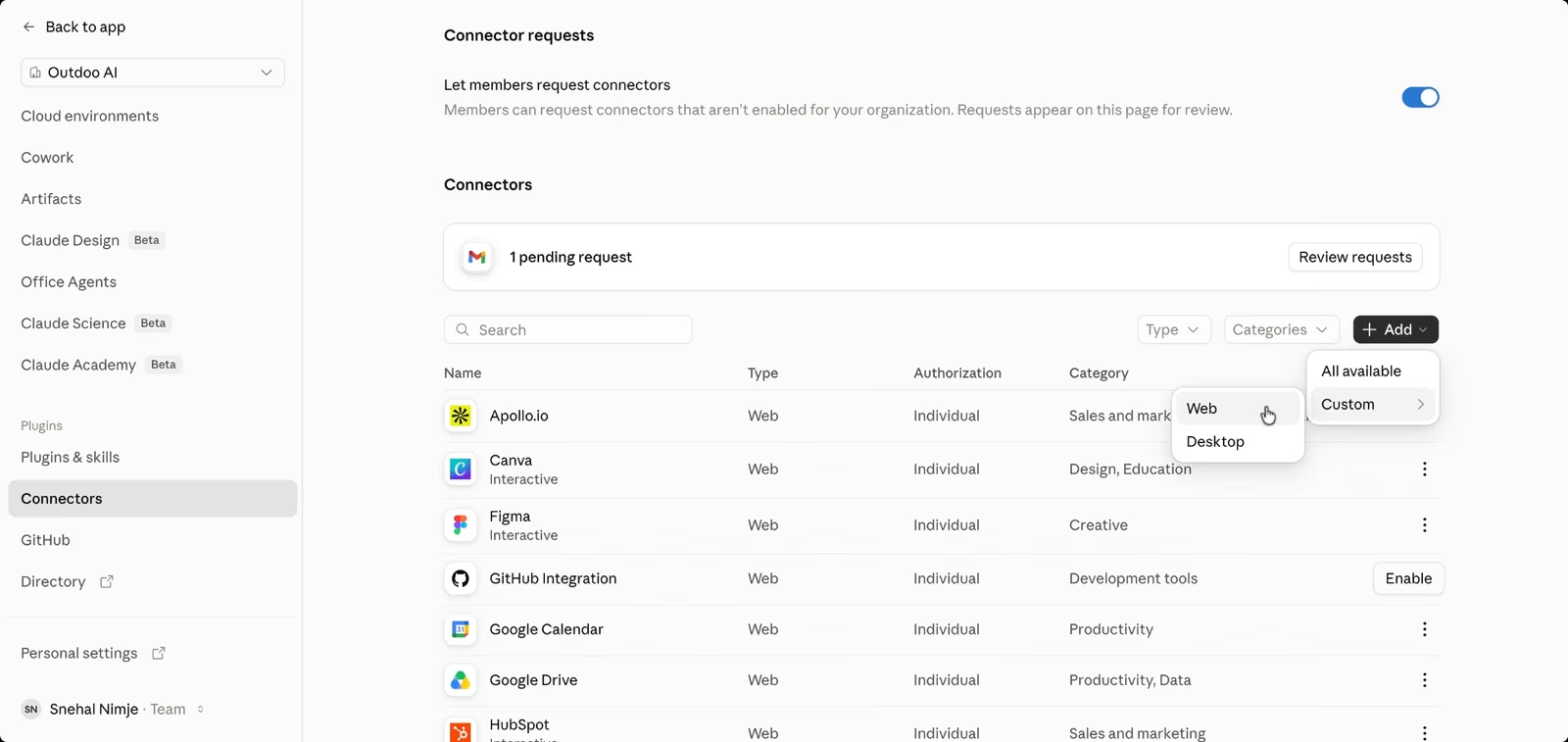
- Open Connectors, then click Add > Custom > Web.
- Enter a name, such as
Outdoo MCP, and this URL:
https://mcp.outdoo.ai/v1/mcp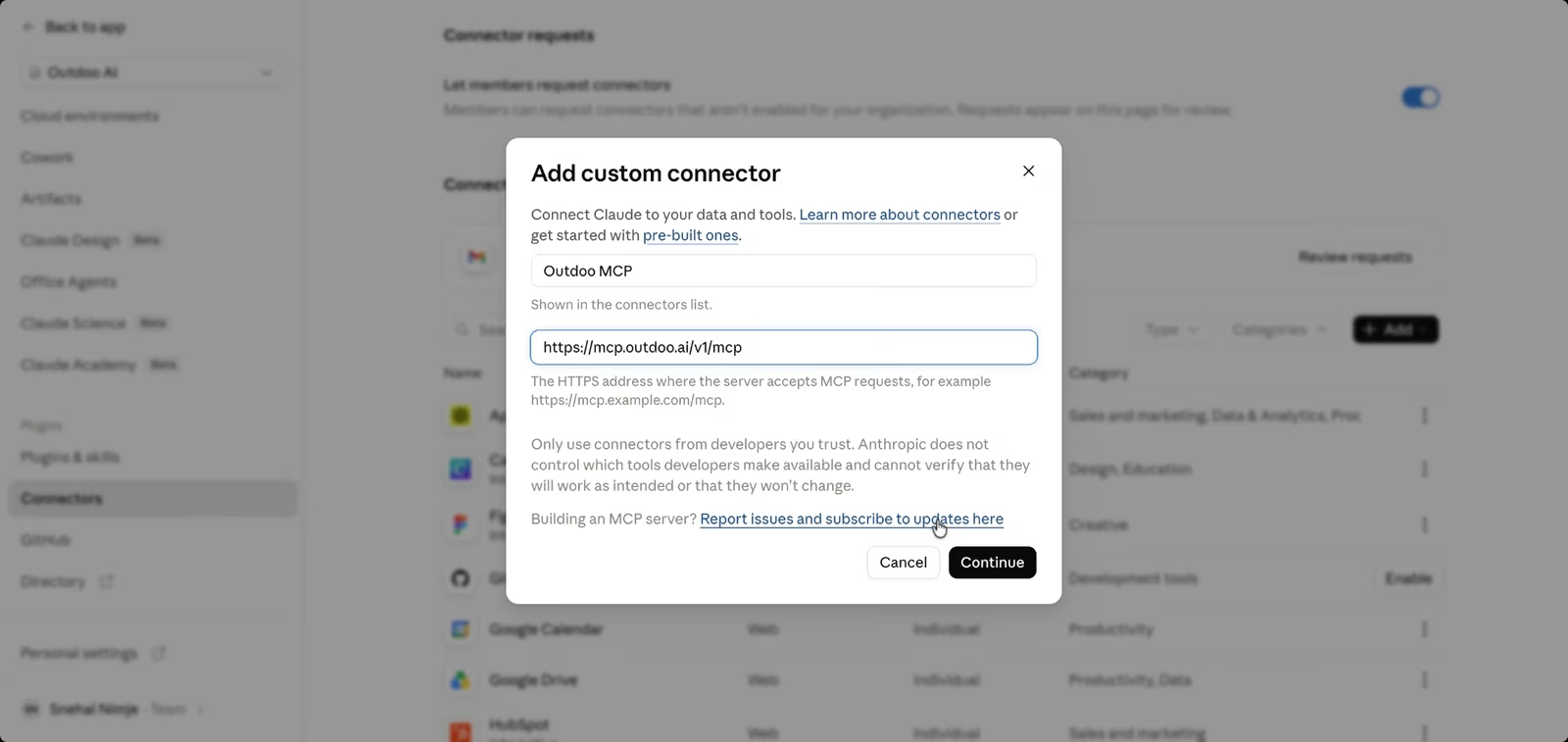
- Click Continue. Leave No sign-in selected.
- Under Request headers, add two headers:
x-api-keywith your Outdoo API token
x-workspace-idwith your workspace ID
- Click Add.
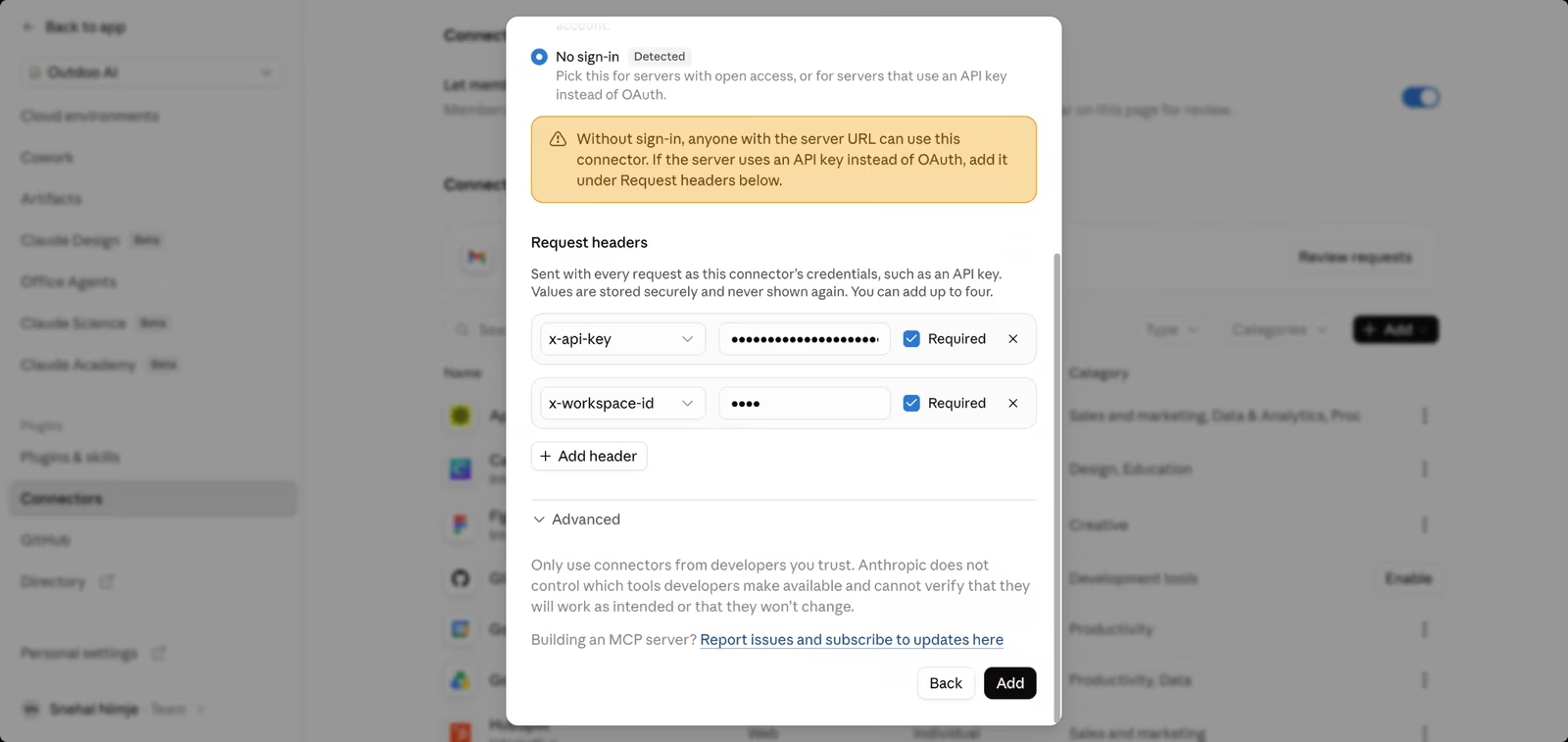
Outdoo MCP now shows up in your organization's connector list.
Step 3: Check it in Claude Desktop
Open Claude Desktop and go to Settings > Connectors. You should see Outdoo MCP with a check mark next to it.
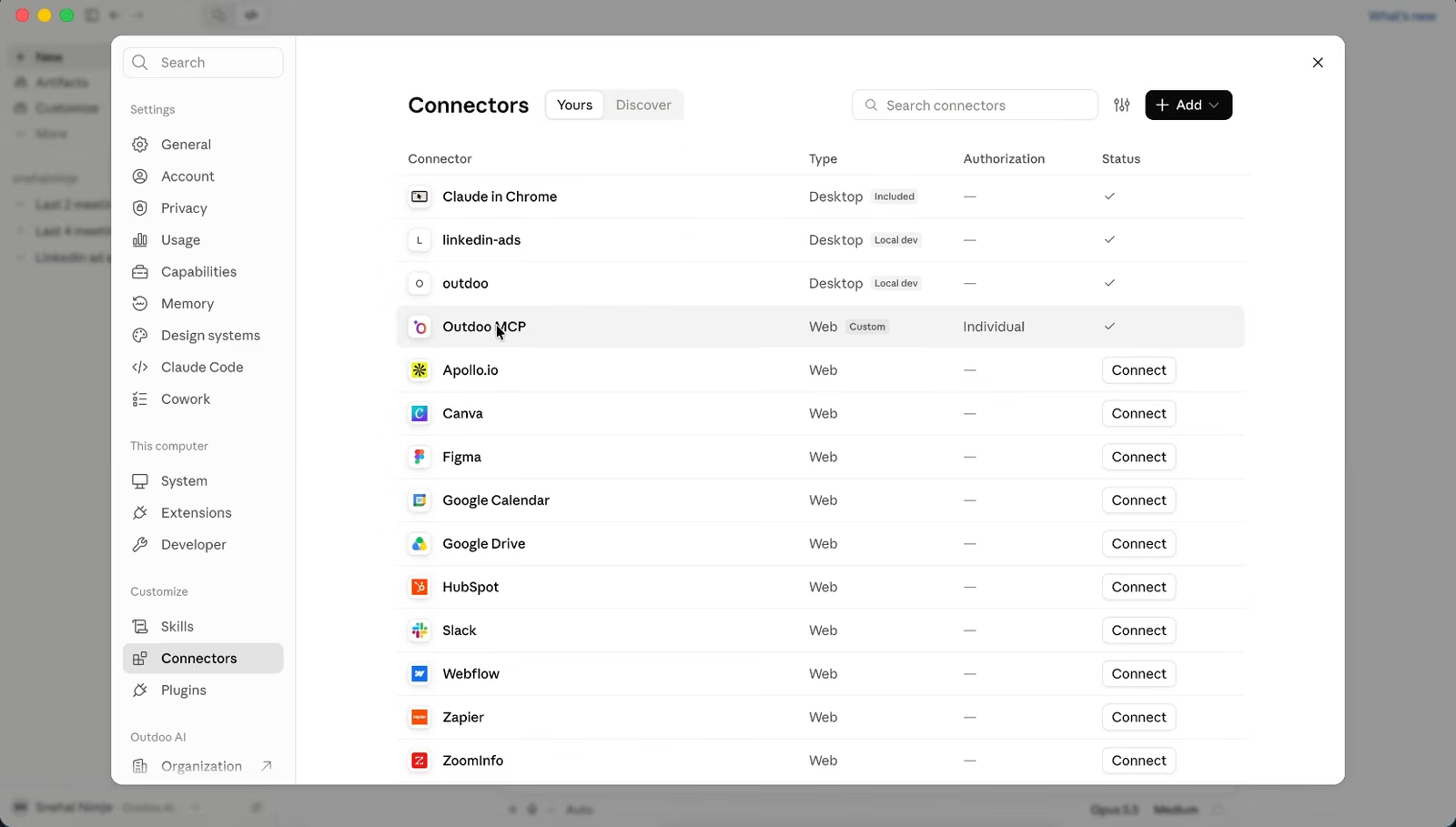
Step 4: Ask Claude a question
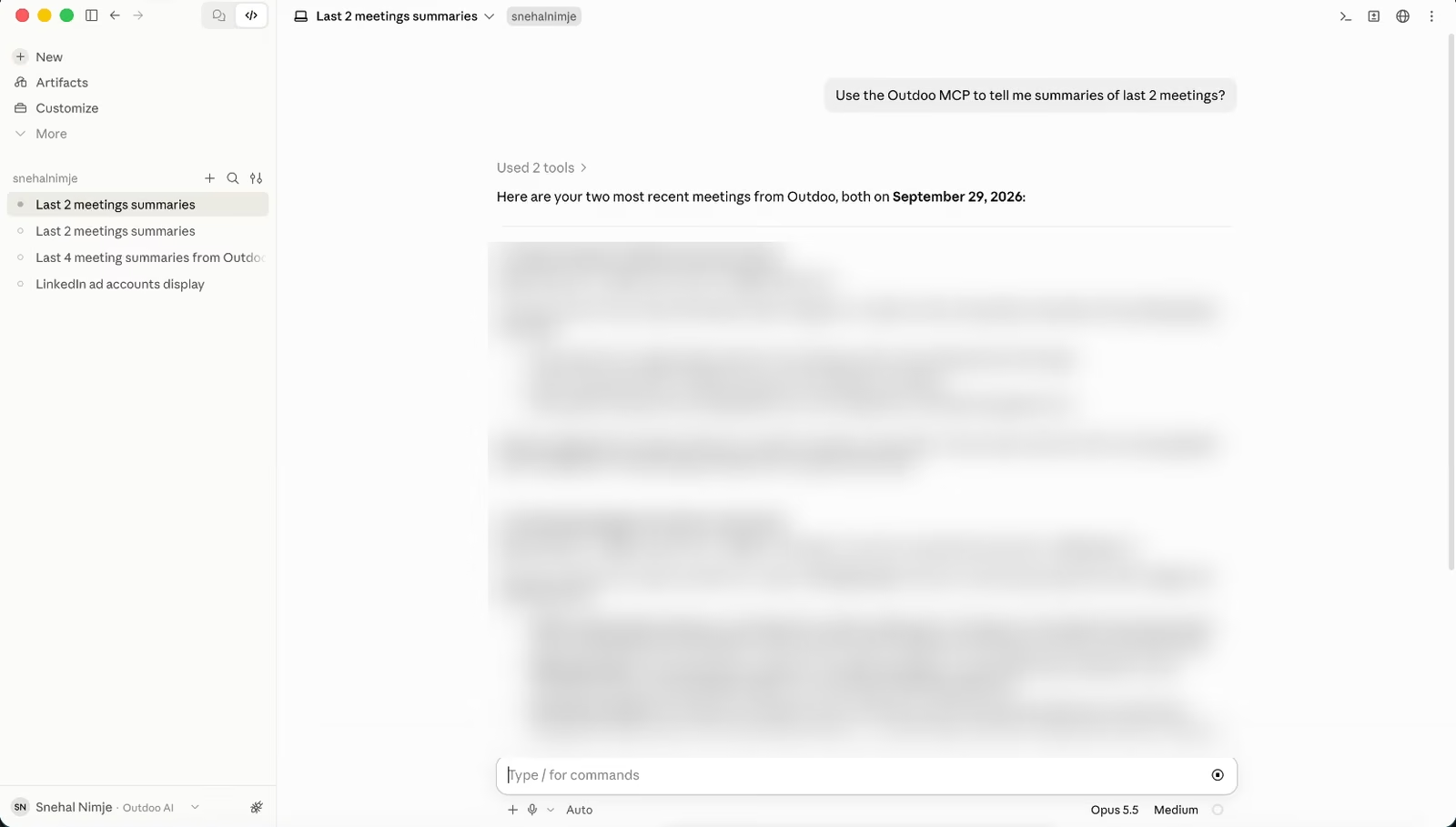
Start a new chat and ask something like:
Use the Outdoo MCP to summarize my last 2 meetings.Claude pulls the data from Outdoo and answers in the chat.
Not working?
- Outdoo MCP isn't in the list: make sure you're signed in to the same Claude organization where the connector was added.
- Claude says it can't reach Outdoo: your API key may have expired. Create a new one in Outdoo, then update the
x-api-keyheader in Organization settings > Connectors > Outdoo MCP.
- mcp:full_access is greyed out: MCP isn't turned on for your workspace yet. Write to support@outdoo.ai to enable it.
Hope this article was helpful. For any queries, please write to support@outdoo.ai