
Connect Outdoo to Claude Code
Connect Outdoo to Claude Code with one prompt. Claude Code does the setup for you.
Step 1: Create an API key in Outdoo
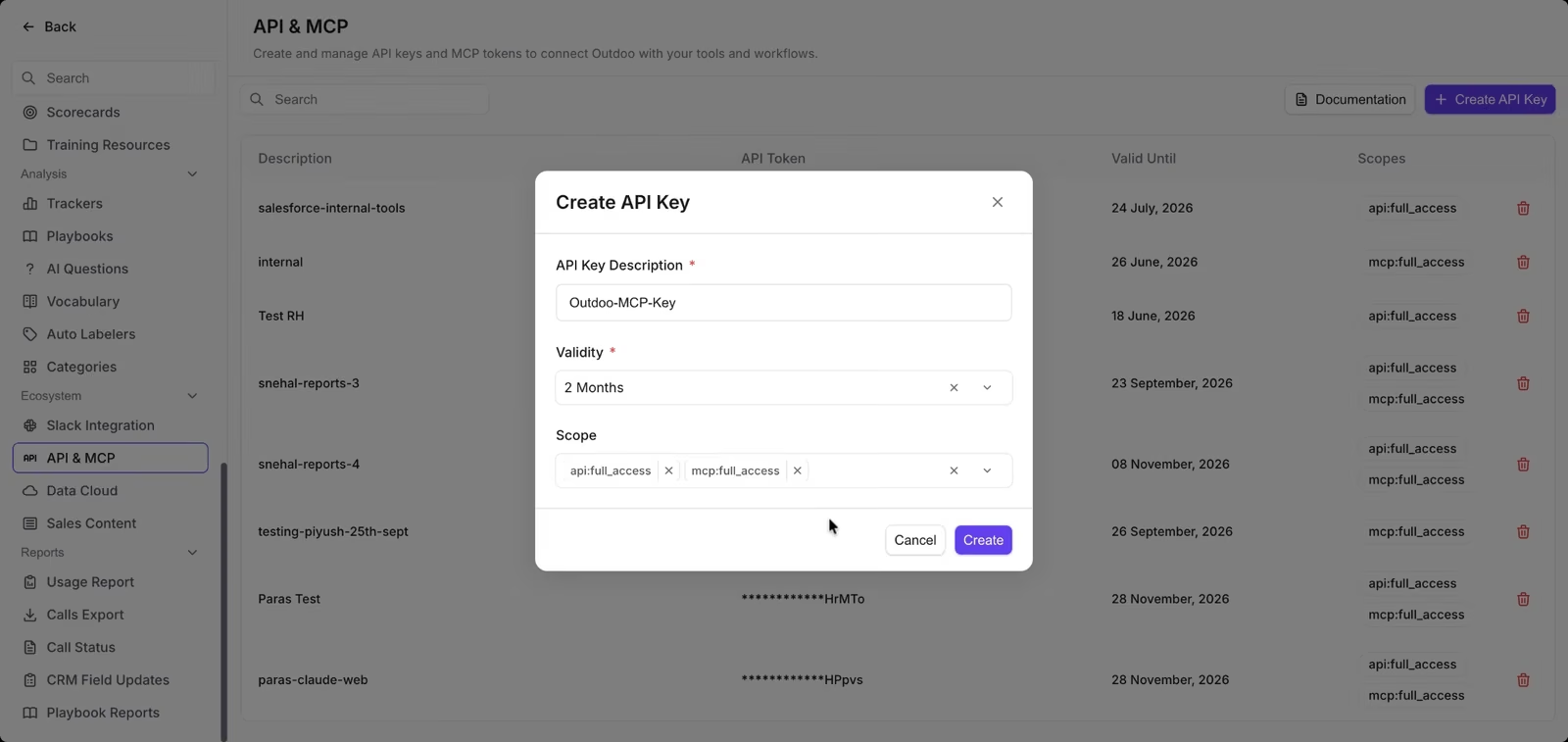
- In Outdoo, go to Settings > API & MCP and click Create API Key.
- Give the key a name, choose how long it stays valid, and select both api:full_access and mcp:full_access under Scope.
- Click Create.
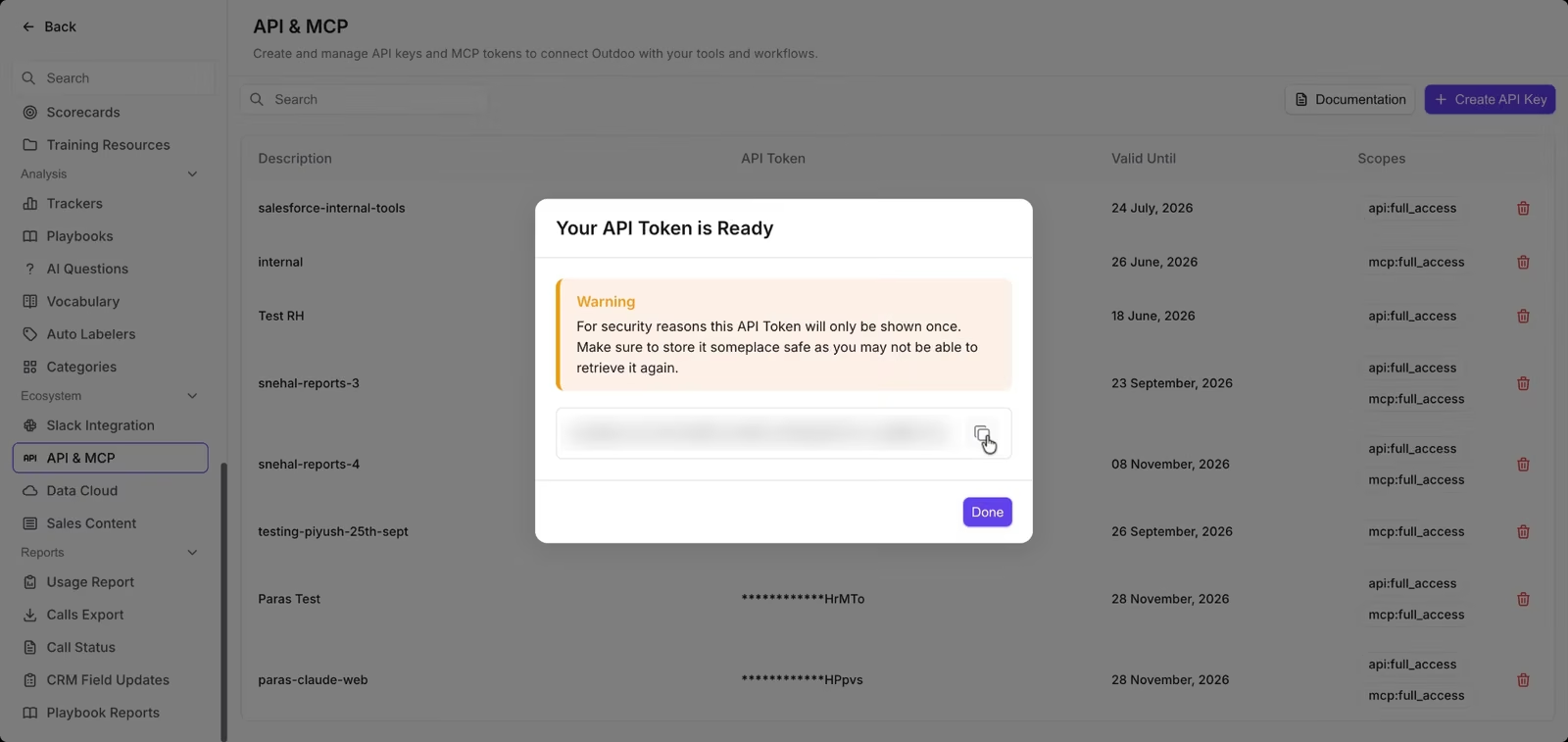
- Click the copy icon to copy your API token. The token is shown only once, so paste it somewhere safe.
You'll also need your workspace ID. It's the number after workspaceId= in your Outdoo address bar. If you can't find it, ask your Outdoo admin.
Step 2: Ask Claude Code to add Outdoo
Open Claude Code and paste this prompt. Replace the two placeholders with your API token and workspace ID.
Add the Outdoo MCP server to Claude Code for all my projects.
Name: outdoo
URL: https://mcp.outdoo.ai/v1/mcp
Transport: HTTP
Headers:
x-api-key: YOUR_API_TOKEN
x-workspace-id: YOUR_WORKSPACE_ID
Claude Code runs the setup command for you. Allow it when it asks for permission.
Step 3: Restart and check
Close Claude Code and open it again. Type /mcp to see your connected servers. outdoo should show as connected.
Step 4: Ask a question
Ask Claude Code about your Outdoo data in plain language. For example:
Use the Outdoo MCP to summarize my last 2 meetings.Prefer to run the command yourself?
Paste this into your terminal instead of Step 2:
claude mcp add --transport http --scope user outdoo https://mcp.outdoo.ai/v1/mcp --header "x-api-key: YOUR_API_TOKEN" --header "x-workspace-id: YOUR_WORKSPACE_ID"Not working?
- outdoo shows as failed in /mcp: your API key may have expired or been copied only in part. Create a new key in Outdoo, then ask Claude Code to "remove the outdoo MCP server" and repeat Step 2.
- mcp:full_access is greyed out: MCP isn't turned on for your workspace yet. Write to support@outdoo.ai to enable it.
Hope this article was helpful. For any queries, please write to support@outdoo.ai