
Create and manage deal boards
Learn how to create, customize, and manage deal boards in Outdoo AI to track and organize your CRM opportunities with filters, tabs, columns, and custom fields.
Getting started
Deal boards pull data from your CRM. Before creating a board, confirm with your Outdoo AI admin that the required CRM fields are mapped and synced. This includes CRM values, filters, and deal board columns.
To set up a deal board:
- Navigate to Opportunities and click Create Board.
- In the Basics section, give the board a name and description.
Customizing deal boards
Filters
- Click Add Filter and select CRM fields and values to define which deals appear on the board. Avoid conflicting filters to keep deal grouping clean.
Tabs
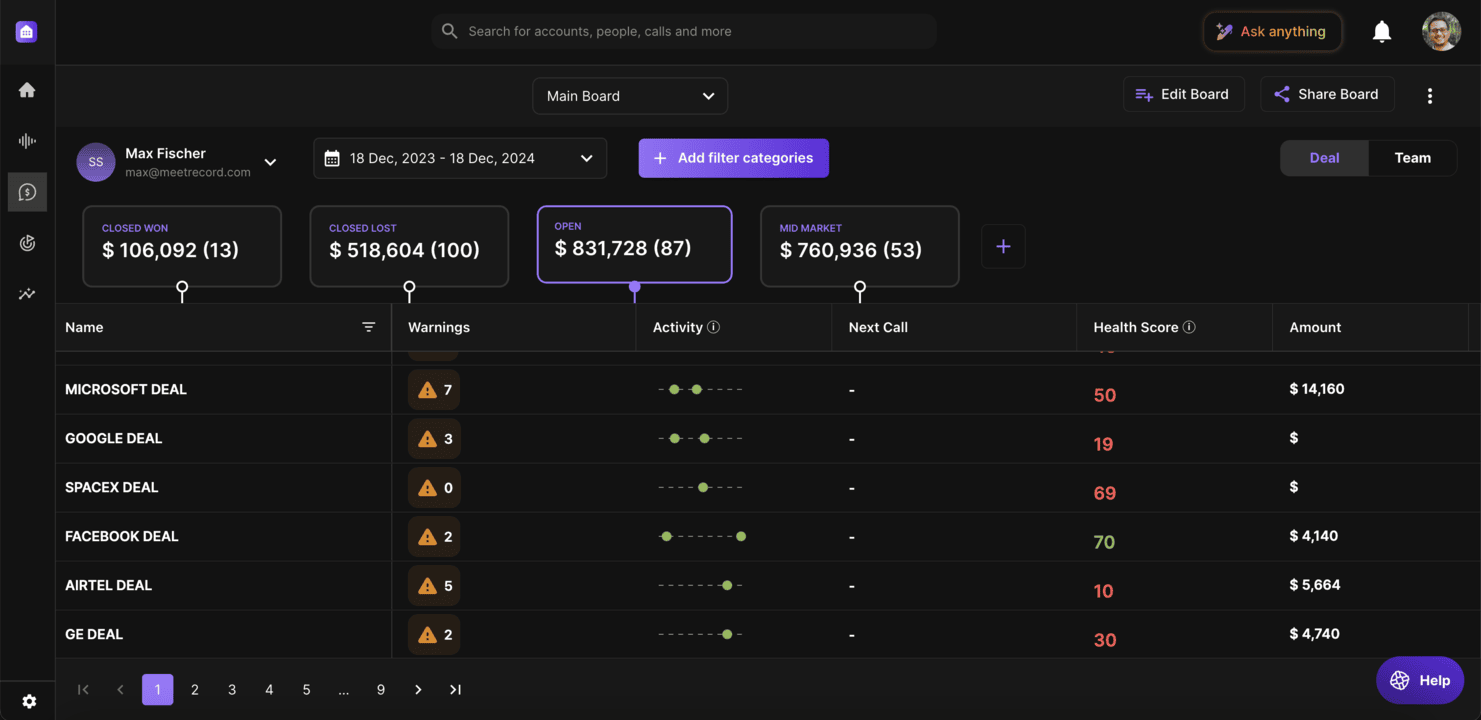
- Add tabs to group deals by categories such as forecast, deal stage, or status.
- Customize each tab by naming it, selecting a CRM field, and applying additional filters.
- Rearrange tabs by dragging them into the order you prefer.
Columns
- Add columns to show relevant information such as deal name, warnings, and activity timeline.
- Choose fields like playbooks, rich text, or CRM data for deeper context.
- Drag columns to reorder them as needed.
Amount field
- Select a CRM field (for example Total ARR or Renewal ARR) to calculate deal totals and roll-ups. You can optionally apply opportunity splits for more precise deal tracking.
Warnings
- Toggle specific warnings to flag deals at risk. Adjust the settings to match your team's needs.
First view
- Set default filters, tabs, and sorting options for the first time someone opens the board. After that first visit, the board remembers each person's last view.
Sharing and managing deal boards
Share a deal board
- Go to Opportunities, find your board, and click Manage Boards.
- Choose team members or groups to share with, and add an optional message.
Duplicate a deal board
- Save time by duplicating an existing board and adjusting it rather than starting from scratch.
Edit or delete a deal board
- Edit a board to update its settings, or delete it if it is no longer needed. Note that warning recalculations may take a few hours after changes are saved.
Tips for getting the most out of deal boards
- Use tabs to organize deals into meaningful groups like forecast category or deal stage.
- Use warnings and filters to spot and address at-risk deals early.
- Share boards with your team to improve visibility across the pipeline.