
Dialpad Integration with Outdoo AI
Learn how to integrate Dialpad with Outdoo AI to automatically sync call recordings, transcribe them, and access conversation analytics and insights.
Overview
Integrate Dialpad with Outdoo AI to automatically bring your call recordings into Outdoo AI, where they are transcribed and transformed into insights. This integration lets your team search for specific calls, identify keywords, and access conversational intelligence.
What This Integration Does
- Automatically sync Dialpad call recordings to Outdoo AI
- Convert speech to text for searchable transcripts
- Access conversation analytics and insights
- Locate key calls and spoken keywords
Pre-requisites
- You must be on Dialpad Pro or Enterprise plan
- Only Company Admins can create and access API keys
How to Create a Dialpad API Key
- Login to Dialpad as a Company Admin
- Navigate to Admin Settings > My Company > Authentication > API Key
- Click Create New Key and give it a name
- Click on Additional Scope and check all available options
\

- If you don't see the option to create an API key, contact Dialpad Support
- For detailed instructions, refer to Dialpad's API Key documentation
How to Integrate Dialpad with Outdoo AI
- Login to Outdoo AI
- Go to My Settings > Dialers
- Under the Dialer section, locate Dialpad
- Click Connect
\
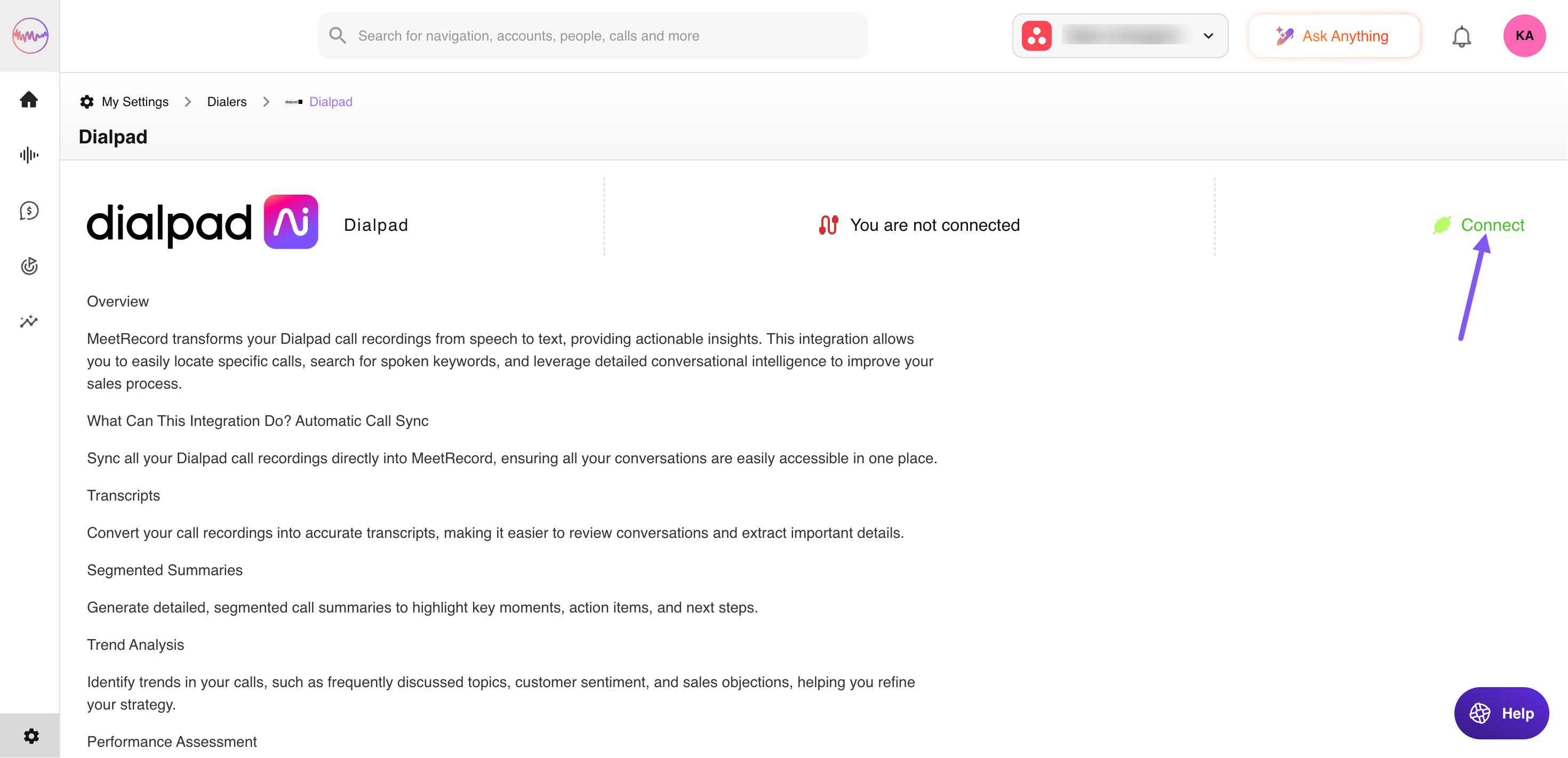
- Paste the API Key you created in Dialpad
Your Dialpad call recordings will start syncing into Outdoo AI automatically.