
Managing resources
Resources is a shared file library in the AI Roleplays product. Upload documents once, then attach them wherever you need them: to roleplay agents, scorecards, or courses. Your playbooks and training materials stay in one place instead of being copied into individual scorecards or agent prompts every time.
Go to Manage > Resources in the RP product to access the library.
What counts as a resource
A resource is any reference document you want available during agent creation or scoring. Common examples include sales playbooks and call frameworks, product one-pagers and pricing guides, objection handling scripts, compliance or legal summaries team members need to follow, PDFs from training programs, and YouTube links to product demos or training videos.
Supported file types include PDF, Word (DOC/DOCX), plain text (TXT), CSV, and Excel (XLSX). You can also add YouTube links directly without uploading a file. The exact file types available may depend on your workspace plan.
Uploading a resource
Go to Manage > Resources and click Add Resource or Upload. Select the file from your computer, or paste a YouTube URL if you are adding a video link. Give the resource a name specific enough that teammates can identify it from a list, for example "Discovery Call Framework Q3" rather than "Playbook v2." Save, and the resource appears in the library, immediately available to attach elsewhere.
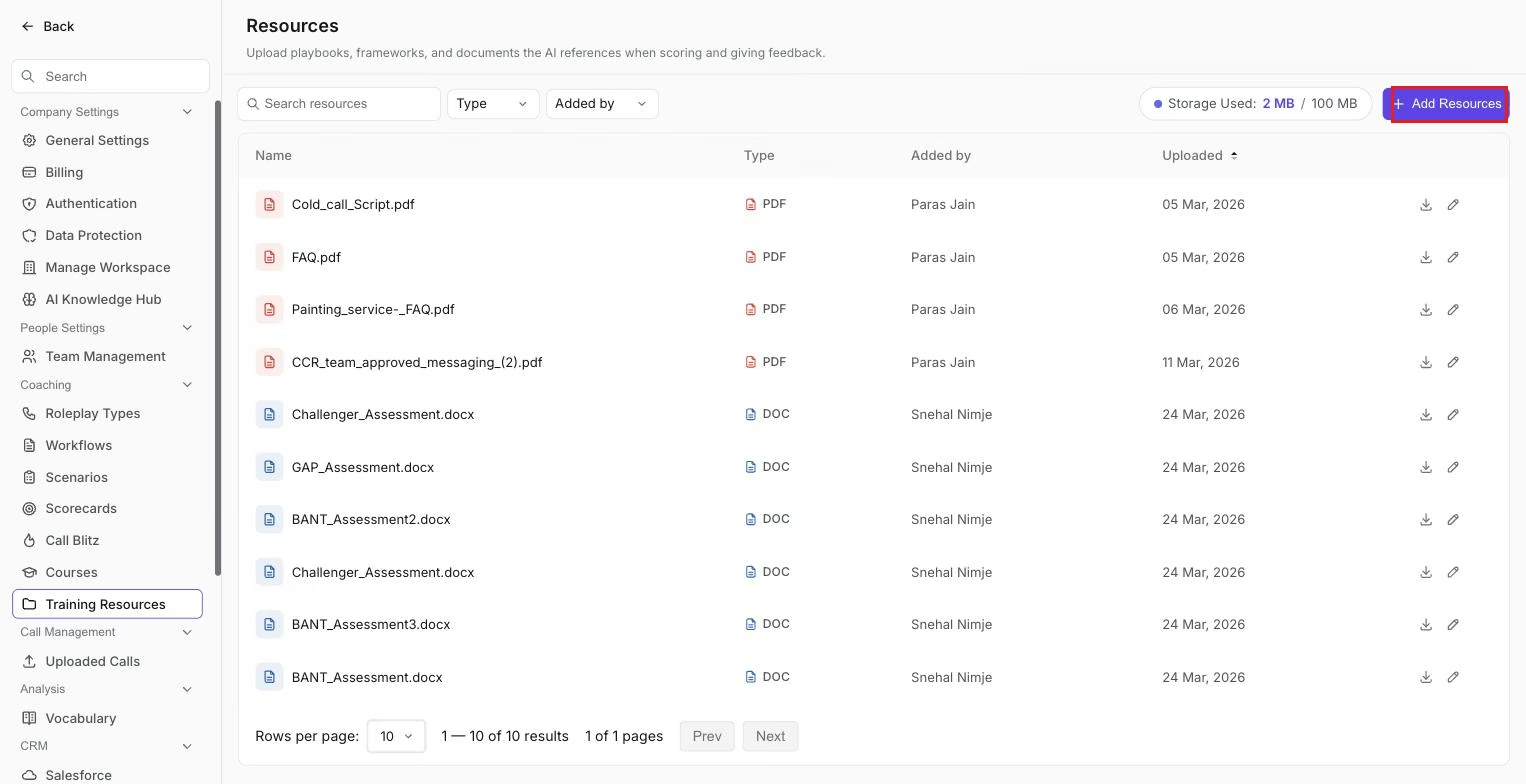
The Resources library, where uploaded playbooks and documents are listed and ready to attach to agents, scorecards, or courses.
There is no limit on how many times a resource can be used. One document can be attached to multiple agents, scorecards, and courses at the same time.
Where resources can be used
Roleplay agents
When creating or editing a roleplay agent, you can attach resources to give the agent context about your product, your sales methodology, or the type of buyer it should simulate. The agent uses the content of the attached files to generate more accurate, grounded responses during practice sessions.
See Create a roleplay agent from a file or resource.
Scorecards
Resources attached to a scorecard give the AI scoring system reference material when evaluating a call. If your scorecard assesses whether a team member followed your discovery framework, attaching that framework document helps the AI score the criterion accurately.
See Scorecards with attached resources and Create a scorecard using AI with resources.
Courses
Resources added to a course appear in the Learning Resources tab visible to learners, giving team members access to reference materials alongside the practice activities in the course.
Organizing resources
As the library grows, a few habits make it easier to manage. Use consistent naming conventions from the start, including the document type or use case in the name. When you update a document, such as a new version of your pricing guide, upload the updated file and delete or rename the old one; there is no automatic versioning. Review the library periodically and remove files that are no longer accurate, since outdated documents attached to agents or scorecards can produce incorrect outputs.
Using resources when creating an agent
During agent creation, after setting the persona and scenario, look for the resource attachment option in the agent builder and select one or more files from the library. The agent incorporates the content of those files into how it responds during roleplays, including objections, product knowledge, and call context.
You do not need to paste document content directly into a prompt. Attaching a resource from the library is enough. If you update the file in the library later, re-attach it to the agent so the updated version takes effect.
Hope this article was helpful. For any queries, please write to support@outdoo.ai