
Managing Course Certifications: For Managers
Learn how to set up and manage course certifications to recognize and track employee training completion in your organization.
Managers can set up course certifications to recognize and track employee training completion. Follow these steps to add a certification to a course.
Step 1: Access Course Management
- Log in to your manager dashboard
- Navigate to Courses or Learning Management
- Select Manage Courses or Course Settings
- Locate the course you want to add a certification to, or create a new course
Step 2: Select the Course
- Click on the course title to open course details
- Look for the Certification Settings or Certification tab
- If not visible, select Edit Course to access advanced settings
Step 3: Enable Certifications
- Find the option to Enable Course Certification or Add Certification
- Toggle the certification feature on
- Confirm that automatic awarding is enabled (this awards certificates automatically upon course completion)
Step 4: Configure Certification Details
- Enter the Certificate Title (for example, "Advanced Sales Techniques Certification")
- Add a Certificate Description explaining what the certification represents
- Set Completion Requirements:
- Specify minimum score threshold (for example, 80% or higher)
- Indicate which modules are required vs. optional
- Define any assessment criteria
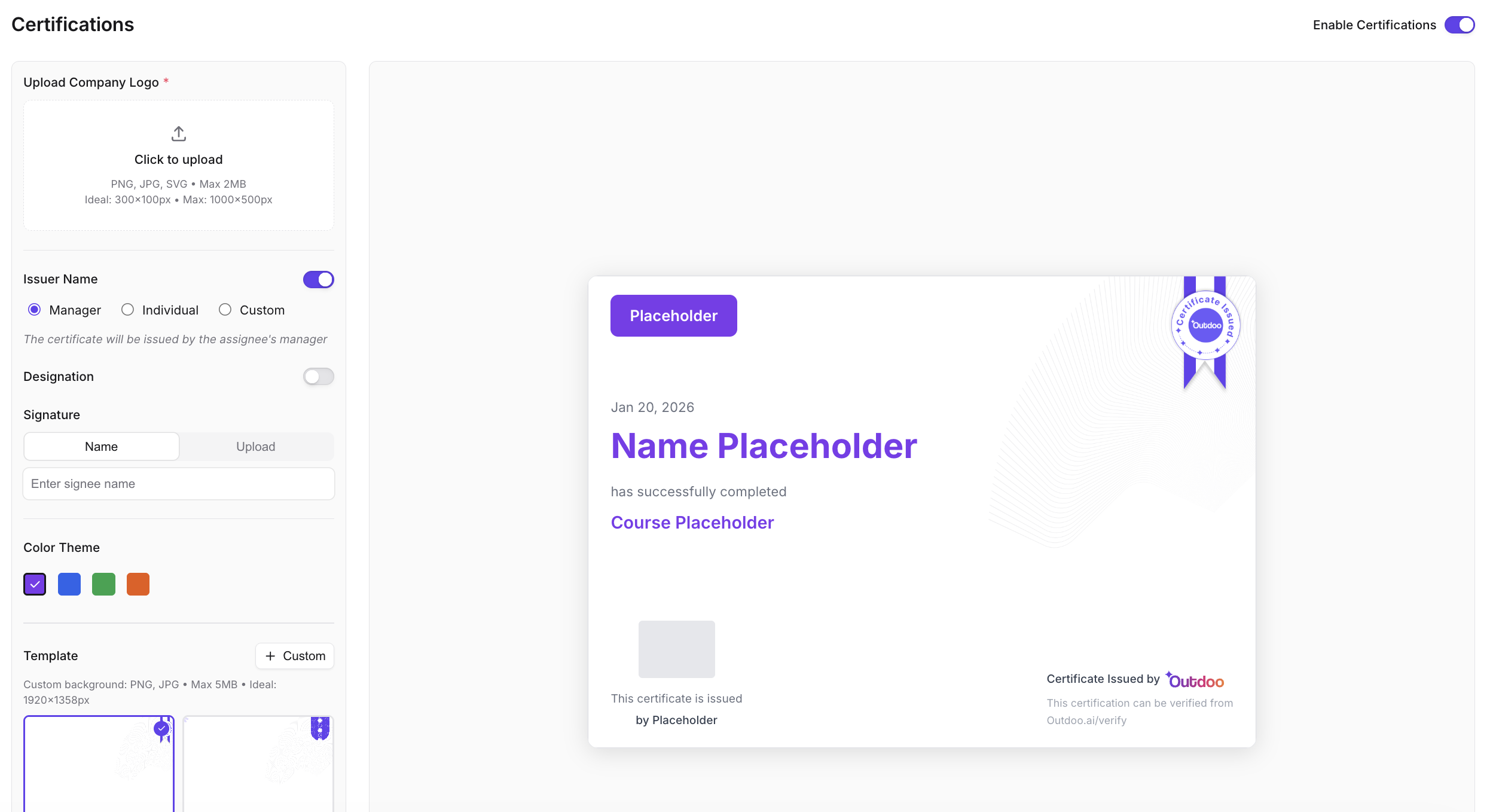
Step 5: Customize Certificate Appearance (Optional)
- Upload your organization logo or branding elements
- Select a certificate template from available designs
- Add any custom text or acknowledgments
- Preview the certificate to ensure it looks correct
Step 6: Set Manager Visibility
- Configure manager notification settings: enable notifications when team members complete the course, and choose whether managers receive post-course feedback
- Set visibility permissions: decide if managers can see individual completion dates and scores, and configure whether certifications are visible to team dashboards
Step 7: Enable Sharing Options
- Ensure PDF Download is enabled so employees can download certificates
- Enable Verification Links to allow employees to share proof of certification
- Configure Public Verification settings if external stakeholders need to verify credentials
Step 8: Test and Publish
- Click Preview to see how the certification will appear to employees
- Review all settings one final time
- Click Publish or Save Settings to make the certification active
- Optionally send a test notification to verify the setup works correctly
Step 9: Monitor Certifications
- Return to the course dashboard regularly
- View Certified Employees or Certification Reports
- Track number of employees certified, completion and certification dates, and average scores and performance trends
- Use this data to assess training effectiveness and team readiness
Step 10: Provide Feedback
- Access individual employee records for completed courses
- Review and add manager feedback on their performance
- Acknowledge achievements with team members
- Use certification data in performance reviews and development discussions
Best Practices for Managers Setting Up Certifications
- Clearly communicate certification requirements to your team. Ensure employees understand what score or completion level is needed
- Set up certifications only for courses that are important to your business or role. Avoid over-certifying courses that do not require formal verification
- Explain to your team how certifications will be used, how they support career development, and recognize team members who complete them
- Review certification reports to identify skill gaps, use findings to recommend additional training, and discuss certifications during performance reviews
- Periodically review certification requirements, update them as business needs change, and archive outdated certifications to maintain relevance