
How to customise Slack alerts for meetings in Outdoo AI
Learn how to set up and customize Slack alerts for meetings in Outdoo AI by configuring your default channel and enabling notifications at the workspace level.
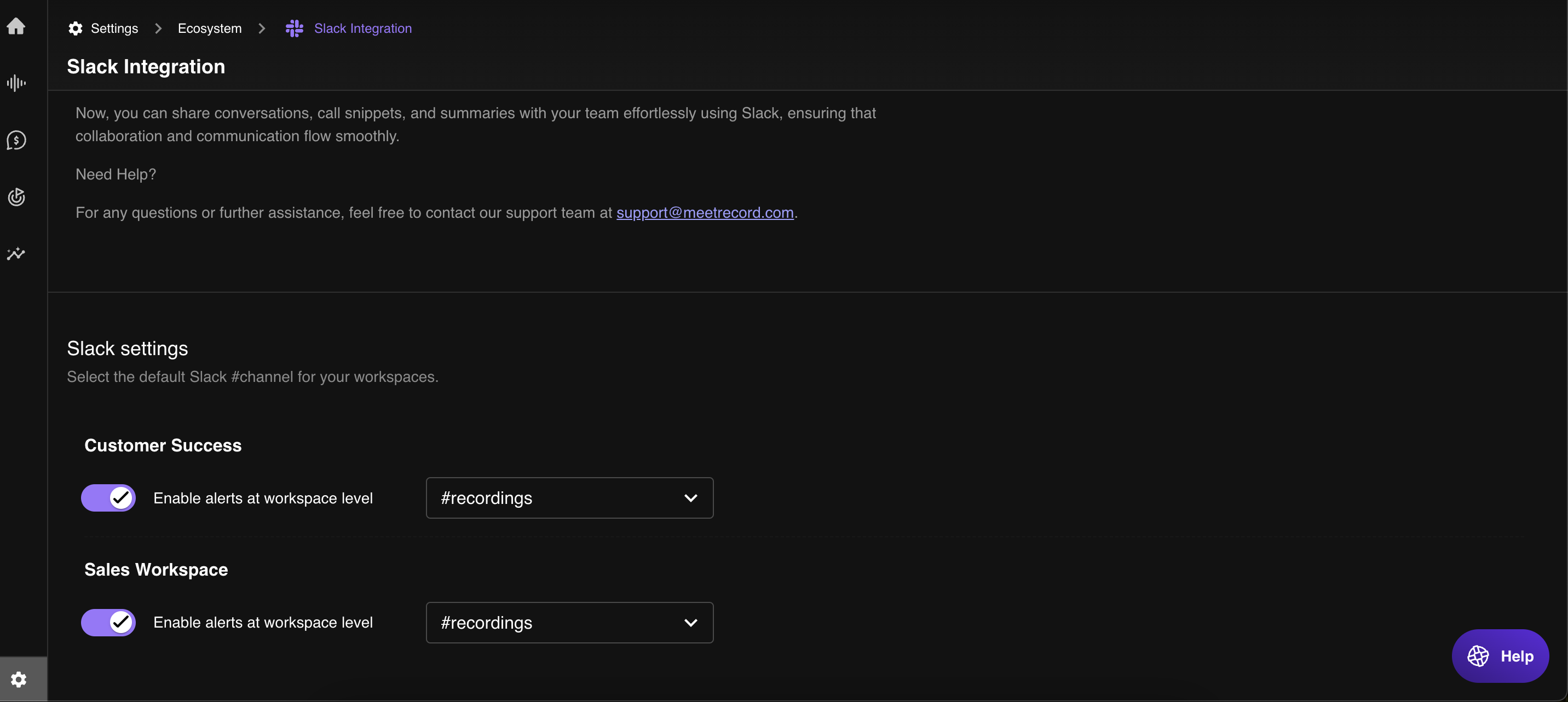
You can set a default Slack channel for meeting alerts and enable them at the workspace level. Follow these steps:
- Go to Company Settings in Outdoo AI.
- In the left-hand menu, select Eco System.
- Click Slack Integration.
- Scroll to the bottom of the page to find the Slack Settings section.
- Choose the default Slack #channel where meeting alerts will be sent.
- Toggle the option to enable Slack alerts for meetings at the workspace level.
- Click Save to apply your settings.
Related articles
Hope article this was helpful, for any query please write to support@outdoo.ai