
How to create alerts
Use alerts to receive notifications when meetings match specific criteria, such as:
- Meetings where a Competitor tracker was triggered
- Meetings scored lower than 2
- Meetings longer than 30 minutes with "Demo" in the subject
- Meetings in the Proposal stage
Alerts can be sent via email or Slack, and delivered immediately, daily, or weekly.
Steps to create an alert
Step 1: Set up your filter
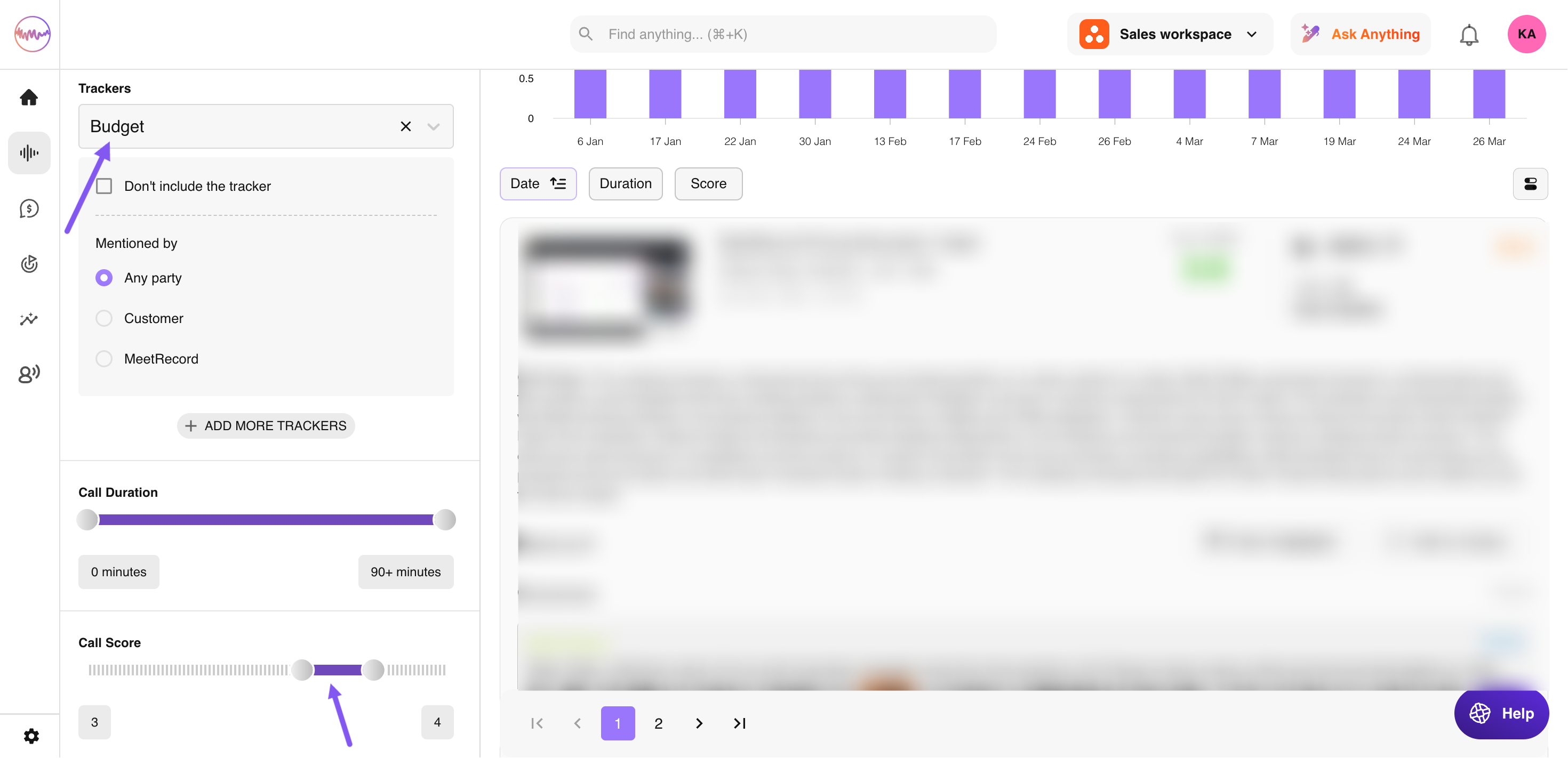
Go to Conversations > Calls and apply filters for your alert. You can combine multiple criteria. In the example below, the filter targets meetings scored between 3 and 4 that also have the Budget tracker. Click Save to save the filter.
Step 2: Name the filter and enable the alert
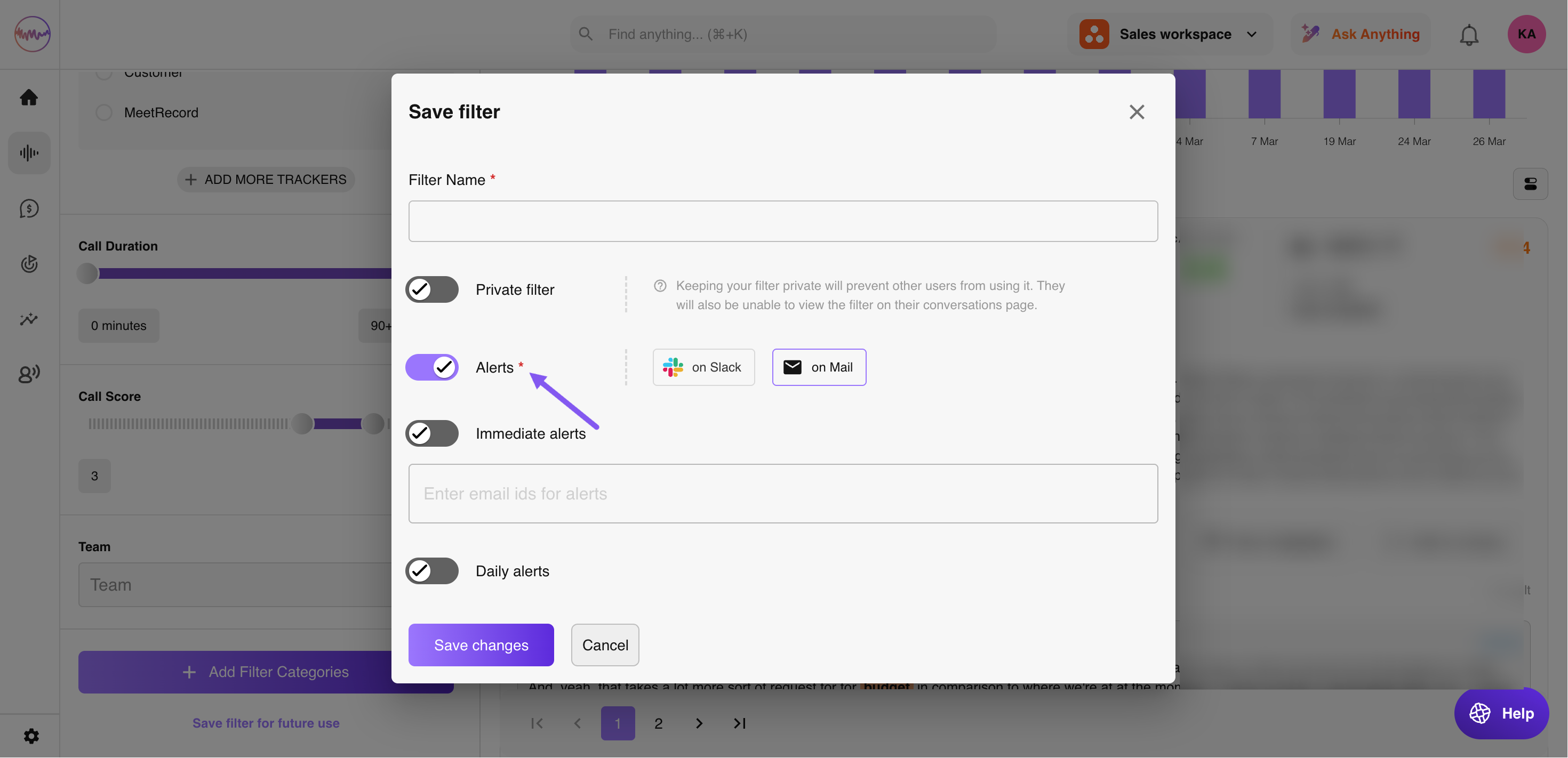
In the popup, give the filter a name and click Enable Alert. Choose whether to receive alerts by email or Slack.
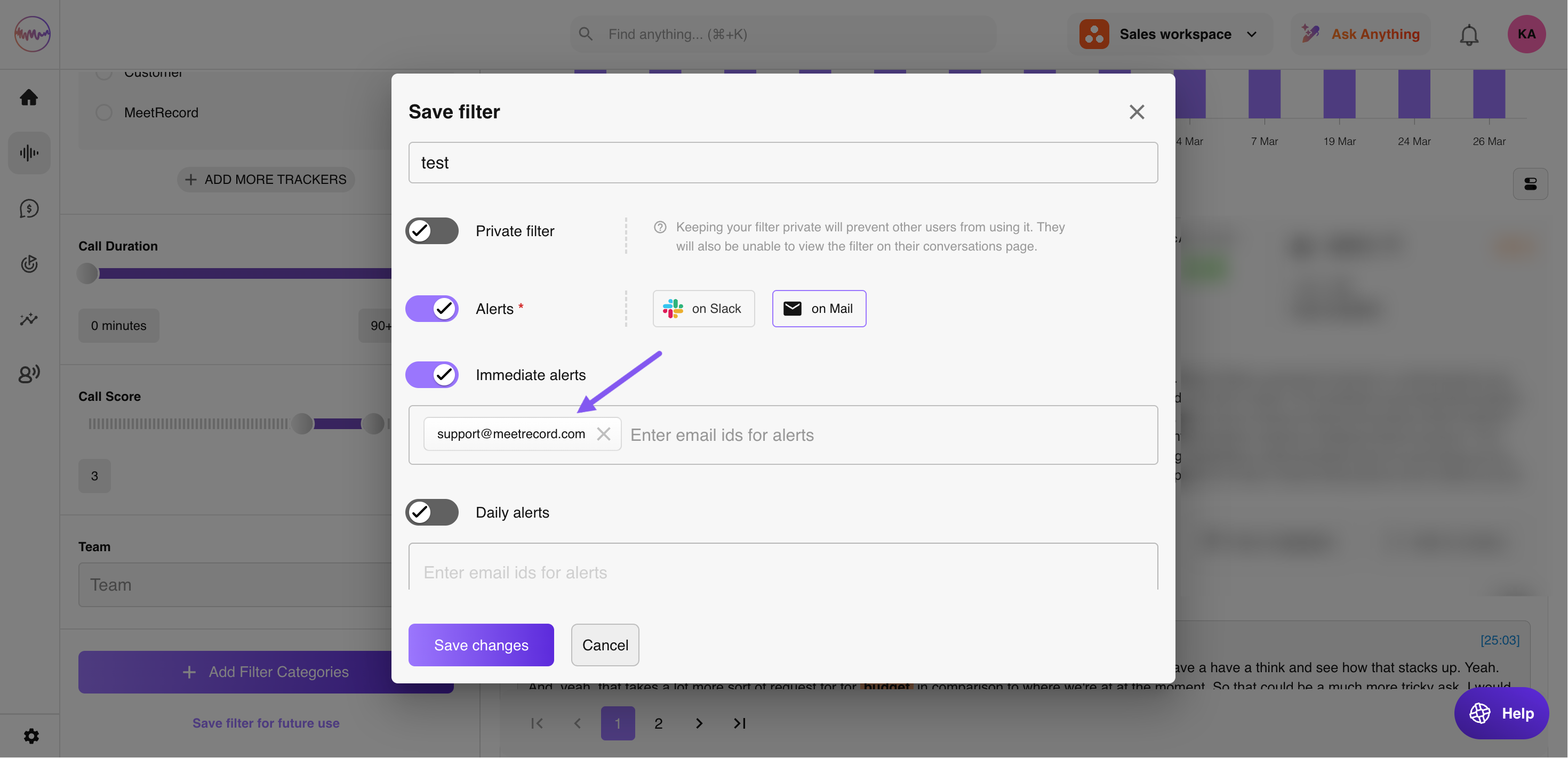
For email alerts: Click Enable Alert, choose Email, and enter the email addresses where you want to be notified. If you select multiple addresses, alerts will go to all of them.
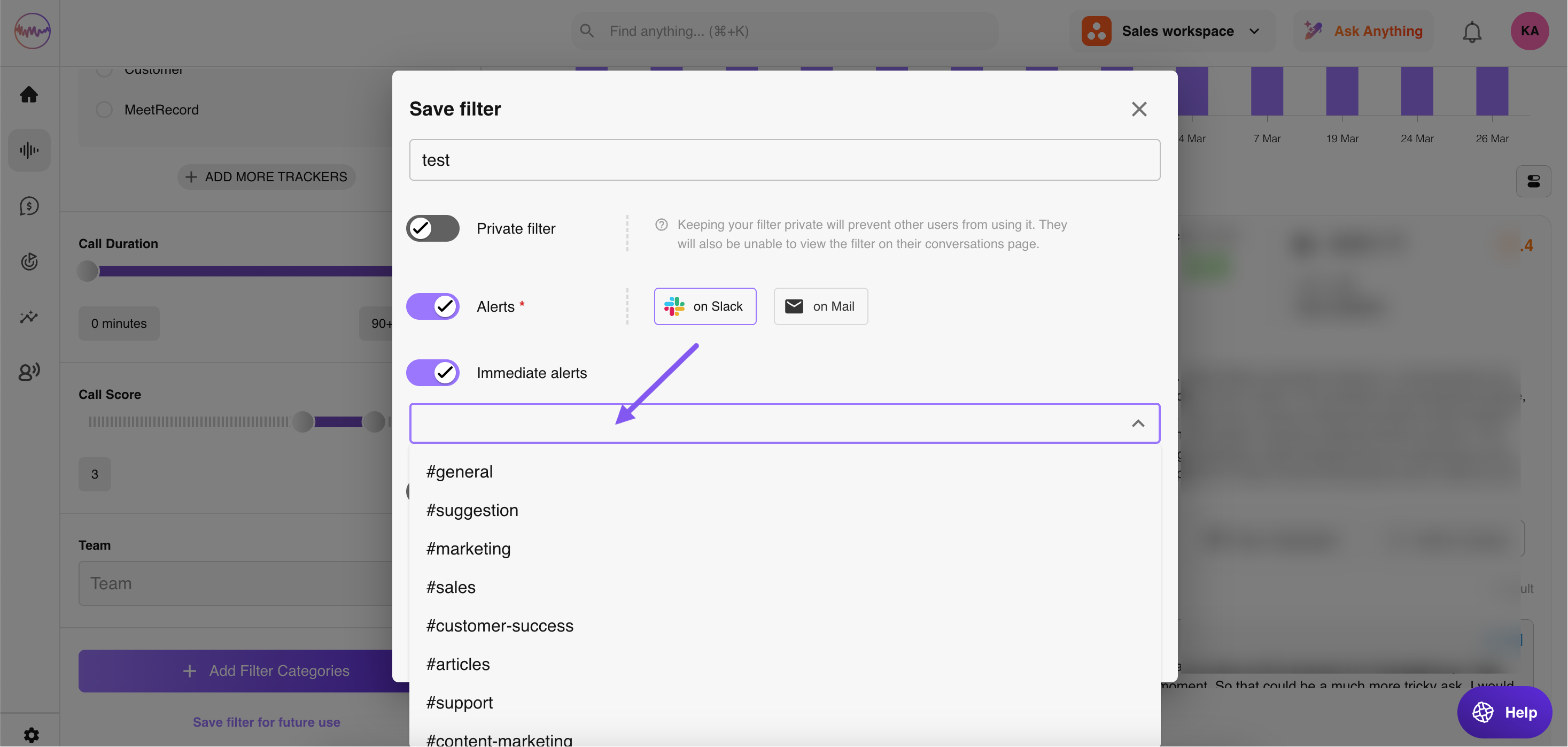
For Slack alerts: Choose Slack and set the alert frequency. For example, you can send alerts to #recordings immediately and to #sales as a weekly digest.
Alerts are sent only for meetings that happen after the alert is created. Meetings that have already taken place will not trigger an alert.
For any questions, write to support@outdoo.ai.