How to download a meeting
Learn how to download audio, video, or transcripts of your meetings in just a few simple steps using the three-dot menu.
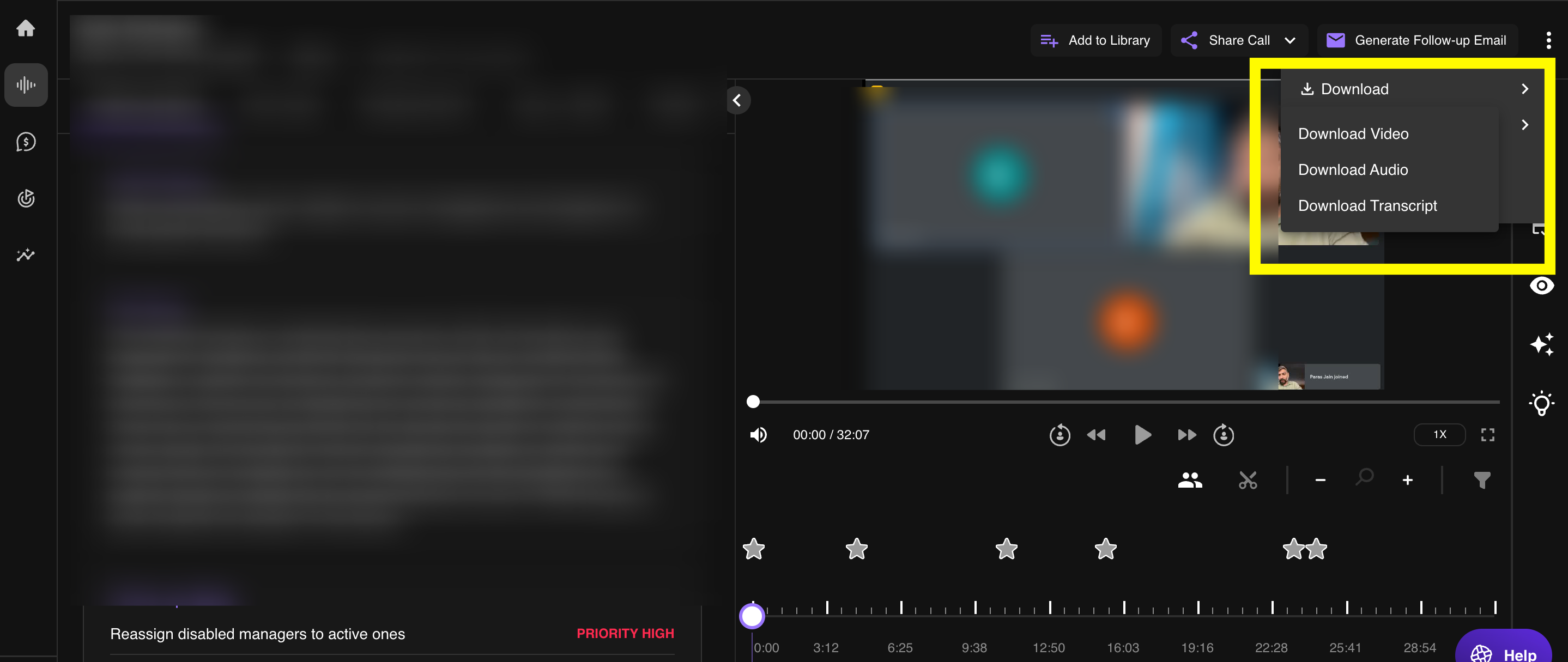
To download the audio, video, or transcript of a meeting, follow these steps:
- Open the call by navigating to the meeting in your account.
- Click the three-dot menu in the top-right corner of the meeting player.
- Select a download option from the menu:
- Audio to download the meeting's audio recording.
- Video to download the full video recording.
- Transcript to download the meeting transcript, if available.
- Save your file. The download will begin to your device.