
Home Page Overview
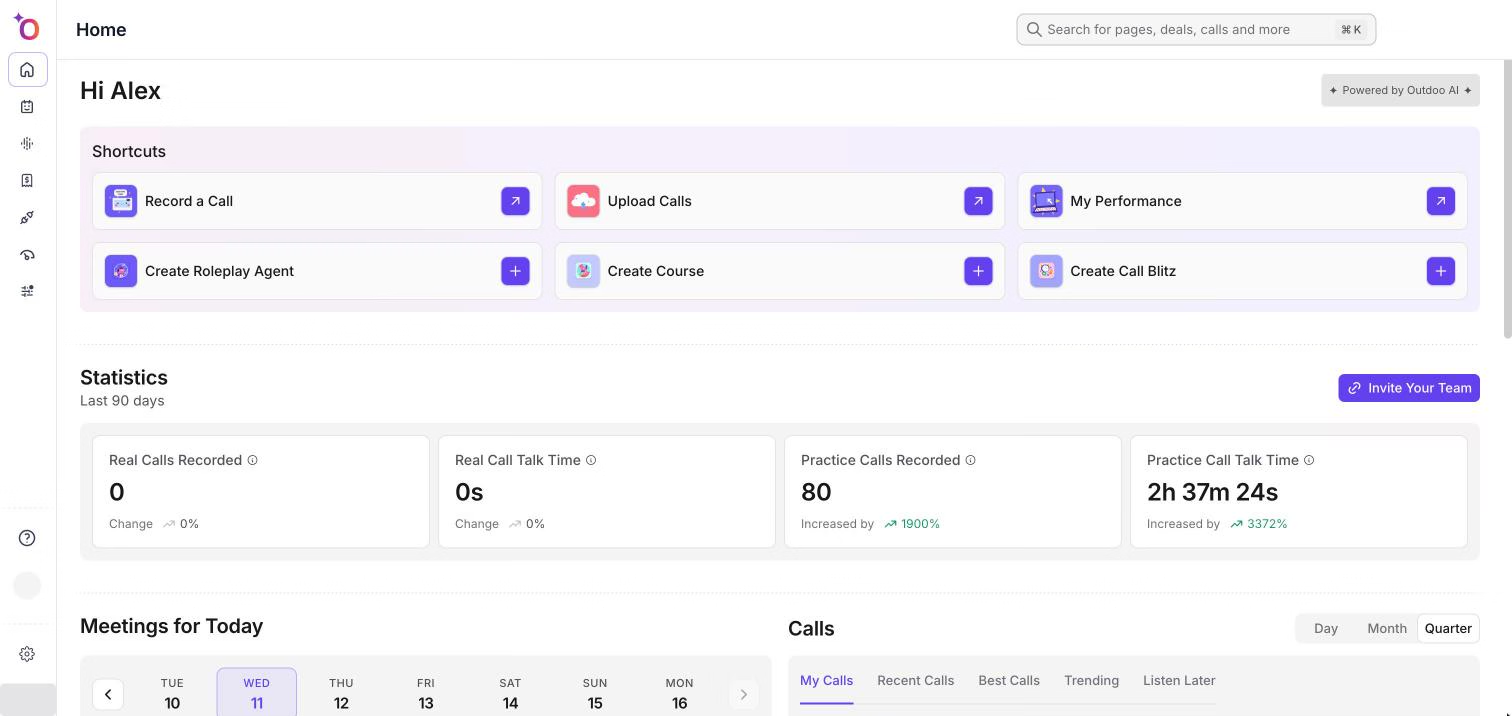
The Home page is the first screen you see after you sign in. It greets you by name and brings together shortcuts, statistics, today's meetings, your calls, courses and call blitzes. This article explains each section and why some sections may not appear for you.
What you see depends on your access
Home shows only what your company's subscription and your permission profile allow. If a section is missing, it usually means you do not have access to that feature. Ask your admin if you think you should.
Shortcuts
The Shortcuts section has cards for common actions. A card appears only if you have access to it:
- Record a Call: opens a window where you can record a call that is not on your calendar. See Record an Impromptu Call.
- Upload Calls: opens a file picker so you can upload a call recording. See Upload a Call.
- My Performance: opens your own performance page.
- Create Roleplay Agent, Create Course and Create Call Blitz: open the matching create pages. These need the Practice Calls app and permission to manage that item.
If none of these apply to you, the section is hidden.
Statistics
The Statistics section is labeled Last 90 days. It shows these cards, each with a change compared with the previous 90 days:
- Real Calls Recorded: real calls recorded in the last 90 days.
- Real Call Talk Time: total time spent on real calls in the last 90 days.
- Practice Calls Recorded: practice calls recorded in the last 90 days.
- Practice Call Talk Time: total time spent on practice calls in the last 90 days.
The change reads "Increased by" or "Decreased by" a percentage. If there is nothing to compare, you see "vs. previous 90 days" with a dash.
Real call cards need the Revenue Intelligence app and access to Calls. Practice call cards need the Practice Calls app and access to agents, courses, call blitzes or roleplays.
If you can manage team members, an Invite Your Team button also appears. It opens Team Management.
Meetings for Today
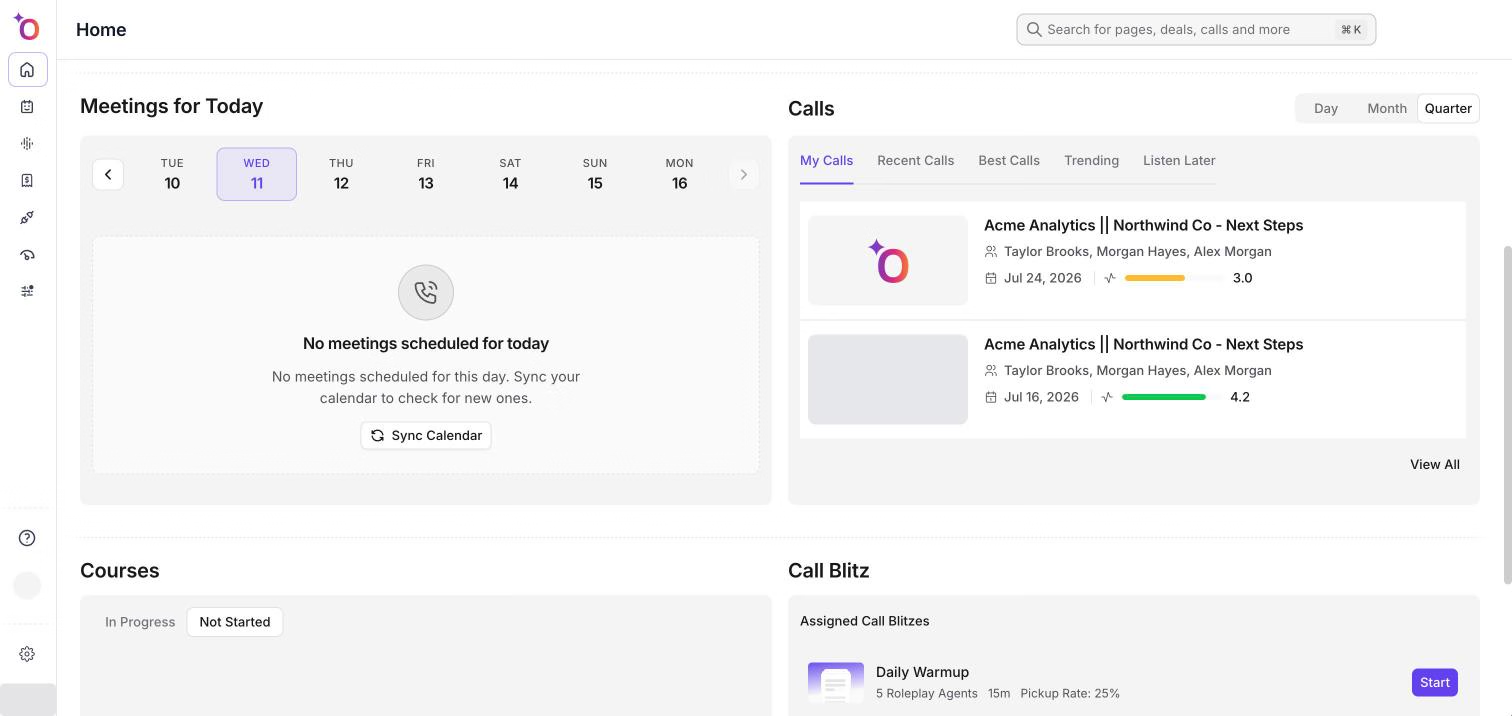
Meetings for Today lists meetings from your synced calendar.
- Pick a day in the strip at the top. Use the arrows (Previous week and Next week) to move through the days.
- For an upcoming meeting, the Record switch controls whether Outdoo AI joins and records it. Hover over it to read "Turn on to have Outdoo AI join and record this meeting."
- If you are an admin, a Private switch also appears. It marks the meeting's recording as private. It can be turned on only while Record is on.
- The button on each meeting says Join before the meeting and Rejoin while it is running. After the meeting, it shows the recording status.
- If the meeting was recorded, the button says Listen and opens the call. A short Call snap summary may appear under the meeting.
- Select Sync Calendar to refresh your meetings. If there are none, you see "No meetings scheduled for today" and a hint to sync your calendar.
To learn how recording works, see Record a Scheduled Call and Cancel a Recording.
Calls
The Calls section lists up to five calls. It appears when you have the Revenue Intelligence app and access to Calls.
- Use Day, Month or Quarter to choose the time range. The default is Quarter.
- Use the tabs to switch lists: My Calls, Recent Calls, Best Calls, Trending and Listen Later.
- Each row shows the call title, account, deal and stage. Select a row to open the call in a new tab.
- Select View All to open the full list of calls.
If a tab is empty, you see a message such as "No personal calls yet" or "Nothing saved for later".
Courses and Call Blitz
If you have the Practice Calls app and access, you also see:
- Courses: use the In Progress and Not Started tabs. Each course has a Start or Continue button. Select View All for the full list. With no courses, you see "No Courses Yet".
- Call Blitz: shows Assigned Call Blitzes. Select one to open it, or View All for the full list. With none, you see "No Call Blitzes Yet".
See Intro to Courses and Intro to Call Blitz.
Hope this article was helpful. For any queries, please write to support@outdoo.ai