
Courses overview
Courses let you build structured training programs using roleplay agents, resources, and assessments. A course combines the roleplay agents you have already created into a guided learning path, with timelines, passing criteria, and progress tracking for each learner.
Watch: How to Create a Sales Training Course + Certification (Step-by-Step)
What a course contains
A course brings together the roleplay agents you already have into one guided path, along with reference materials, pass criteria, a timeline, and an assigned audience.
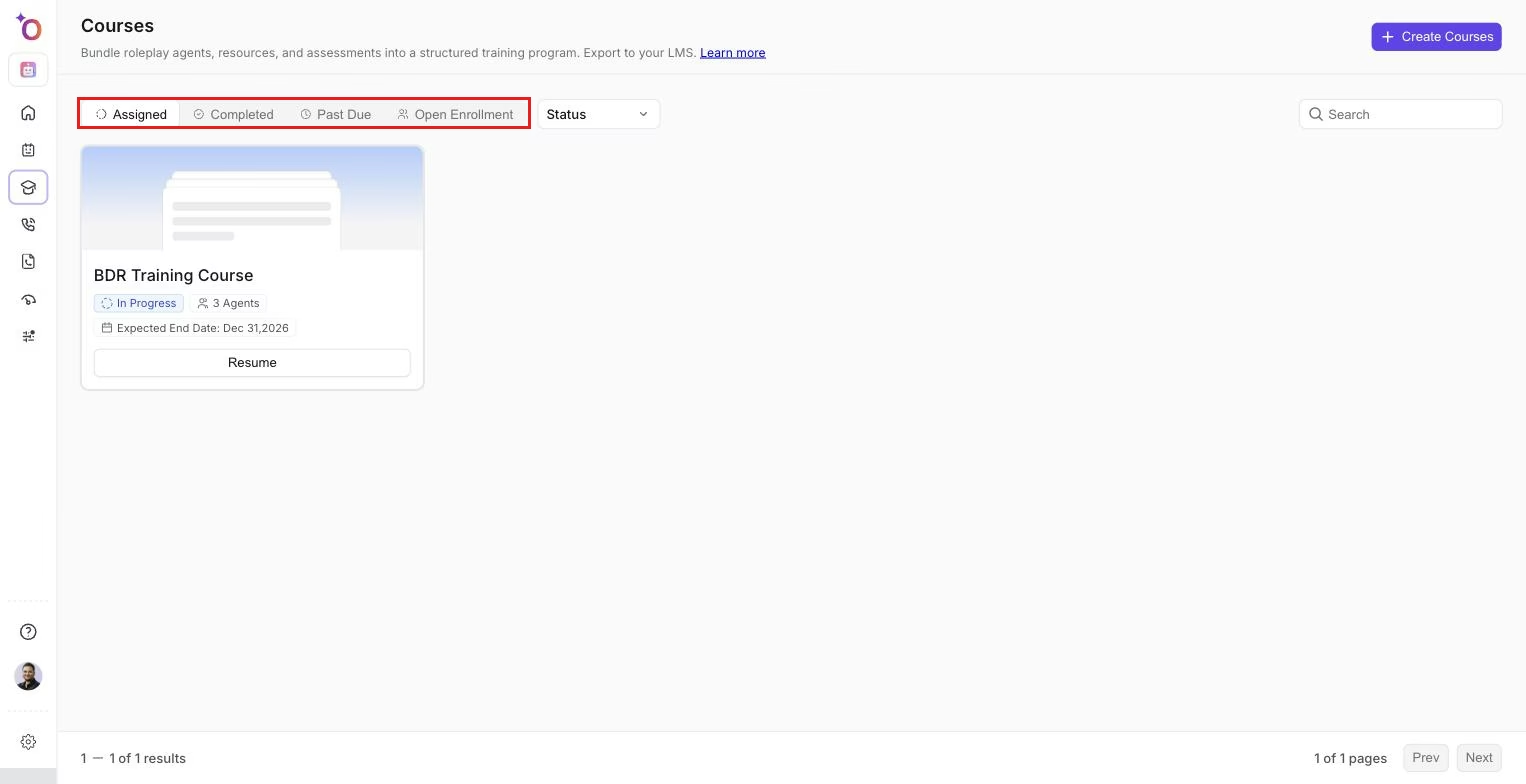 The learner's view of their courses, split into assigned, completed, and open enrollment tabs.
- Roleplay agents, used as the practice sessions or lessons
- Resources, such as documents, scripts, or videos to reference before or during practice
- Passing criteria, which set how many sessions a learner must attempt and pass
- A timeline, either a fixed duration from the start date or fixed calendar dates
- An audience, assigned to individuals, specific teams, or everyone
Learners see their progress, the number of sessions remaining, and whether they have met the passing threshold. They can continue from where they left off and, if re-attempts are enabled, retry failed sessions.
How to create a course
- Go to Manage > Courses and click Add a Course.
- Give the course a name and choose a background color.
- Select your audience: everyone, specific teams, or specific reportees.
- Add roleplay agents as lessons. Use filters to find the right agents quickly.
- Set passing criteria. For example: "Attempt at least 4 sessions, pass at least 3."
- Set the timeline: a fixed duration (for example, complete within 4 days of starting) or fixed calendar dates.
- Choose whether learners can complete sessions in any order or must follow a set sequence.
- Add resources if you have reference materials to attach.
- Enable re-attempts if you want learners to retry failed sessions.
- Save the course.
Exporting to your LMS (SCORM)
Any course can be exported as a SCORM 2004 (4th edition) package. Click the download button on the course and select Download as SCORM. Upload the file to your LMS to deliver Outdoo training through your existing learning platform.
Supported LMS platforms include:
- Docebo
- Cornerstone
- TalentLMS
- Workday Learning
- SAP Litmos
- Moodle
- D2L Brightspace
- 360Learning
- LearnUpon
- Absorb LMS
- Most other modern LMS and LXP systems
See: Course certifications | Managing certifications (for managers)
If you need help, contact us at support@outdoo.ai.