
Cancel a Recording
When a meeting is scheduled in Outdoo AI and pre-call reminder emails are enabled, prospects receive a notification before the call begins. If the meeting is canceled, you need to make sure prospects don't receive this email. To prevent it, you must cancel the scheduled recording in Outdoo AI, not just in the calendar. How you cancel depends on how the meeting was originally scheduled, as cancellations may happen automatically or require manual action.
Understanding the Background
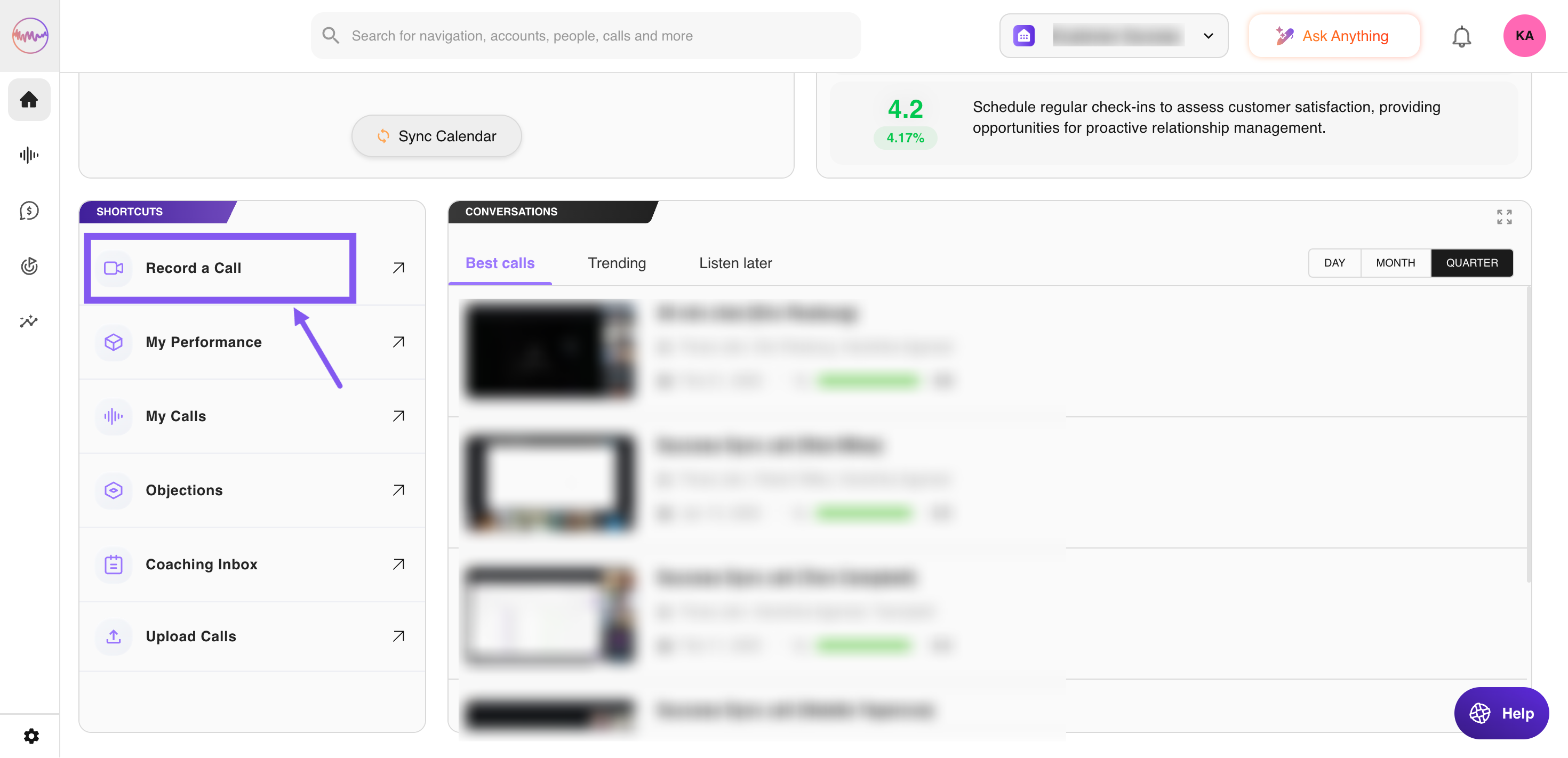
Outdoo AI schedules and records meetings using different methods. The most common is calendar sync, but meetings can also be scheduled manually via Shortcuts > Record a Call on the homepage.
1. Calendar Sync
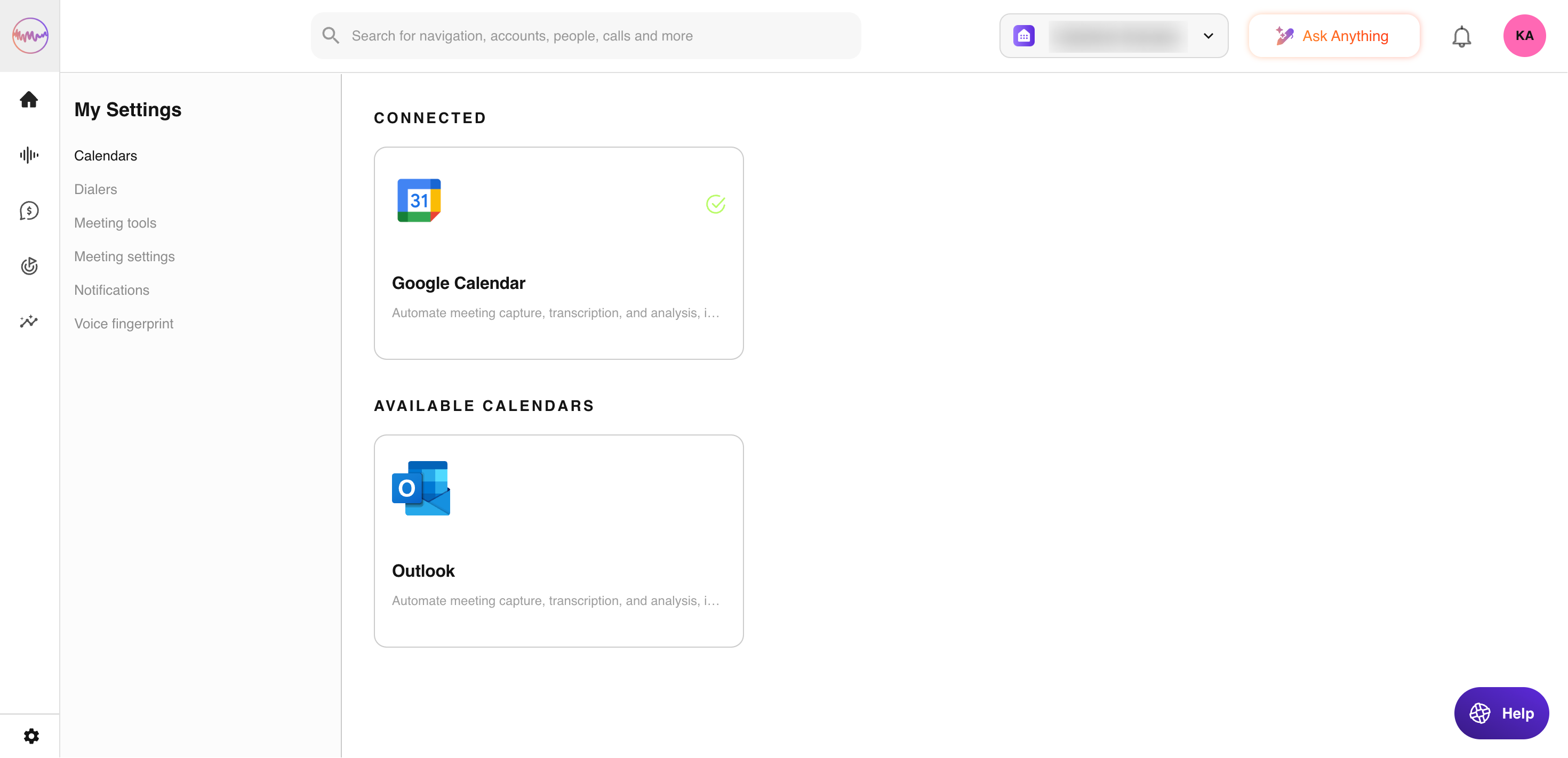
When you have permission to record web conference calls, Outdoo AI accesses your calendar to identify events with web conferencing links and determines if recordings should be scheduled based on your organization's settings.
Changes to calendar events are detected by Outdoo AI (typically within 15–30 minutes), and recordings are updated accordingly. Updates or cancellations to recurring meetings are automatically reflected in Outdoo AI, so no manual intervention is required.
2. Manual Recording
Meetings can also be recorded via the Record a Call feature in Outdoo AI > Home > Shortcuts. These meetings must be canceled by sending a cancellation email to the assistant email or managing them via the homepage.
Canceling Meetings: Best Practices
Meetings Scheduled via the Calendar
Calendar-scheduled meetings, whether one-time or recurring, are canceled automatically when they are removed from the calendar. To cancel an entire series, ensure all instances are deleted from the calendar, not just one occurrence. Always select the option to send cancellation emails to all event participants. This ensures no conflicting recordings remain active in Outdoo AI due to other invited participants.
You can also manage cancellations via Outdoo AI > Home:
- Navigate to Home > View Upcoming Calls.
- Toggle the Record option.
- You can cancel just the current recording.
When in Doubt
Managing cancellations via the Home Page is the most reliable way to ensure meetings are fully canceled. This lets you track future meetings and confirm cancellations.
Other Considerations
Shadow Calendar Events
In some cases, a separate calendar event with the same name and details may be created by a user. These "shadow events" can trigger pre-call emails even if the original meeting is canceled. Make sure all duplicate or shadow events are also canceled to prevent notifications.
Users Without Manual Scheduling Permissions
If a meeting was manually scheduled by a user who later loses permission to record manually, they cannot cancel the recording via the assistant email. These users must check the Outdoo AI homepage for any remaining meetings and cancel recordings directly through the interface.
If you need any help, please contact support at support@outdoo.ai.