
Zoom Phone Integration with Outdoo AI
📘 Outdoo AI + Zoom Phone Integration Guide
Zoom Phone is a cloud-based phone system from Zoom that enhances business communication by combining voice calls with Zoom's suite of collaboration tools. By integrating Zoom Phone with Outdoo AI, you can effortlessly log and analyze calls, gain AI-driven insights, and build a powerful call repository to coach your team and improve performance.
🔄 Adding the Outdoo AI App to Zoom
Follow these steps to connect your Zoom Phone with Outdoo AI:
- Log in to Outdoo AI.
- Click on your avatar at the top right corner and navigate to My Settings → Dialers.
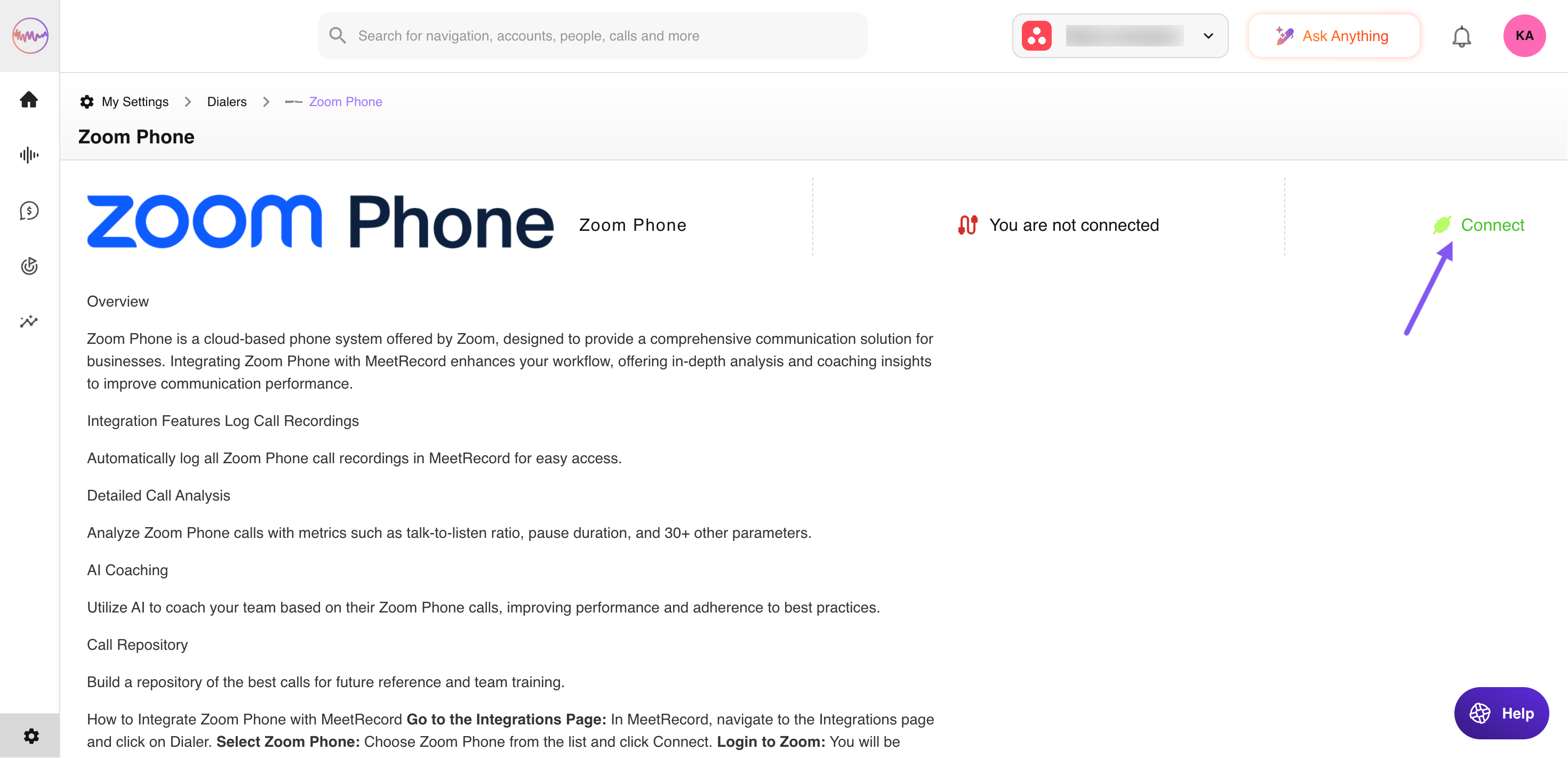
- Select Zoom Phone from the list of Dialers.
- Click Connect next to Zoom Phone.
- You'll be redirected to the Zoom login page.
- Enter your Zoom credentials and approve the integration.
If you experience issues, refer to the Troubleshooting section.
🚀 Usage Instructions
Integration Features
- ✅ Log Zoom Phone call recordings in Outdoo AI automatically.
- ✅ Analyze calls with 30+ AI-driven performance metrics (call-to-listen ratio, pause duration, talk ratio, etc.).
- ✅ Enable AI Coaching for Zoom Phone calls to generate personalized feedback.
- ✅ Build a repository of best calls to use in onboarding, training, and performance benchmarking.
Pre-requisites
- Active Zoom Phone subscription.
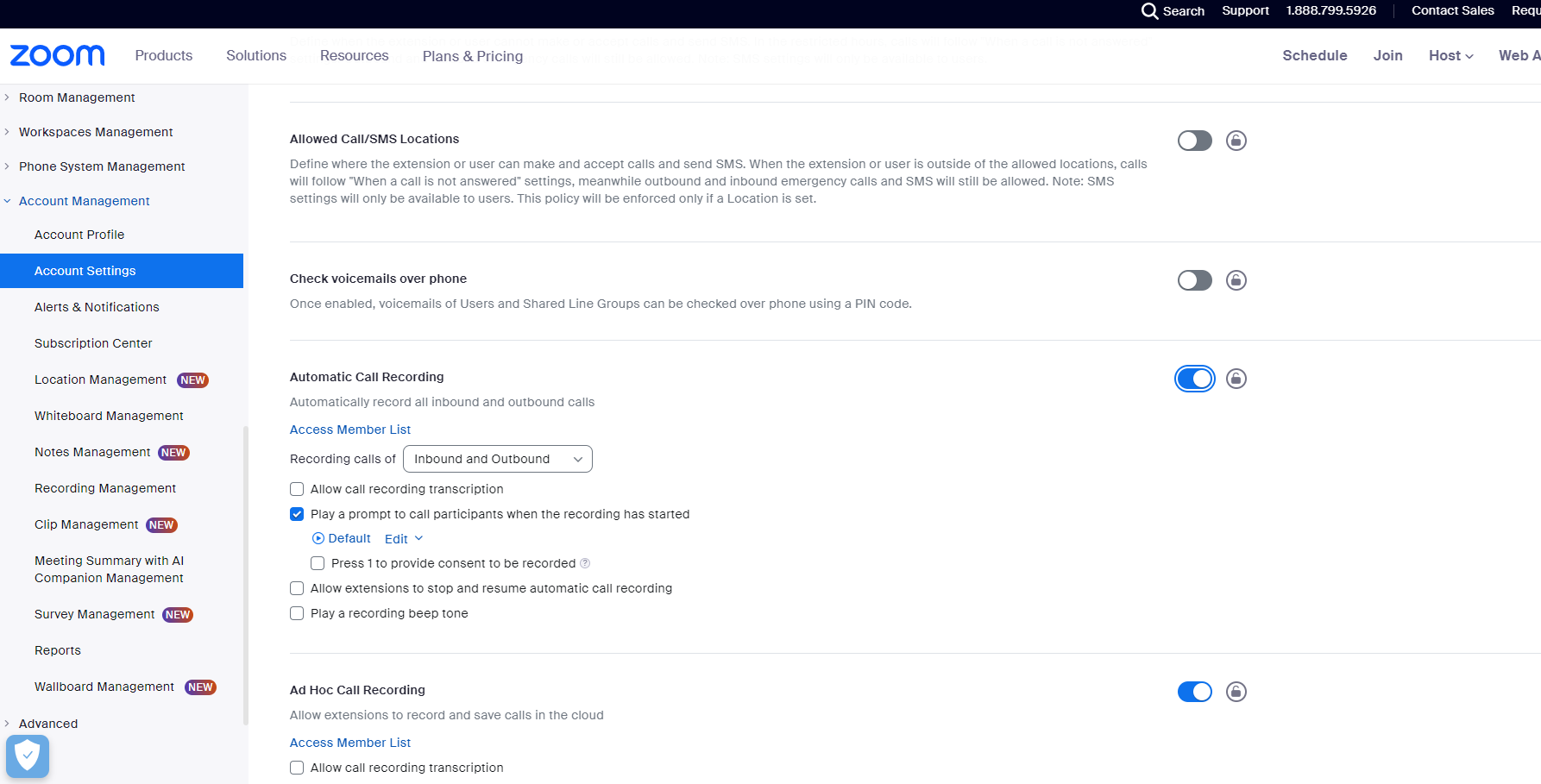
Automatic Call Recording must be enabled:
- Zoom → Account Management → Account Settings → Automatic Call Recording → Turn ON
❌ Removing the Outdoo AI App from Zoom
To disconnect Outdoo AI from your Zoom account:
- Log in to your Zoom account and navigate to the Zoom App Marketplace.
- Click Manage → Added Apps or search for the Outdoo AI app.
- Select the Outdoo AI app.
- Click Remove.
Implications of Removal
- Logged recordings and analytics already in Outdoo AI will remain intact unless manually deleted.
- No new Zoom Phone data will sync with Outdoo AI after removal.
Data Handling Post-Removal
- All previously stored data remains secure and accessible within Outdoo AI.
- You may request permanent deletion by contacting support.
🛠 Troubleshooting Common Integration Issues
Recording not showing in Outdoo AI? Try the following:
- ✅ Check Connection: Go to the Integrations page in Outdoo AI and verify the Zoom Phone connection is active.
- 🔄 Reconnect: Click Disconnect, then Connect again to reauthorize access.
- ⚙️ Verify Zoom Settings: Navigate to Zoom → Account Management → Account Settings → Automatic Call Recording → Ensure it is enabled (ON).
❓ Frequently Asked Questions
Q: Do I need admin permissions to connect Zoom Phone? A: Yes, you must be an admin or have relevant permissions on both Zoom and Outdoo AI.
Q: Can I selectively log only certain Zoom Phone calls? A: No, all automatically recorded calls are pulled into Outdoo AI once connected.
Q: What happens to data if I downgrade or cancel Zoom Phone? A: Existing data remains in Outdoo AI, but new calls won't be recorded or analyzed.
📞 Contact Support
Need help? Reach out to our support team:
- 📬 Email: support@outdoo.ai
- 📚 Knowledge Base: help.outdoo.ai